End of Day
End of Day (EOD) closes the store out for the business date. You count the drawer, prepare the deposit (the cash bag going to the bank), and close the day's books so nothing else can post to that date.
Closing the day is final
The last step — Confirm & End Day — closes the business date and cannot be undone. Nothing else posts to a closed day. Count carefully and read each confirmation before you click through.
Before you start
- Make sure the day's work is wrapped up — payments applied, ROs closed, any Shop Supply (Paid Out) entries received. The drawer count pulls from these, so anything left open makes the drawer come up short.
- Go to Company → End Of Day in the left menu (or
/end-of-day/). - Have the physical drawer in front of you. You're counting real cash — what you enter is exactly what's in the till.
Walkthrough
This is the sunny-day path — the count balances, there are no checks, and the whole drawer stays as the next day's float. Step through the slides with the chips at the top, the Previous / Next buttons, or the ← → arrow keys.
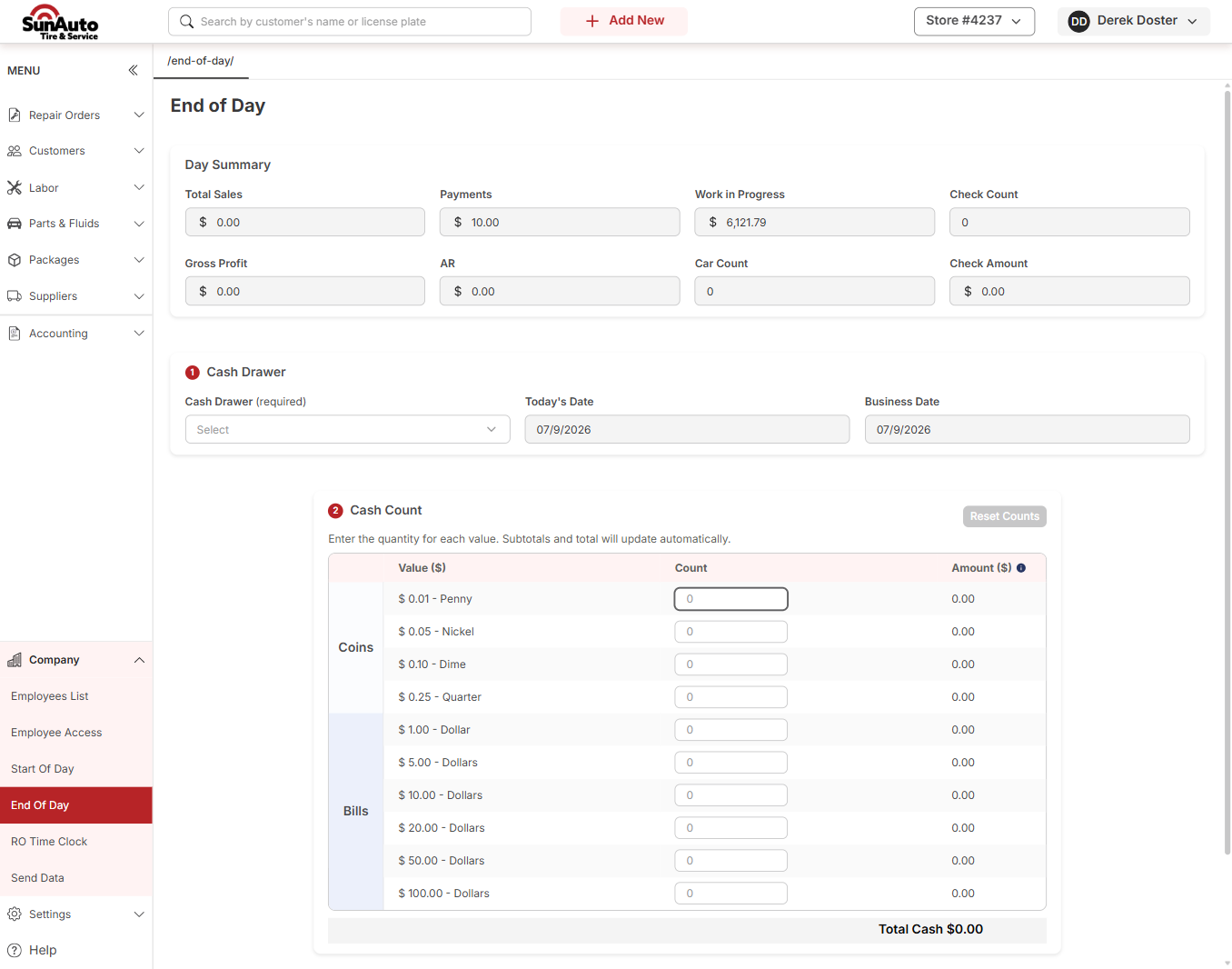
Step 1 — Open End of Day and review the summary. The page opens with a read-only Day Summary (Total Sales, Payments, Work in Progress, Check Count, Gross Profit, AR, Car Count, Check Amount) — nothing to enter, just a snapshot of the day. Below it are the two things you fill in: ① Cash Drawer and ② Cash Count. The End Day button at the bottom stays disabled until a drawer is selected.
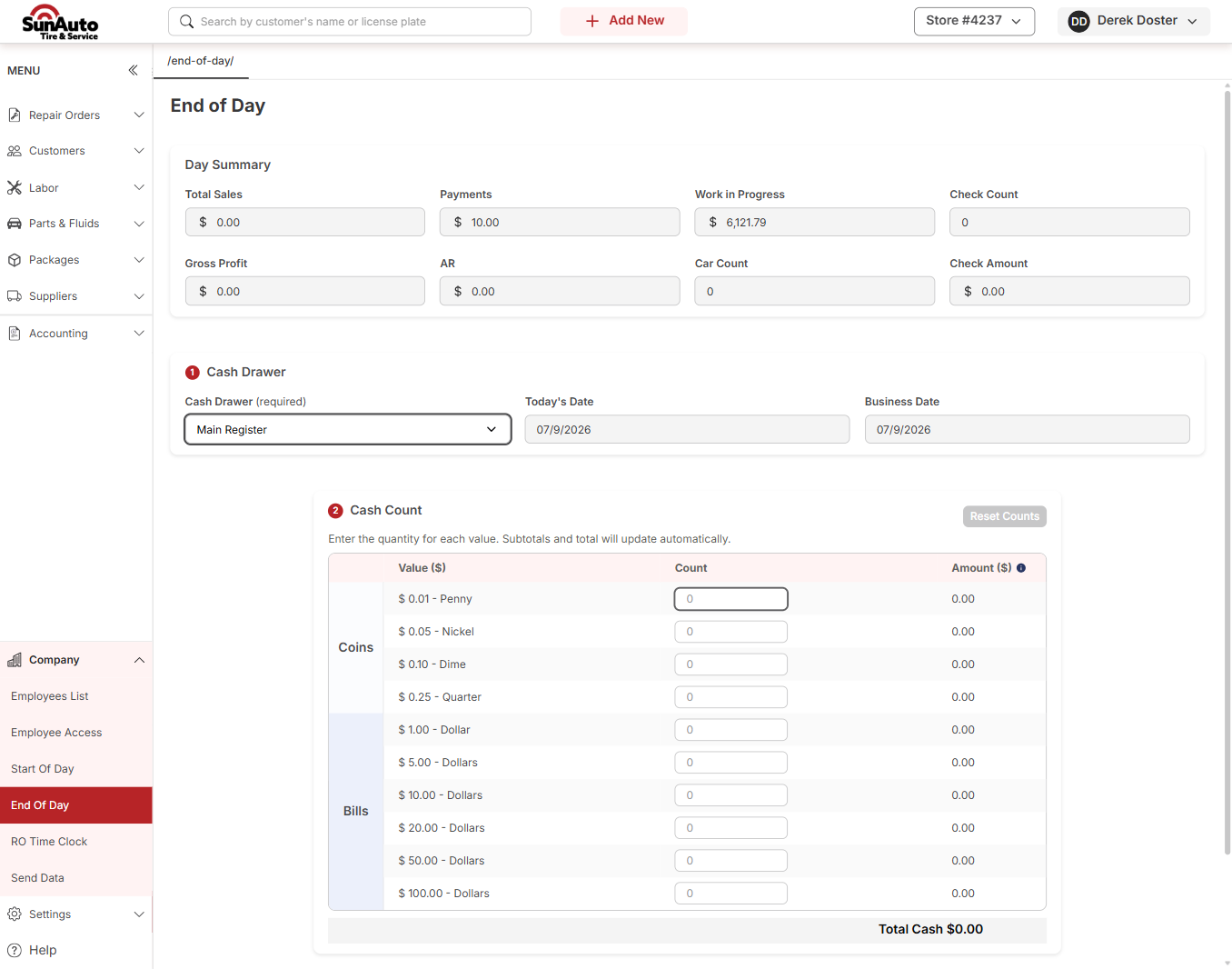
Step 2 — Pick the Cash Drawer. Under ① Cash Drawer, open the required dropdown and choose your register — here, Main Register. Today's Date and Business Date are filled in automatically and are read-only. Selecting the drawer is what unlocks the rest of the close.
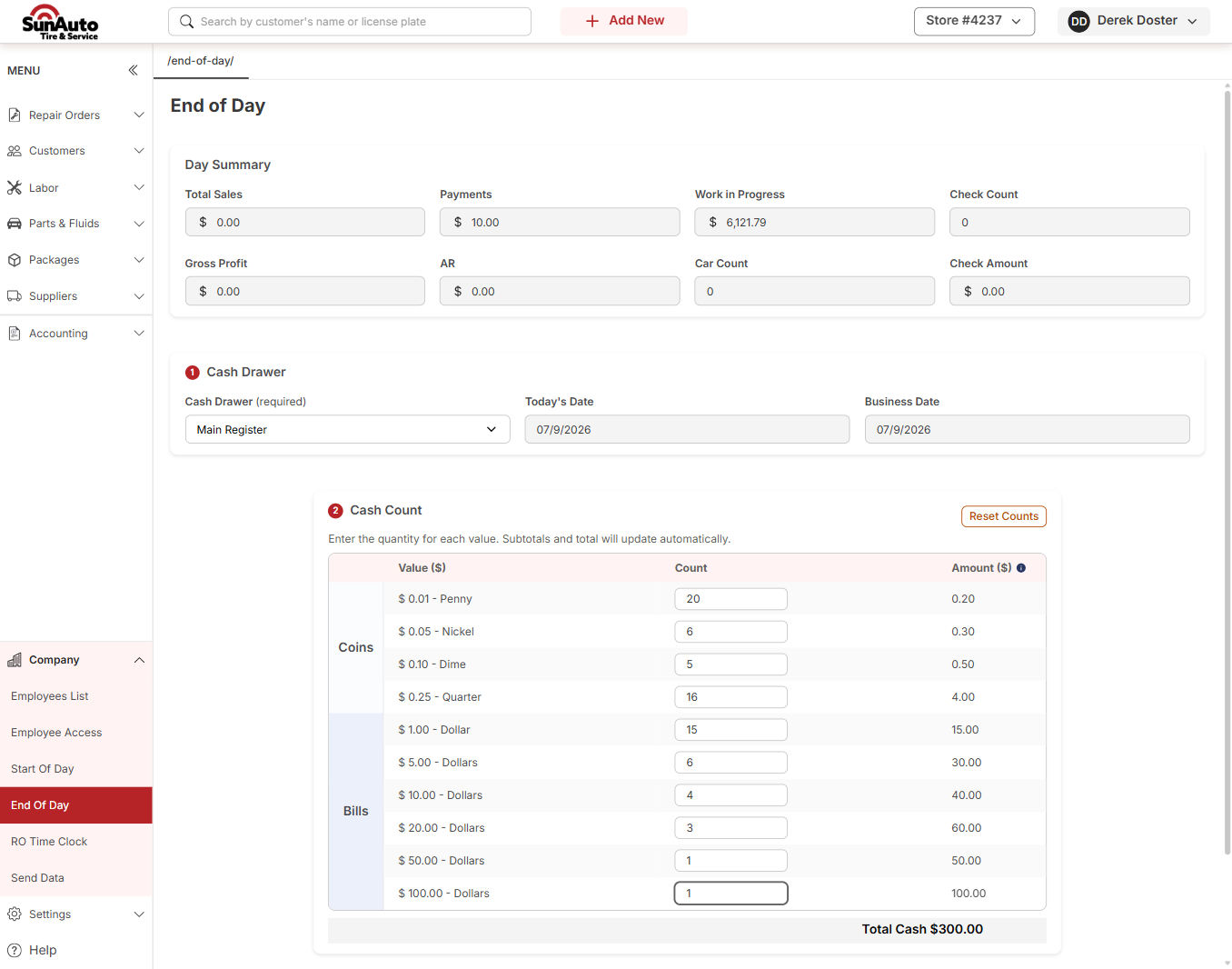
Step 3 — Enter the Cash Count. Under ② Cash Count, type the quantity of each coin and bill you counted. The Amount column and Total Cash tally automatically — you never type a dollar figure, just how many of each. In this example the drawer totals $300.00. Once the count is in, End Day turns active; click it.
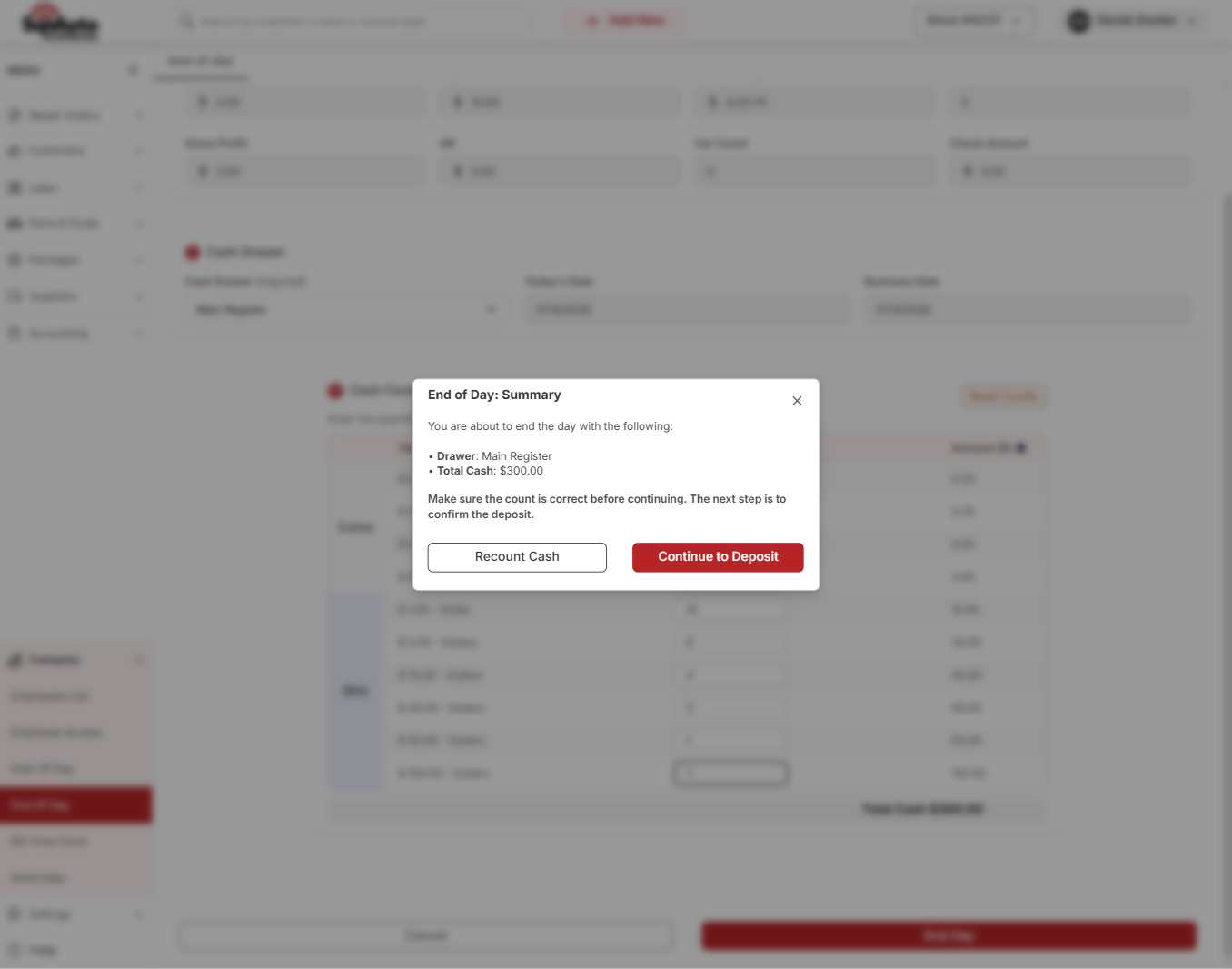
Step 4 — Confirm the summary. The End of Day: Summary dialog recaps the drawer and the total you counted. Eyeball the Drawer and Total Cash — if the count looks wrong, click Recount Cash to go back. When it's right, click Continue to Deposit.
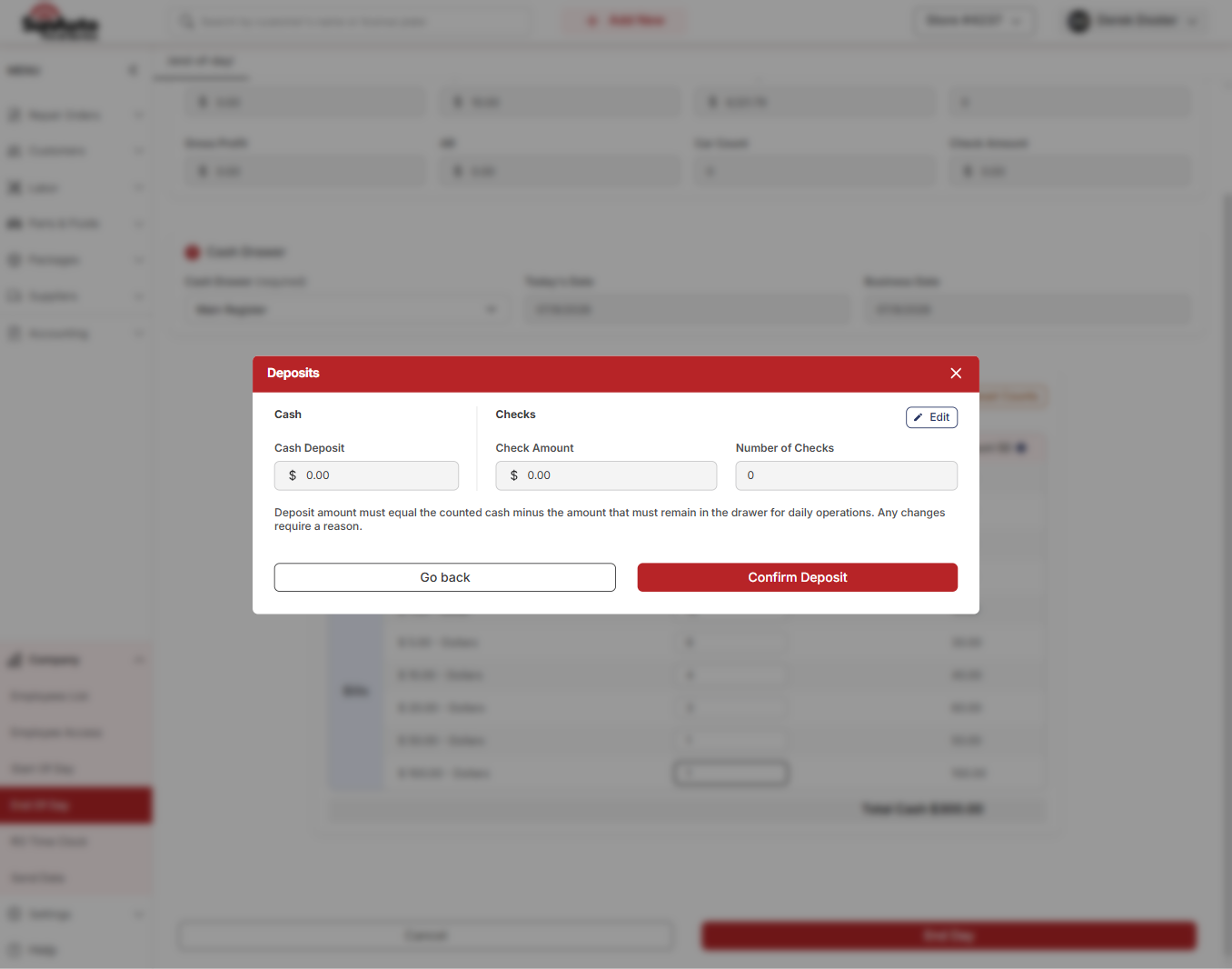
Step 5 — Confirm the deposit. The Deposits dialog is where you set what leaves for the bank. The deposit equals the counted cash minus the float that stays in the drawer for tomorrow — and any change needs a reason. Use Edit next to Checks if there are checks to deposit. On this sunny-day close there are no checks and nothing is being deposited, so the amounts stay at $0.00. Click Confirm Deposit.
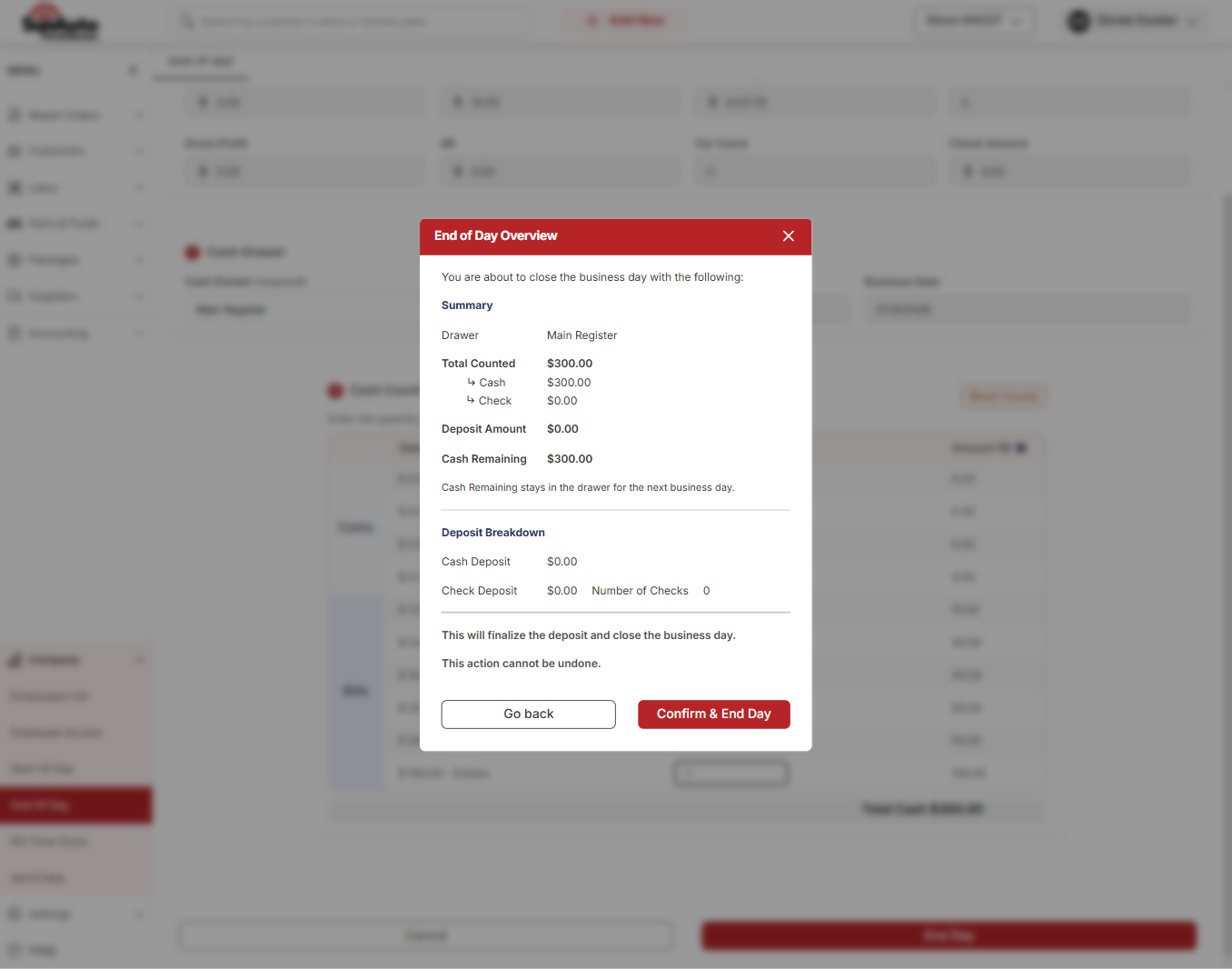
Step 6 — Review the overview and close. The End of Day Overview lays out the whole close: Total Counted $300.00, Deposit Amount $0.00, and Cash Remaining $300.00 (the full drawer stays as tomorrow's float). Below it, the Deposit Breakdown shows $0.00 cash and no checks. This is the point of no return — the dialog warns the close cannot be undone. When it all lines up, click Confirm & End Day. OverDrive finalizes the deposit, closes the business date, and drops you back on the Active Repair Orders board.
When the count doesn't balance
The walkthrough above assumes the drawer matches. If the count is well off from what OverDrive expects, clicking End Day brings up Cash Count Mismatch instead of the summary — you're unlikely to see this window unless something real is missing or extra:
Design preview
The windows in this section and the next come from the OverDrive design file; the live screens may differ slightly.
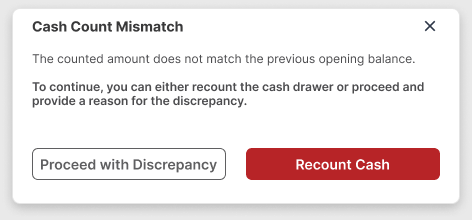
- Recount Cash first. It closes the window and puts you back on the count — everything you entered stays in place. Most variances are a miscount or a mistyped quantity. Recount the till, then work the usual suspects: a payment that never got applied, a Shop Supply (Paid Out) entry that wasn't received, a payment on the wrong RO. The EOD Won't Balance playbook walks that list in order.
- If the drawer really is over or short, click Proceed with Discrepancy. OverDrive asks for a Reason — it's required, and it's recorded:
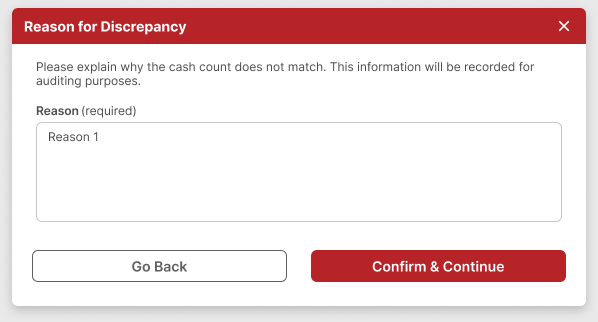
Write what actually happened ("$20 short — recounted twice, no missed payments found"), click Confirm & Continue, and the close carries on to the deposit as normal. Don't massage the counts to dodge this window — a real variance belongs on record.
Checks and deposit changes
Two things you'll hit at the Deposits step on busier days than the sunny-day close above:
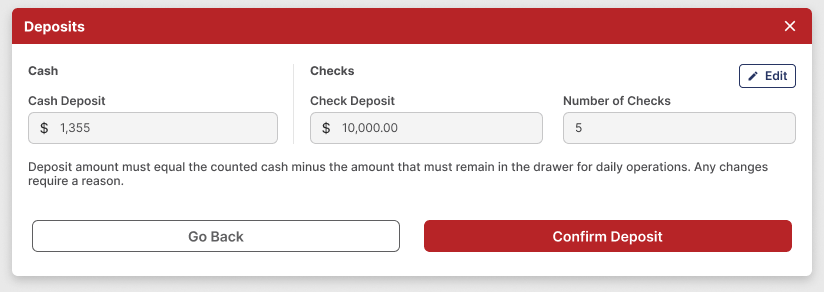
Checks fill in on their own. Every payment taken by check during the business day is already totaled when the Deposits window opens — the Check Deposit amount and Number of Checks come straight from the day's transactions, and the fields are read-only:
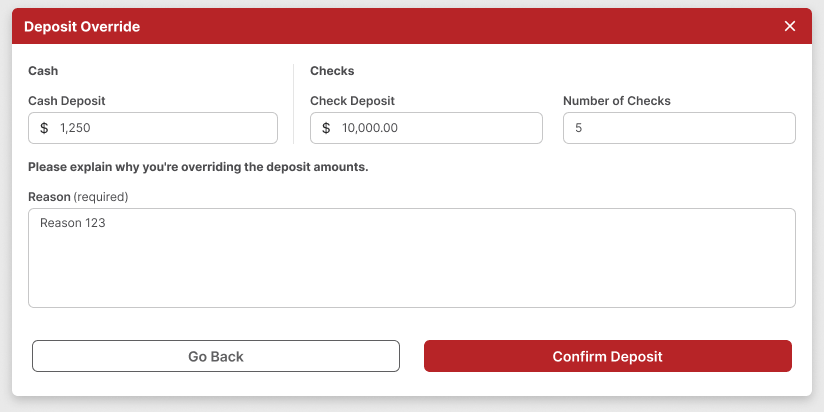
Changing any deposit amount requires a reason. Click Edit and the Deposit Override window opens with the amounts unlocked. Whatever you change — the cash going to the bank, the check total — Confirm Deposit stays disabled until you've written a reason. It's recorded, same as a count discrepancy:
A few things to keep in mind
- You enter counts, not dollars. Type how many of each coin and bill. OverDrive does the math — the Total Cash is what you're certifying.
- Deposit = counted cash − drawer float. Whatever stays behind is the starting cash for the next business day. Changing the deposit amount requires a reason, so it's traceable.
- Checks count themselves. Check payments taken during the day land in the deposit automatically — see Checks and deposit changes.
- Don't fudge a variance. If the count is off, it's off — recount and chase the cause. Making the numbers "look right" hides a real problem the EOD Won't Balance playbook is meant to catch.
- A quiet close isn't the same as a balanced drawer. A small over or short won't stop the close, but it's still recorded. The count is blind on purpose — OverDrive won't show you what the drawer "should" hold — so the only way to close clean is to count what's actually there, every night.
- Closed is closed. Once you confirm, nothing else posts to that business date. A late payment or correction has to land on the next open day.