Specifications
OverDrive looks up the vehicle by VIN and gives you its factory numbers right on the Repair Order — oil type and capacity, lug torque, fluid grades, torque specs, and reset procedures. You don't need a separate lookup tool or a phone call to the tech.
There are two places to find them: the Specs panel on the RO for the everyday numbers, and More Specifications for everything else.
The Specs panel
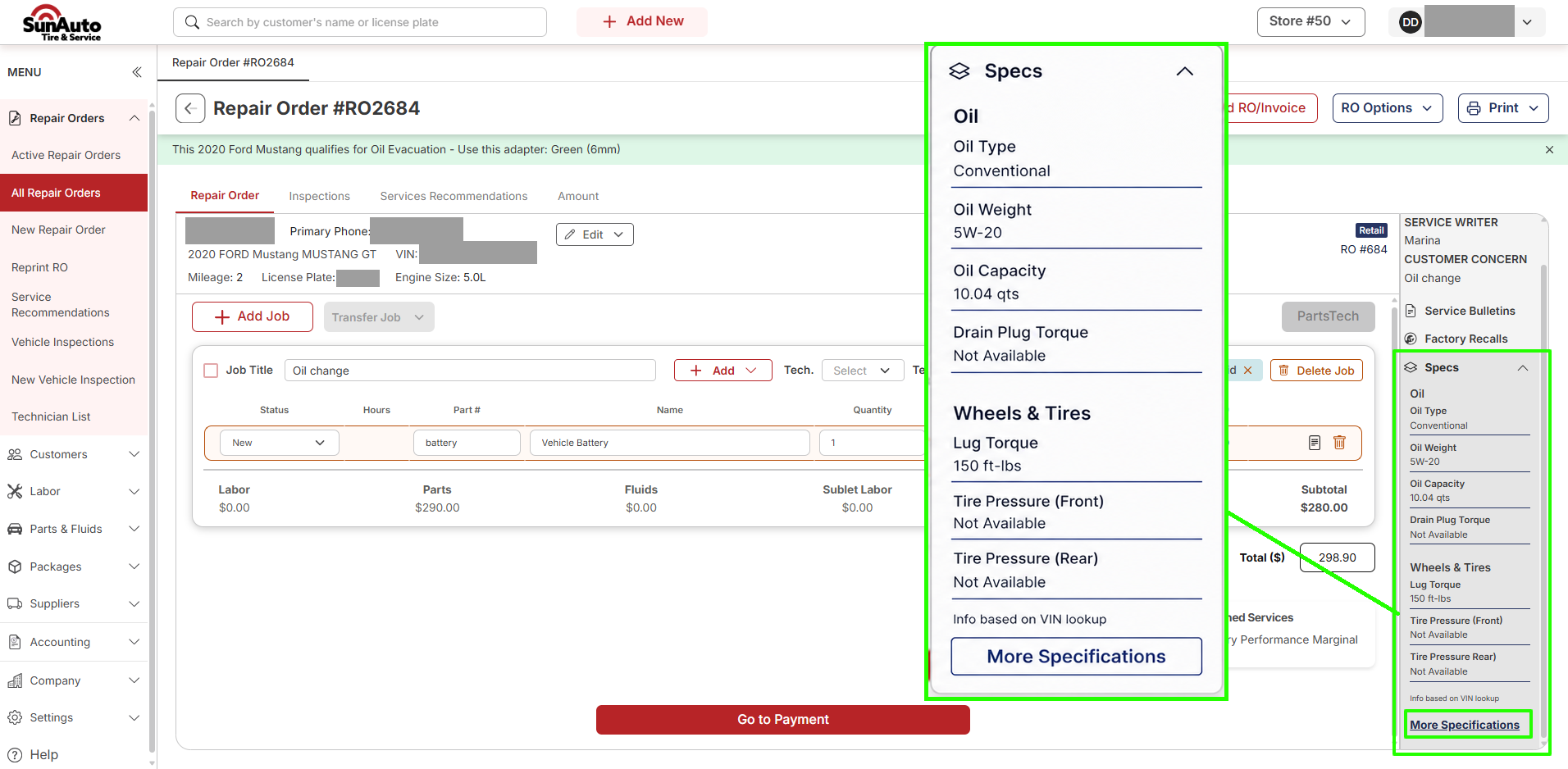
The Specs panel sits on the right side of the Repair Order. It's the quick answer — the handful of numbers you need on almost every ticket.
 1
Specs — expand or collapse the panel with the chevron. It stays with the RO.
2
Oil and Wheels & Tires — Oil Type, Oil Weight, Oil Capacity, Drain Plug Torque, Lug Torque, and Tire Pressure front and rear.
3
More Specifications — opens the full Service Guides reference for this vehicle.
Everything in the panel comes from the VIN — the footer says Info based on VIN lookup. A value the lookup doesn't have reads Not Available rather than being wrong or blank; when that happens, go to More Specifications.
The specs follow the VIN
If the wrong vehicle is on the RO, the specs are the wrong vehicle's specs. Check the year, make, and model in the RO header against the car in the bay before you pour anything.
More Specifications
Click More Specifications and the Service Guides window opens over the RO. Across the top are four tabs — LABOR, MAINTENANCE, FLUIDS, and SPECIFICATIONS. Down the left is a list of categories with a Search box above it; click a category and its values fill the right side. Close it with the X when you're done.
Pick the tab for what you need.
SPECIFICATIONS tab → Quick Lubrication. This is the oil-change category — drain plug torque, engine oil capacity, differential capacity, and the fill and drain plug torques. Other categories on this tab cover brakes, axle nuts, A/C, and cylinder head tightening.
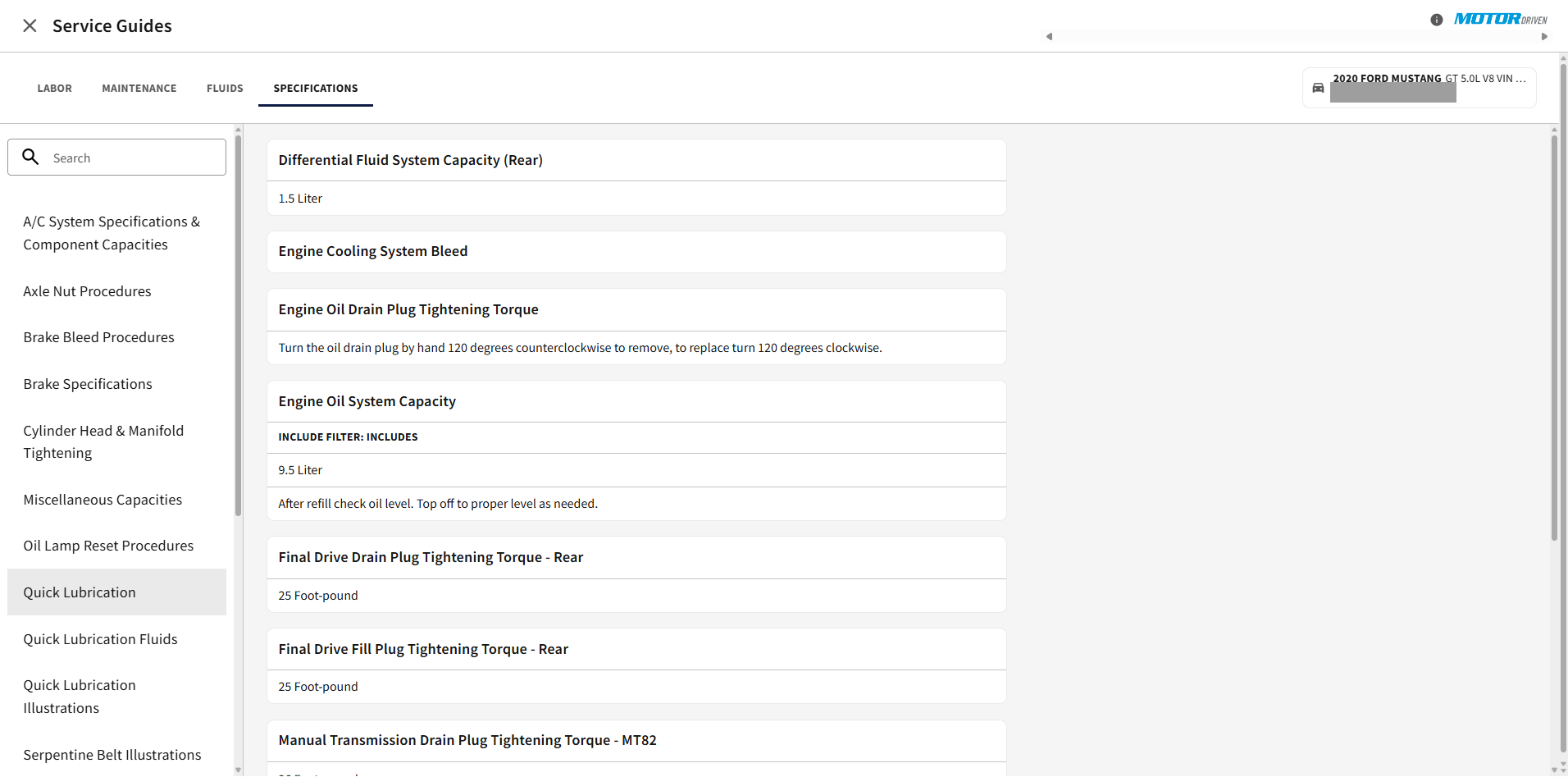 1Search — type instead of scrolling the category list.
2Quick Lubrication — the selected category. The right side changes with it.
3The value cards — each one is a spec. Some are numbers, some are a written procedure.
4Vehicle header — confirms which vehicle you're reading specs for.
Read the unit before you act on a number. Capacities come back in Liter, torques in Foot-pound — the panel on the RO shows quarts, this window may not.
FLUIDS tab. The left list is one row per fluid — brake, clutch, coolant, engine oil, A/C refrigerant, differential, and transmission (split by automatic or manual, and by differential type). Click the one you need and the right side gives the grade and the system capacity.
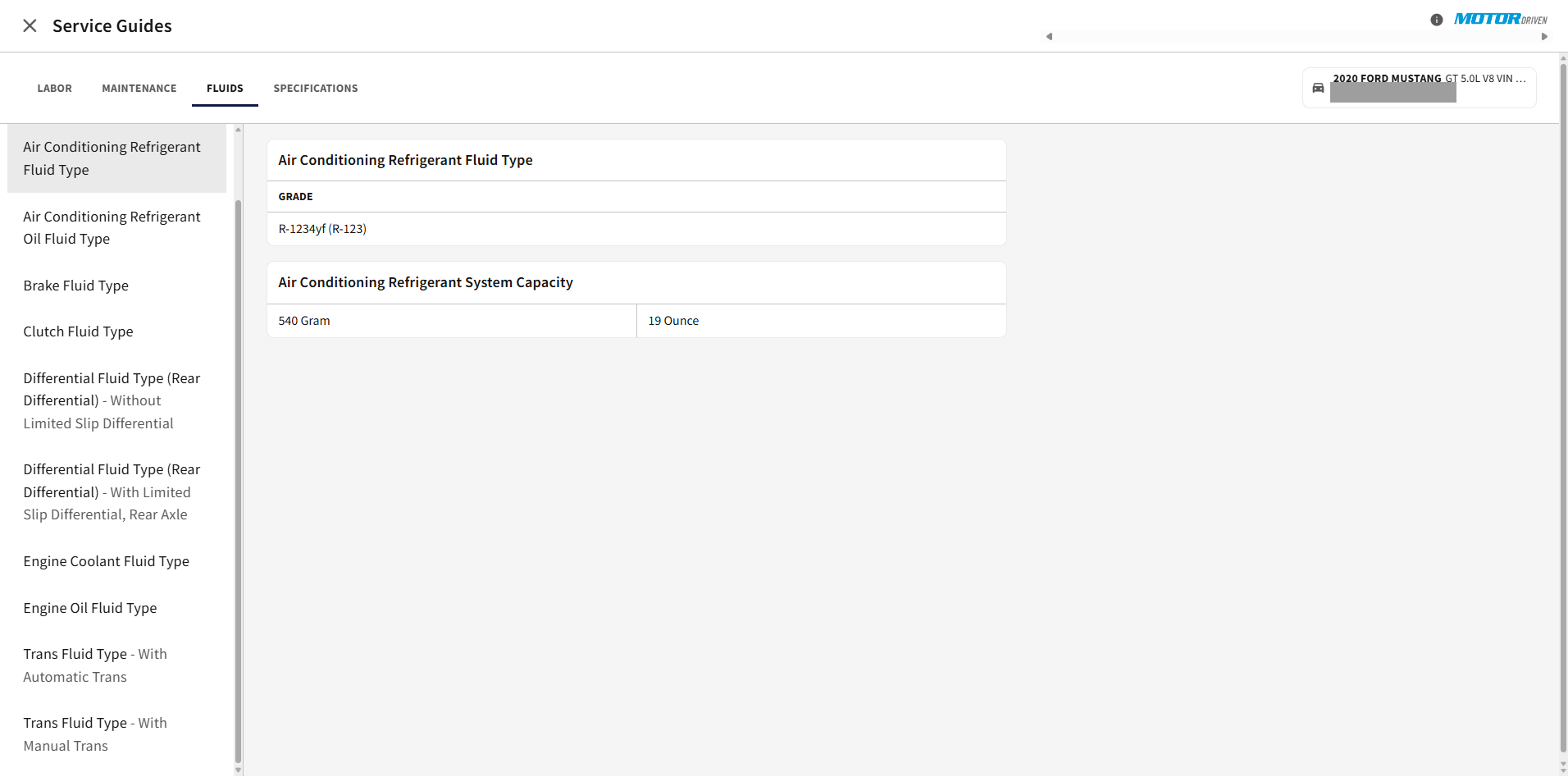 1Fluid list — pick the exact one. Differential and transmission are split by configuration, so read the full row.
2GRADE — the fluid spec to use.
3System capacity — often given in two units side by side.
Match the grade to the fluid you're actually putting in the vehicle before you add the line to the RO.
SPECIFICATIONS tab → Oil Lamp Reset Procedures. This one is a written procedure, not a number — the steps to reset the oil life indicator for this vehicle. Long procedures are cut off with a Read more link.
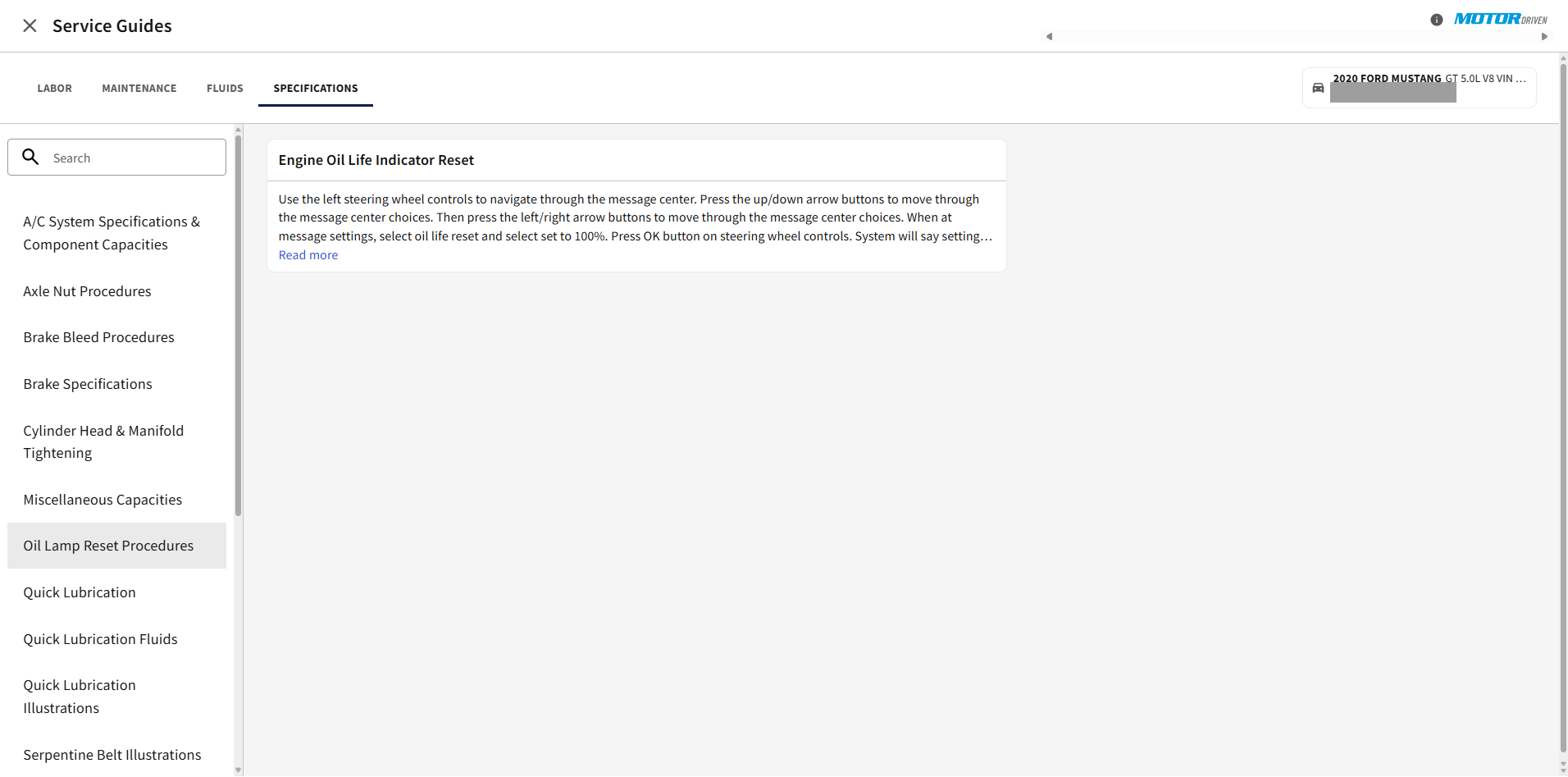 1Oil Lamp Reset Procedures — the category to click.
2Engine Oil Life Indicator Reset — the procedure for this vehicle, step by step.
3Read more — opens the rest of the procedure. Read it to the end before starting.
A few things to keep in mind
- The panel is the shortcut, the window is the reference. If the number you want is in the Specs panel, use it. Go to More Specifications for anything else.
- Watch the units. The window mixes metric and imperial — Liter, Gram, Ounce, Foot-pound. The number is only right with its unit.
- Not Available means the lookup has no value, not that the vehicle has no spec. Try the matching category under More Specifications.
- This is reference data from a third-party catalog. It's there to save you a lookup, not to replace the manufacturer's procedure or the tech's judgment.
Related
- Adding Parts — putting the fluid or part you just looked up on the RO.
- Creating an RO — getting the right vehicle on the ticket in the first place, which is what the specs key off.