Receiving Parts
When the supplier delivers the parts you ordered, you mark the PO as Received so the parts show up on the shelf and the stock count updates. This is also where the invoice number and total get captured — that's how Accounting reconciles what we paid against what we got.
Receive when parts physically arrive, not when the supplier emails the invoice
The Receive flow assumes the boxes are in front of you. Count what came in before you start. Don't mark anything Received that you haven't actually seen on the shelf.
The flow
Step through the slides — click the chips at the top, the Previous / Next buttons, or use the ← → arrow keys.
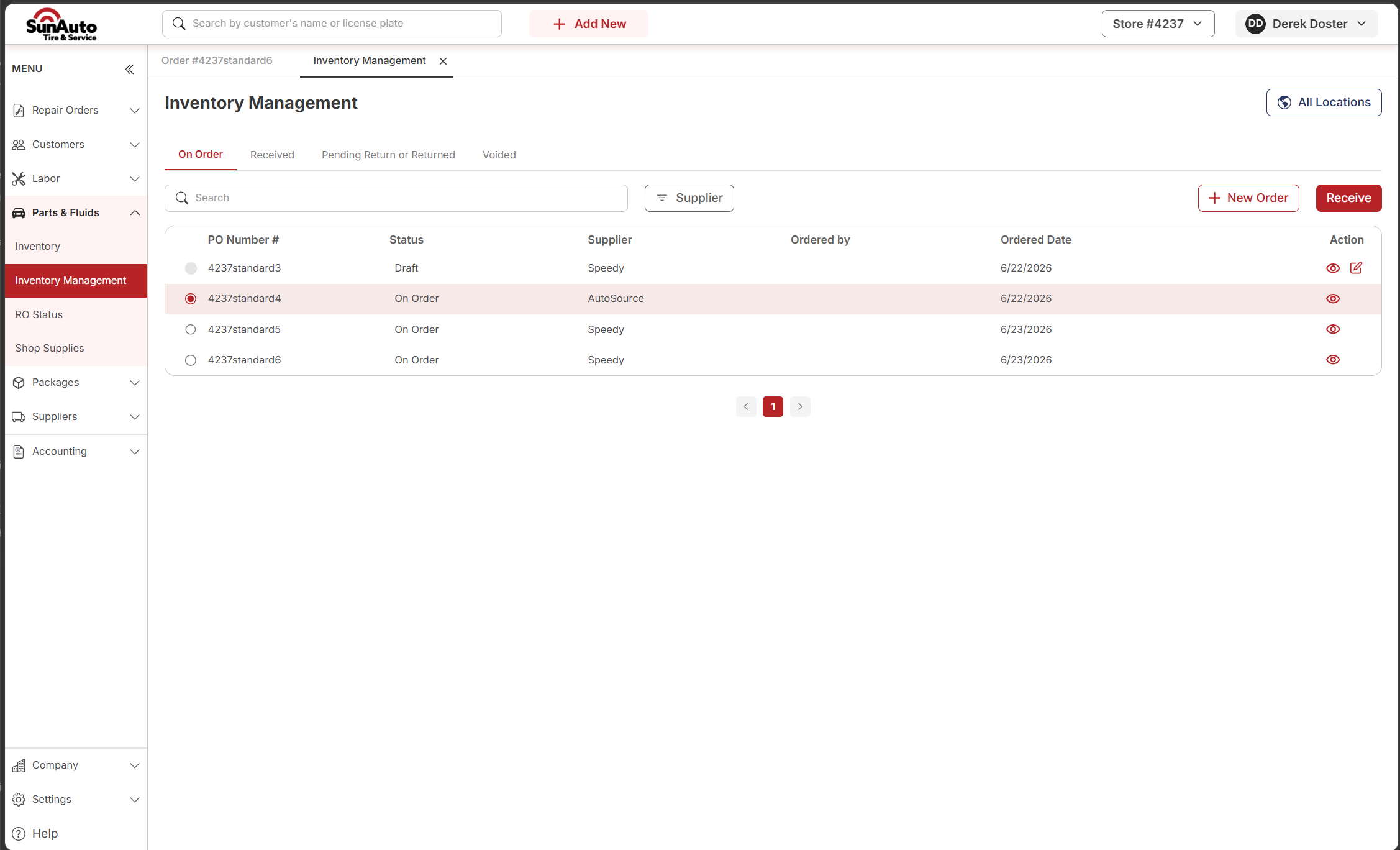
Step 1 — Find the PO and click Receive. From Inventory Management → On Order, tick the row for the PO whose parts just arrived. The Receive button activates.
 1
Selected PO row — tick the radio button on the PO whose parts you've physically received. Highlight confirms the selection.
2
Receive — disabled until a row is selected. Click to open the receive form.
1
Selected PO row — tick the radio button on the PO whose parts you've physically received. Highlight confirms the selection.
2
Receive — disabled until a row is selected. Click to open the receive form.
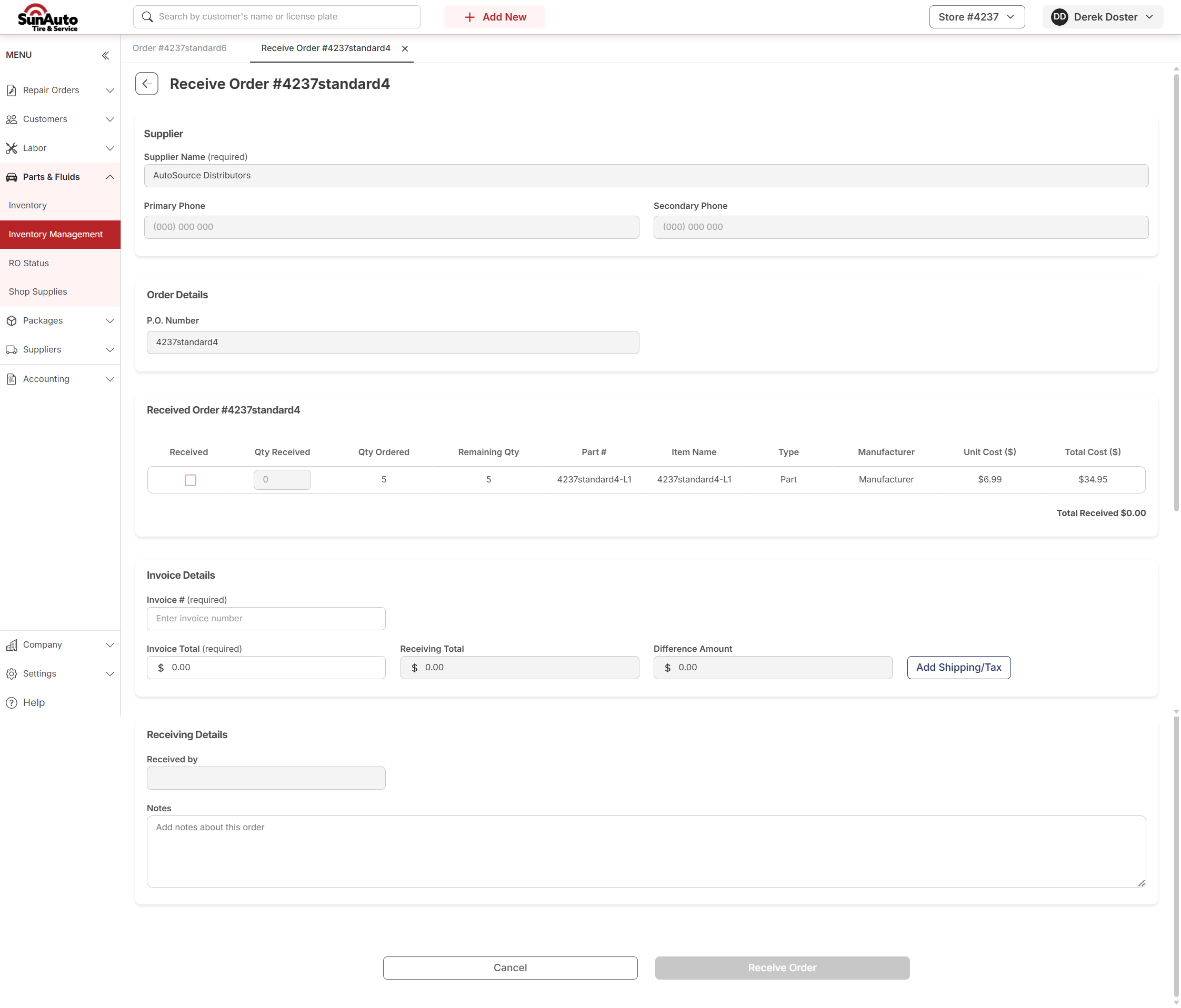
Step 2 — Open the Receive form. Each line on the PO shows up with its ordered quantity and a blank Qty Received. The Invoice # and Invoice Total fields at the bottom are required.
 1
Received checkbox + Qty Received — tick the box and type how many of each line actually came in. Partial counts are fine (PO becomes Partially Received when not everything ships).
2
Remaining Qty — updates live as you type. If it doesn't hit 0, the PO stays open as Partially Received for the rest to ship later.
3
Invoice # and Invoice Total (both required) — copy these straight off the supplier's paper / PDF invoice. They're how Accounting matches our PO to their bill.
4
Add Shipping/Tax — for line items the invoice charges separately. Add them here so the Receiving Total matches the Invoice Total.
1
Received checkbox + Qty Received — tick the box and type how many of each line actually came in. Partial counts are fine (PO becomes Partially Received when not everything ships).
2
Remaining Qty — updates live as you type. If it doesn't hit 0, the PO stays open as Partially Received for the rest to ship later.
3
Invoice # and Invoice Total (both required) — copy these straight off the supplier's paper / PDF invoice. They're how Accounting matches our PO to their bill.
4
Add Shipping/Tax — for line items the invoice charges separately. Add them here so the Receiving Total matches the Invoice Total.
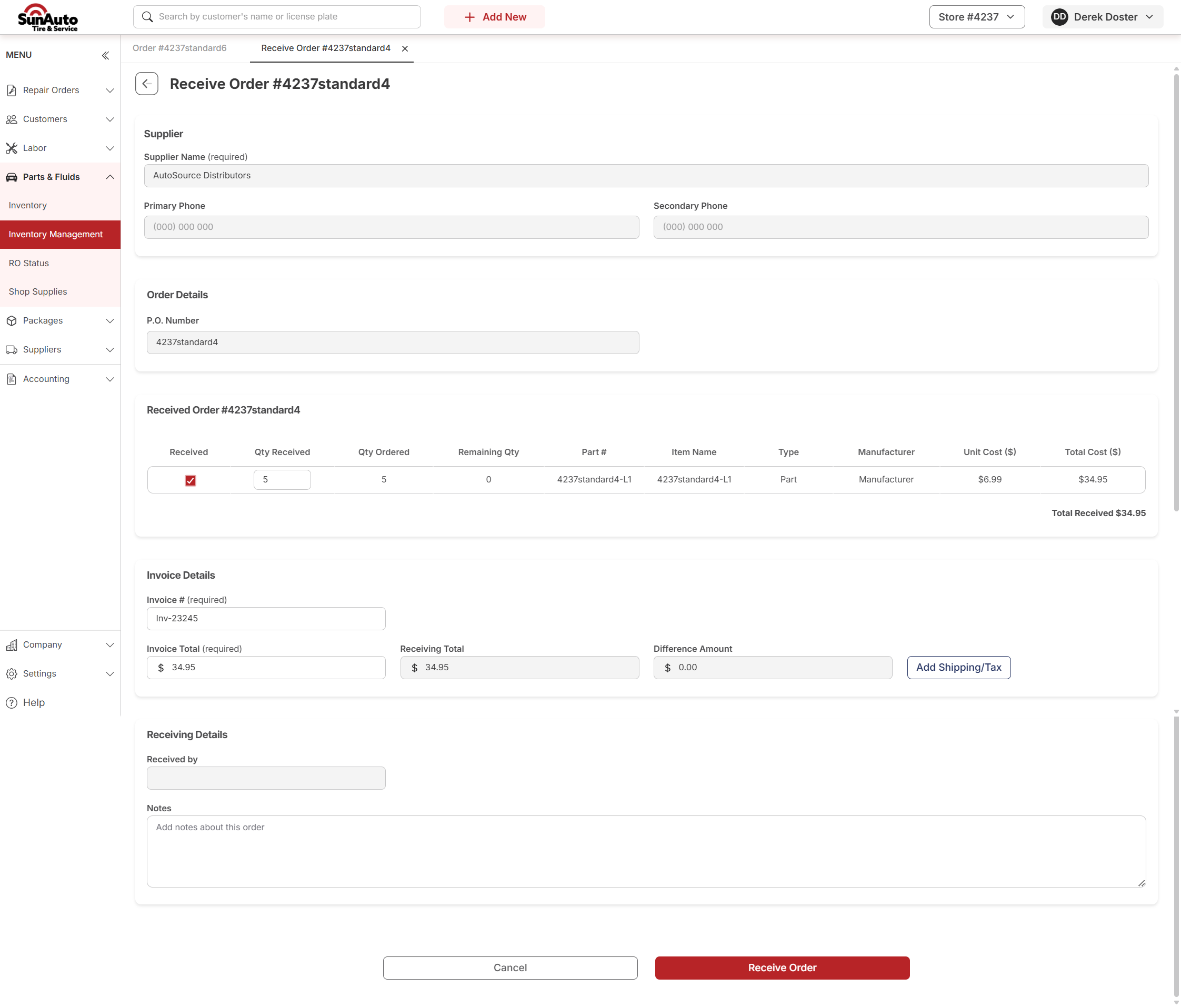
Step 3 — Mark received and enter the invoice. Tick each line, type the quantity, and fill in Invoice # and Invoice Total. The Difference Amount should land at $0.00 — if it's not, something's off; investigate before submitting.
 1
Line marked received — checkbox red, Qty Received entered, Remaining Qty drops to 0.
2
Invoice details filled — Inv #, Invoice Total, Receiving Total should all line up. Difference Amount = $0.00 is what you want to see.
3
Receive Order — active (red) once at least one line is received and invoice fields are populated.
1
Line marked received — checkbox red, Qty Received entered, Remaining Qty drops to 0.
2
Invoice details filled — Inv #, Invoice Total, Receiving Total should all line up. Difference Amount = $0.00 is what you want to see.
3
Receive Order — active (red) once at least one line is received and invoice fields are populated.
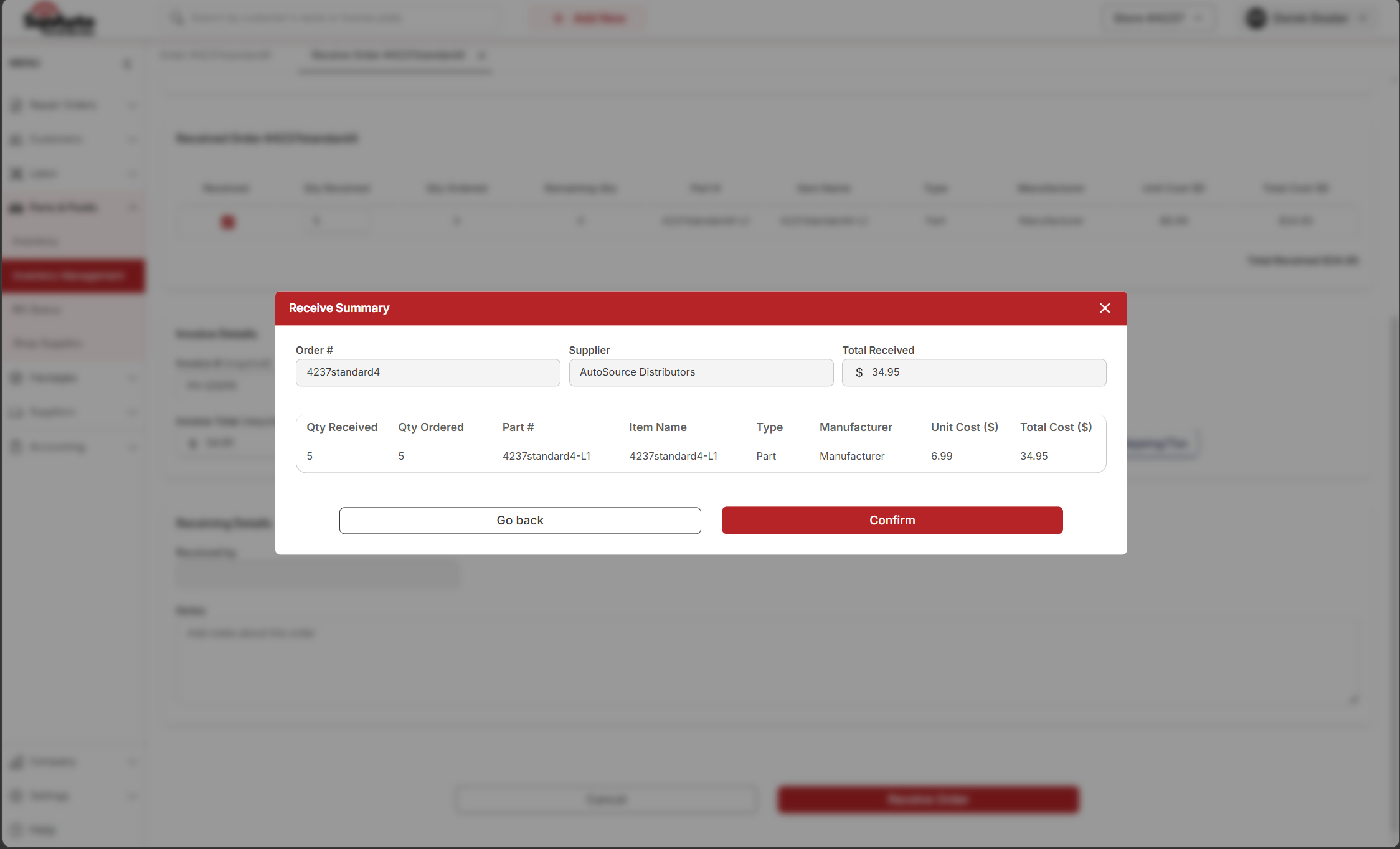
Step 4 — Confirm the summary. A summary modal lists what's about to be received. Sanity-check it against the boxes in front of you, then click Confirm.
 1
Summary lines — Order #, Supplier, Total Received, and every part being added to stock. Compare to the physical inventory before confirming.
2
Confirm — commits the receive. Stock counts update immediately and the PO moves to the Received tab. Go back if anything's off.
1
Summary lines — Order #, Supplier, Total Received, and every part being added to stock. Compare to the physical inventory before confirming.
2
Confirm — commits the receive. Stock counts update immediately and the PO moves to the Received tab. Go back if anything's off.
Step 5 — PO moves to Received. Back on Inventory Management, the PO now sits under the Received tab with a green Received Complete badge. Stock counts updated; parts are on the shelf.
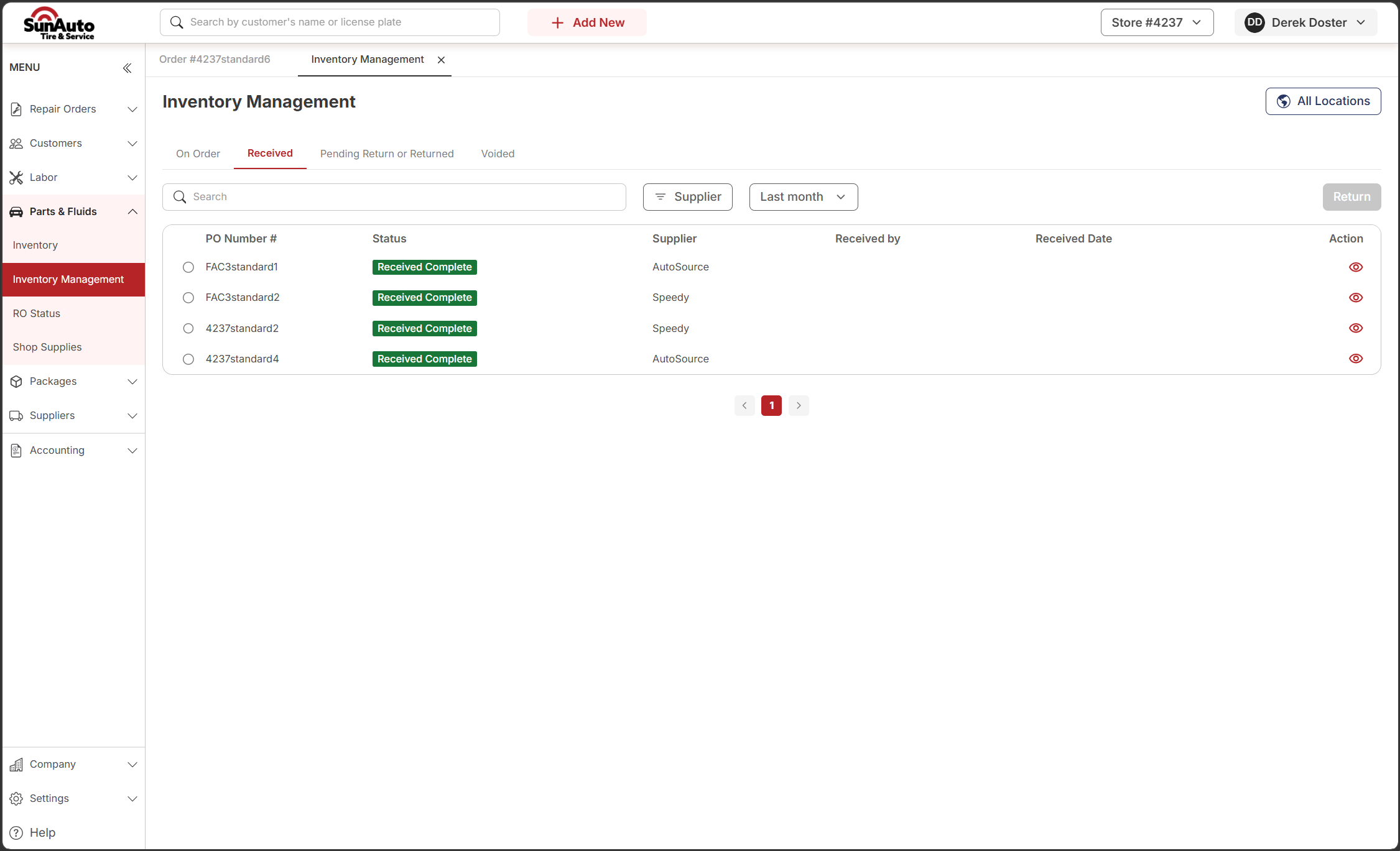 1
Received tab — historical view of every PO that's been received. Filter by date range and supplier.
2
Received Complete badge — green, all lines fulfilled. Partial receives show a different status until the rest ships.
3
Return button — kicks off a [Return](../returns/) on a received PO when you need to send parts back to the supplier.
1
Received tab — historical view of every PO that's been received. Filter by date range and supplier.
2
Received Complete badge — green, all lines fulfilled. Partial receives show a different status until the rest ships.
3
Return button — kicks off a [Return](../returns/) on a received PO when you need to send parts back to the supplier.
Full vs. partial receives
| Situation | Status after | What to do |
|---|---|---|
| Every line shipped in full | Received | Confirm and you're done. |
| Some lines partial, others full | Partially Received | Mark what arrived, enter the partial invoice. PO stays open. Receive again when the rest arrives. |
| Nothing shipped yet | (stays On Order) | Don't open Receive. Wait for parts to physically arrive. |
| Order needs cancelled before anything arrives | (use Void) | See Voiding a PO. |
A few tips
- Don't pre-receive. Receive only what's actually in the building. Pre-receiving makes stock counts lie and breaks Available QTY downstream.
- Difference Amount = $0.00. If Invoice Total doesn't match Receiving Total + Shipping/Tax, find out why before you commit. Common culprits: a back-ordered line that wasn't taken off the invoice, or a pricing change the supplier didn't tell you about.
- Received by auto-fills with whoever clicks Confirm. Don't type it manually.
- Partial today, the rest tomorrow? The PO stays as Partially Received with the remaining quantities open. Open it again from the On Order tab and receive the rest when it ships.
- Wrong PO? If you accidentally received the wrong PO, work with a manager — there's no quick undo on a received PO. They may need to back it out via a Return.