Goodyear National Account Jobs (Store)
What the store does when a Goodyear National Account vehicle comes in: confirm it's a Goodyear customer in Holman or Auto Integrate, set up the customer, vehicle and repair order in OverDrive, build the ticket with NATL packages, get it approved in Holman or Auto Integrate, and do the work. The store never closes the RO. Operations closes it the next day: see Goodyear National Account Close-Out (Operations).
Before you start
- Goodyear pays and the FMC approves. The driver's fleet card or fuel card is not payment or approval.
- Work on two screens: Holman or Auto Integrate on one monitor, OverDrive on the other. You enter information on both.
- Approval comes first. Get approval before you do any work, and approval for anything you add (such as DVI findings) before you do it. State repair law: authorization before additional work.
- Engine replacement, engine teardown or transmission replacement isn't billed to Goodyear. Don't put it on the Goodyear National Account. Collect from the FMC by credit card, plus sales tax. Holman: call Holman for approval and payment. Auto Integrate: use the Independent Payment option if it's offered, otherwise call the FMC for approval and payment.
- PCI-DSS: never write down the card number. Last four digits only.
The job, step by step
Step through the slides — click the chips at the top, the Previous / Next buttons, or use the ← → arrow keys.
Show me how
- Get the VIN from the vehicle. Note the odometer reading too: you need it at step 5.
- Not on Holman or Auto Integrate? Find the FMC in the National Account Manual on the Goodyear Dealer Portal (step 5 shows how to open it).
- Holman Bill-To accounts. Holman bills some companies (FedEx, Union Pacific Railroad, Red Bull and others) on their own accounts. Look the account up in the National Account Manual.
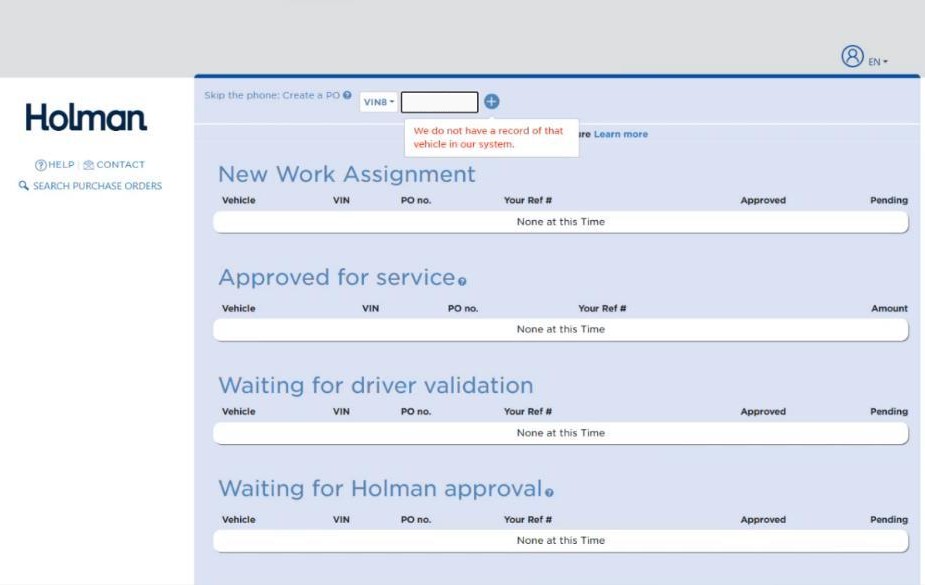
Holman first. Log into Holman with your store username and password. In VIN8 at the top of the Home screen, type the last 8 characters of the VIN and press Enter or click the + icon.
 1
VIN8: the last 8 characters of the VIN, then Enter or +.
2
Not on Holman: We do not have a record of that vehicle in our system. Search Auto Integrate.
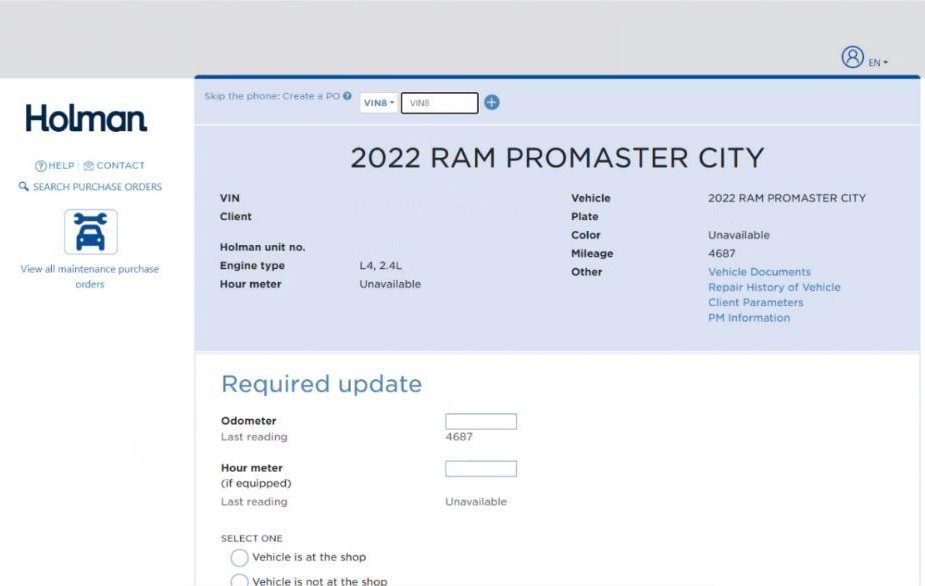
Found on Holman? The vehicle details show in the blue area at the top of the screen. Holman is the FMC. Set up the RO in OverDrive (steps 2 to 4), then come back to Holman for approval (step 5).
 1
The vehicle details: Holman manages this vehicle.
2
Required update. You fill this in at step 5, after the OverDrive RO is built.
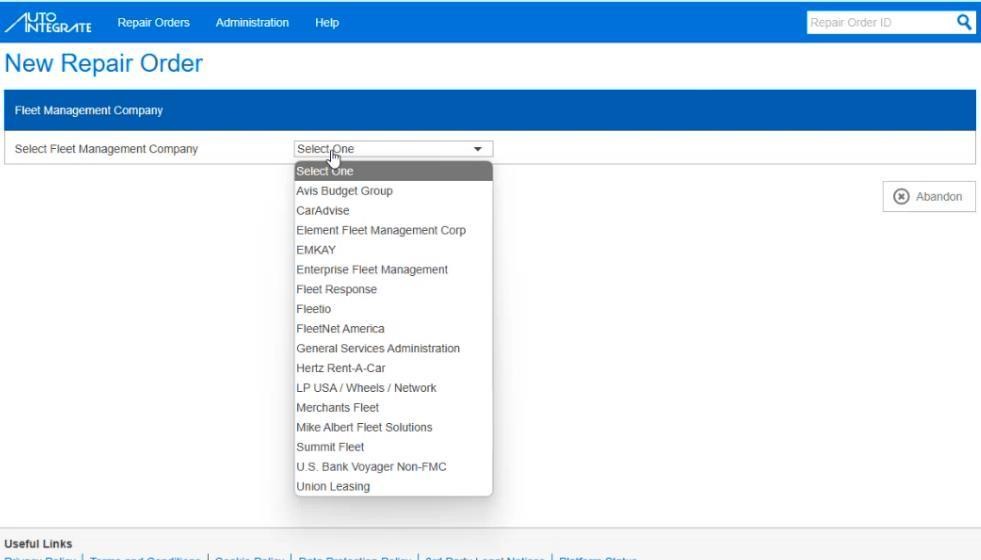
Not on Holman? Search Auto Integrate. Log into Auto Integrate with your store username and password, click the green Get Approval for a New Repair Order button, then open Select Fleet Management Company and pick the first FMC in the list.
 1
Select Fleet Management Company.
2
Start with the first FMC in the list. You check each one until you find the vehicle.
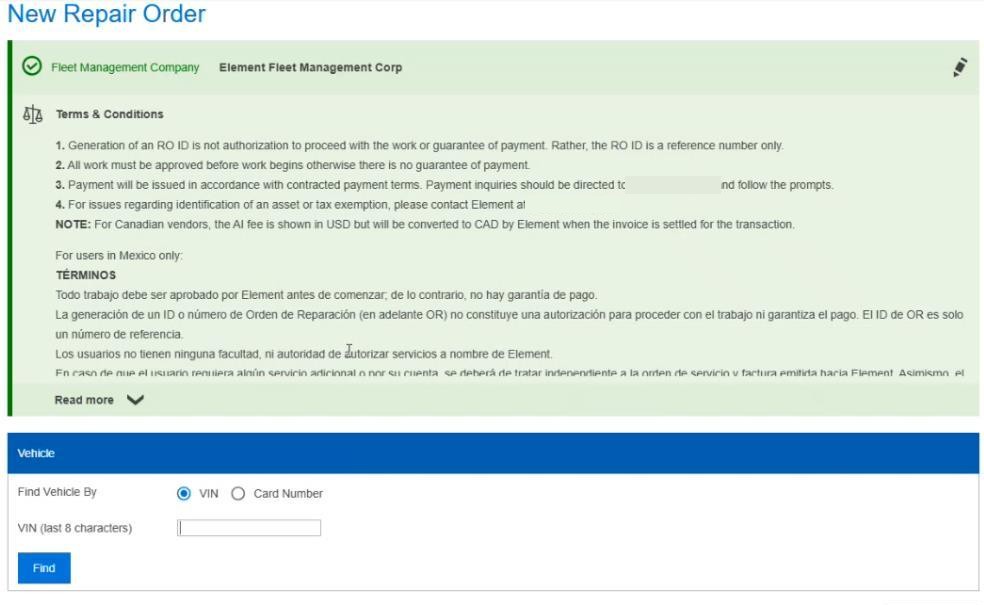
Under Find Vehicle By, make sure VIN is selected, type the last 8 characters of the VIN in VIN (last 8 characters) and click Find.
 1
VIN selected under Find Vehicle By.
2
VIN (last 8 characters).
3
Find.
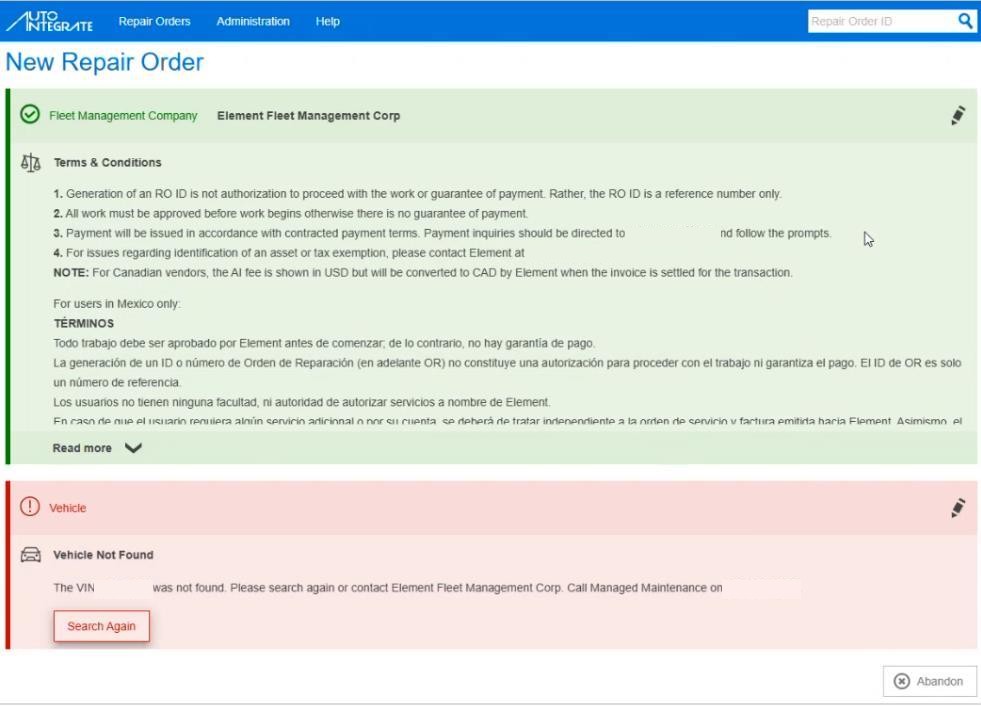
A red Vehicle Not Found box means it isn't this FMC. Click the pencil (edit) icon on the top-right of the green Fleet Management Company box, pick the next FMC and click Find. The VIN stays filled in. Repeat until you find the vehicle. Even if you search every FMC, it takes no more than a minute.
Found on Auto Integrate? The vehicle shows under the FMC in a green box. Set up the RO in OverDrive (steps 2 to 4), then start the Auto Integrate repair order (step 5).
 1
Vehicle Not Found: not this FMC.
2
The pencil (edit) icon: change the FMC and search the next one.
Good to know
- Search by the fleet company's name: see Searching Customers.
- Found as a National Account? Go to step 3, "The fleet is in OverDrive".
- Not found? Go to step 3, "The fleet isn't in OverDrive".
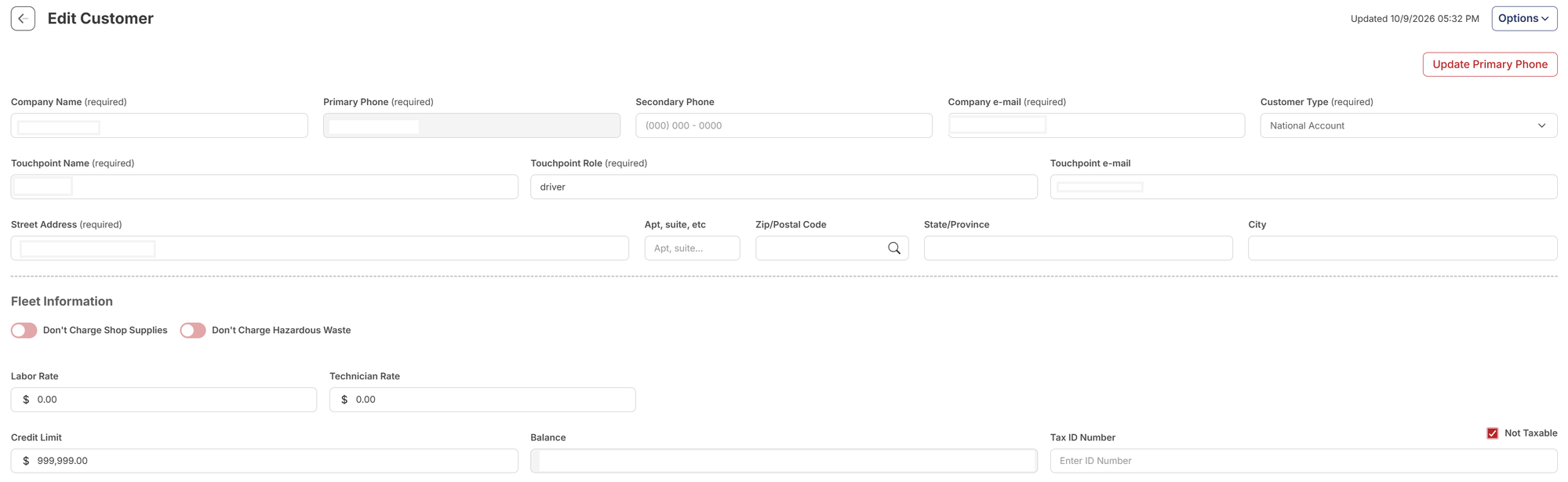
Confirm it's a National Account. Open the fleet's customer record. Customer Type shows National Account, and the Fleet Information section shows below the address.
 1
Customer Type: National Account.
2
Fleet Information: shows on fleet customers.
3
Not Taxable is ticked.
Good to know
The fleet is in OverDrive
- Add the vehicle to the fleet's customer record: see Adding a Vehicle.
- Create the repair order on that customer and vehicle: see Creating a Repair Order.
The fleet isn't in OverDrive
- Add the fleet as a new customer and select National Account as the Customer Type: see Creating a National Account.
- Create the vehicle on the new customer: see Adding a Vehicle.
- Create the repair order: see Creating a Repair Order.
Good to know
NATL packages only
Build the ticket with NATL packages. Standard packages will not work.
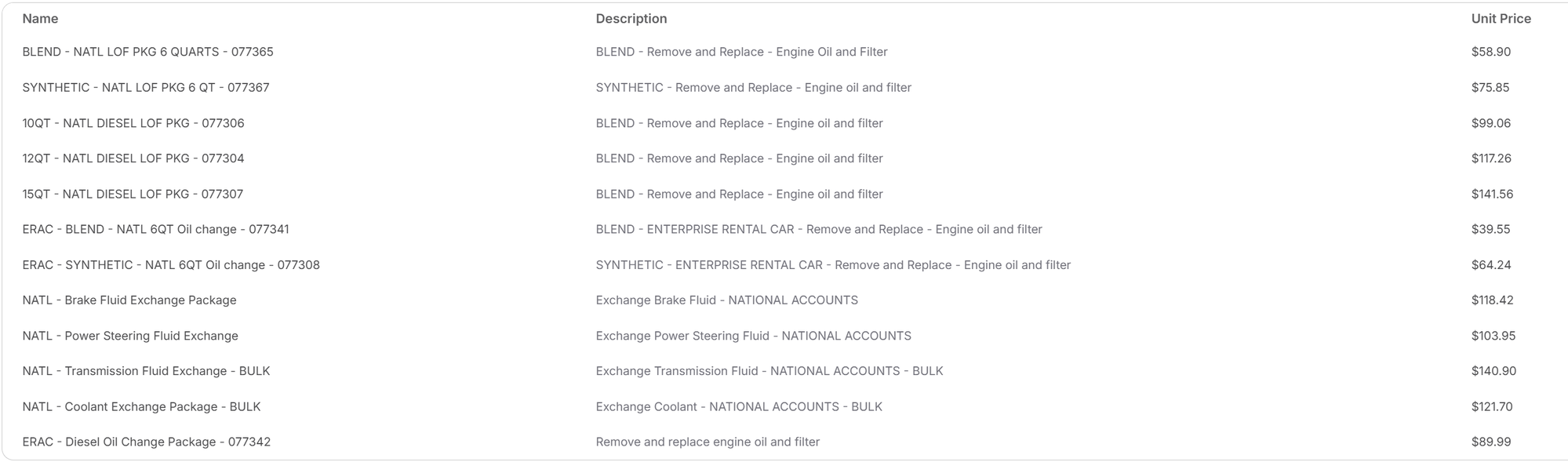
- NATL package names start with NATL or ERAC. Oil change packages end with the Goodyear product code (for example 077367), the same code you use in Holman or Auto Integrate at step 5.
- ERAC packages are for Enterprise Rent-A-Car only.
- Don't start the work yet. You build the same ticket in Holman or Auto Integrate and get it approved first (step 5).
The National Account packages. Pick the package that matches the work. Each oil change package carries its Goodyear product code at the end of the name.
 1
The Goodyear product code at the end of the package name.
2
ERAC: Enterprise Rent-A-Car only.
3
Unit Price: check it against the current price book.
Show me how
Look up the codes. Find the product codes in the online National Account Service Price Book and the account's billing instructions in the National Account Manual, on the Goodyear Dealer Portal. Log into www.goodyearfleetnetwork.com with your store's Tire-HQ username and password. No Tire-HQ credentials? Contact the Sun Auto Help Desk. Use the online book: don't download it.
Quick finder: Top Codes and All Codes help you find a code fast. Confirm the code and price in the online book before you use it.
Always use the newest price book
Prices change when Goodyear publishes a new price book. Prices in the screenshots on this page may be out of date: always check the code and price in the current online National Account Service Price Book.
- Never change the price on a pre-priced item. Codes and quantities must be accurate.
- Every NA oil change gets a tire rotation or a brake inspection (not both), plus the oil disposal fee. Top Codes has an oil change picker that works out the package, any extra oil and the disposal fee for you.
- ERAC items are for Enterprise Rent-A-Car only.
- Oil quantity won't match OverDrive exactly. Holman and Auto Integrate take the oil quantity from the price book (for example 8.5 qt); the OverDrive RO carries the vehicle's specification oil level (for example 8.3 qt). That difference is expected.
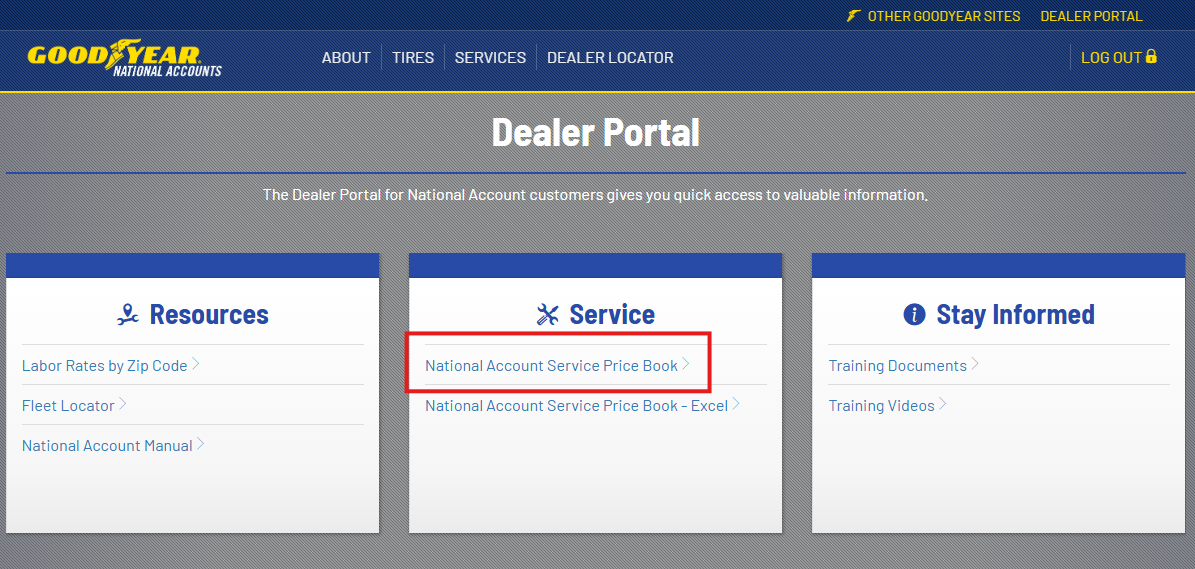
Codes and prices: under Service, click National Account Service Price Book. It opens inside the portal. Search it by keyword with the magnifying glass at the top left, or click a topic in the Table of Contents.
 1
National Account Service Price Book.
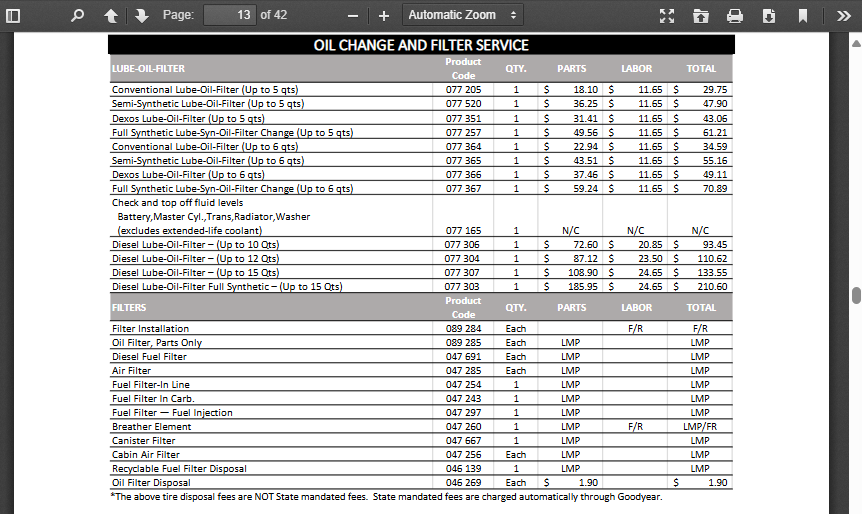
Each page lists the Product Codes with the quantities, parts, labor and total price. Use it while you build the Holman or Auto Integrate repair order.
 1
The Product Code column.
2
The oil filter disposal fee code.
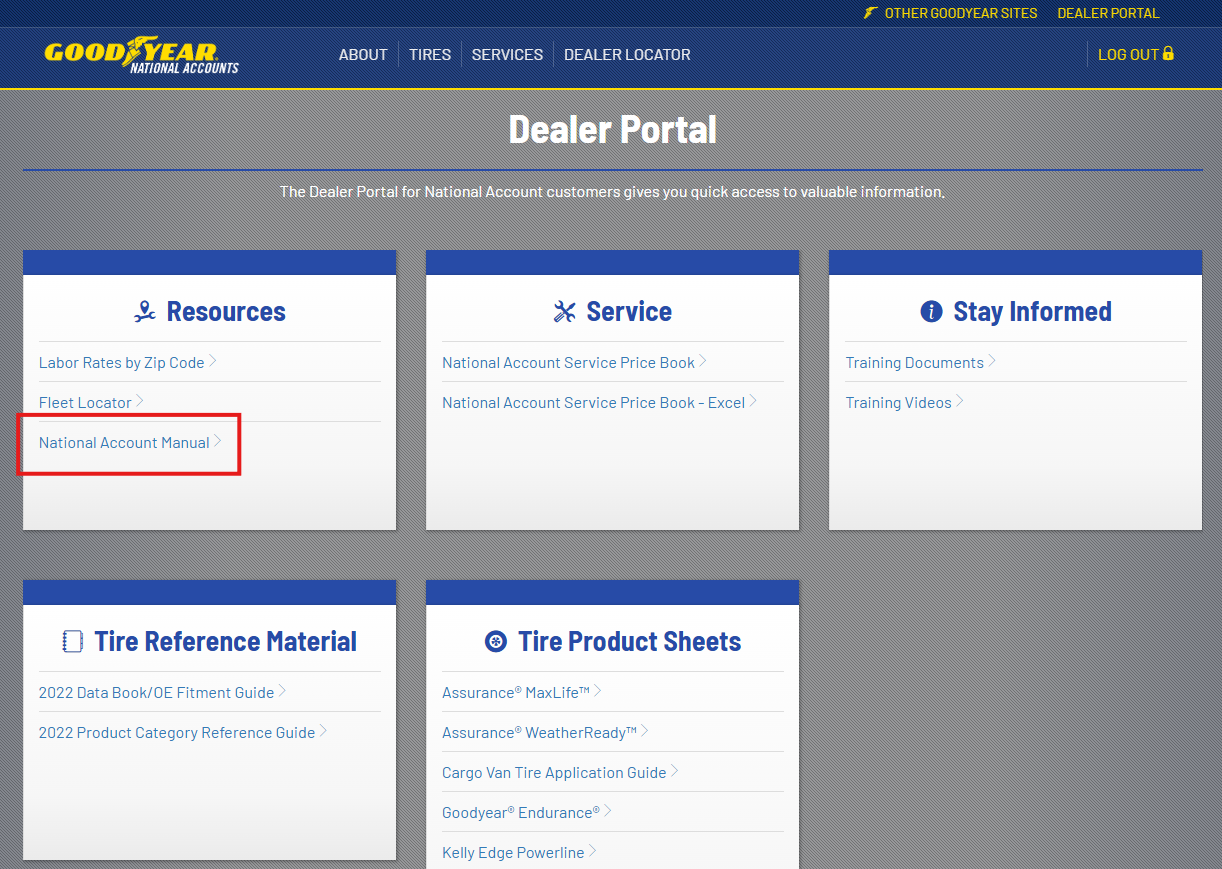
Account billing instructions: under Resources, click National Account Manual. Search for the company or the FMC and click the blue NA Number link.
 1
National Account Manual: billing details for each account.
Build the ticket and request approval.
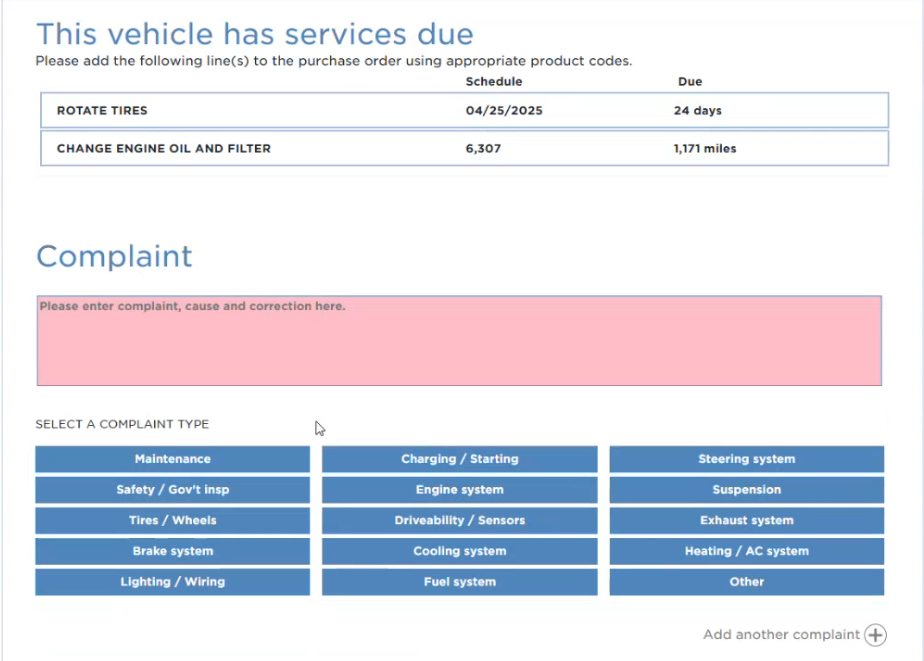
Services due may show. You can add them to the repair order. Type the driver's request in the red Complaint field and click a Complaint Type. More than one? Click Add Another Complaint. Then click Go To Next Step.
 1
Complaint: the driver's request.
2
A Complaint Type, here Maintenance.
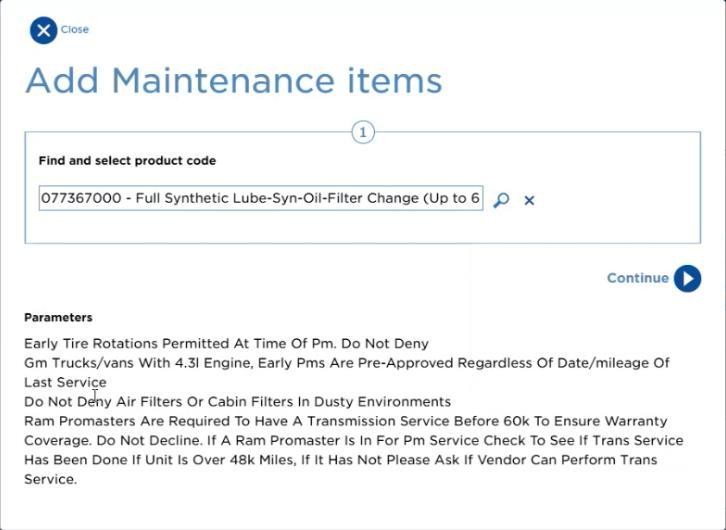
Click Add Line Items for Maintenance. Find the Goodyear product code by keyword or from the price book, then click Continue.
 1
The Goodyear product code.
2
Continue.
In Step 2, select REPLACE, REPAIR, ADJUST or PM (the highlighted one is required). Enter Qty in whole numbers, except oil, which follows the price book (for example 8.5 qt). Contract-priced costs fill in grey and can't be edited. Blank costs? Enter the price that matches the OverDrive RO. Click Add Line Item to PO, repeat for every code, then click (X) Close.
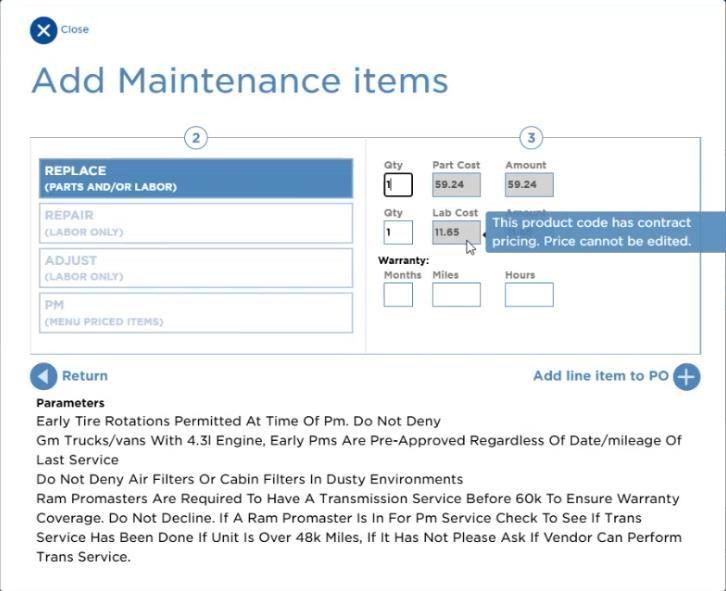 1
REPLACE: the highlighted choice is required.
2
Qty: whole numbers, except oil (price book).
3
Add Line Item to PO.
Compare with the OverDrive RO (below). When it matches, enter the Estimated completion for all repairs and services date, pick Morning, Afternoon or Evening, and click Request Approval.
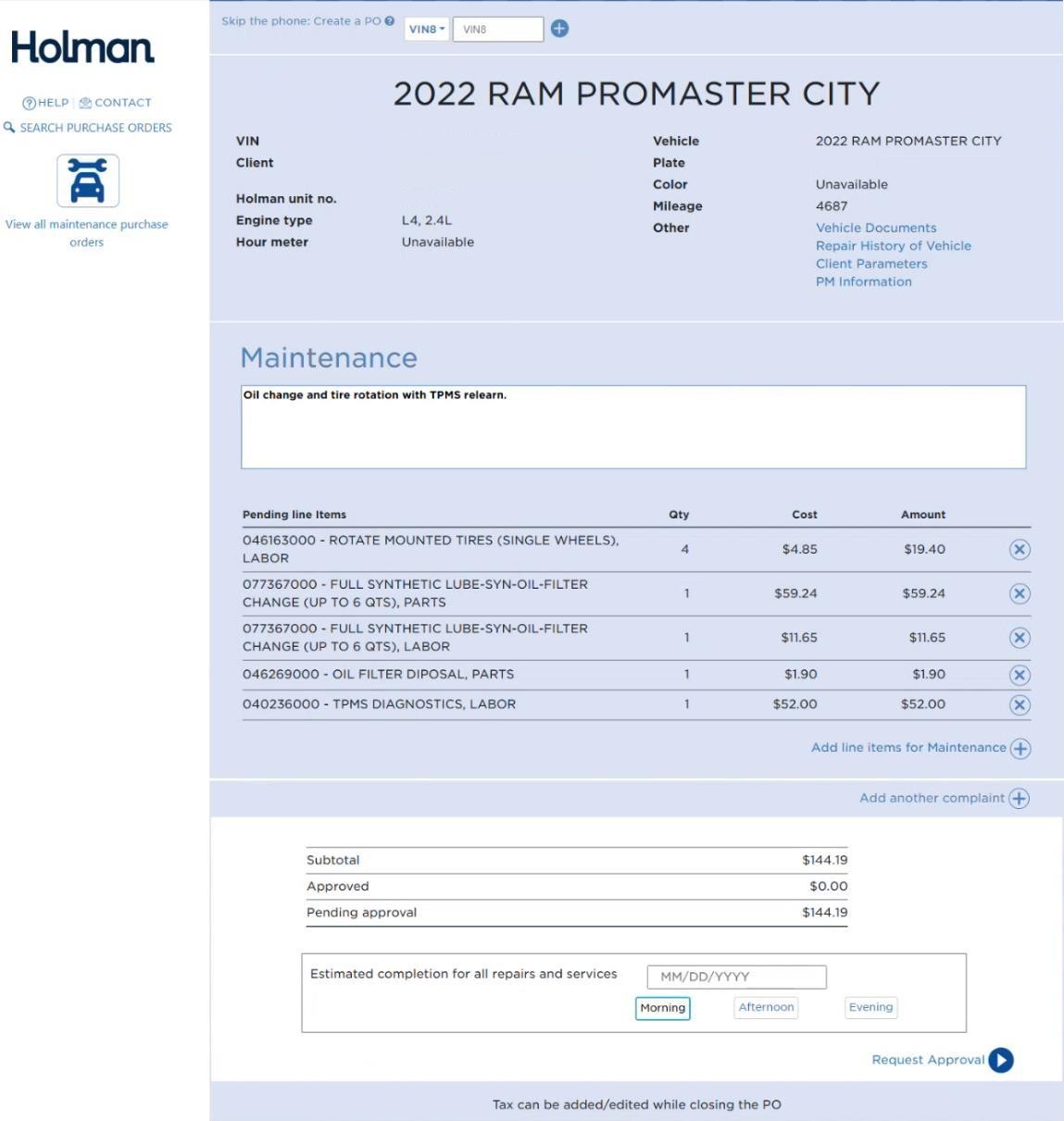 1
The pending line items. Check them against the OverDrive RO.
2
Estimated completion date and time of day.
3
Request Approval.
The Holman Home screen shows each repair order under its status:
- Your Action Required: Holman needs more from you.
- New Work Assignment: started, no services added yet.
- Approved for Service: approved, start the work. The PO Number shows here.
- Waiting for Driver Validation: the driver needs to send information to Holman.
- Waiting for Holman Approval: Holman is reviewing it.
- Waiting for Client Approval: the client is reviewing it.
- Work Complete: done.
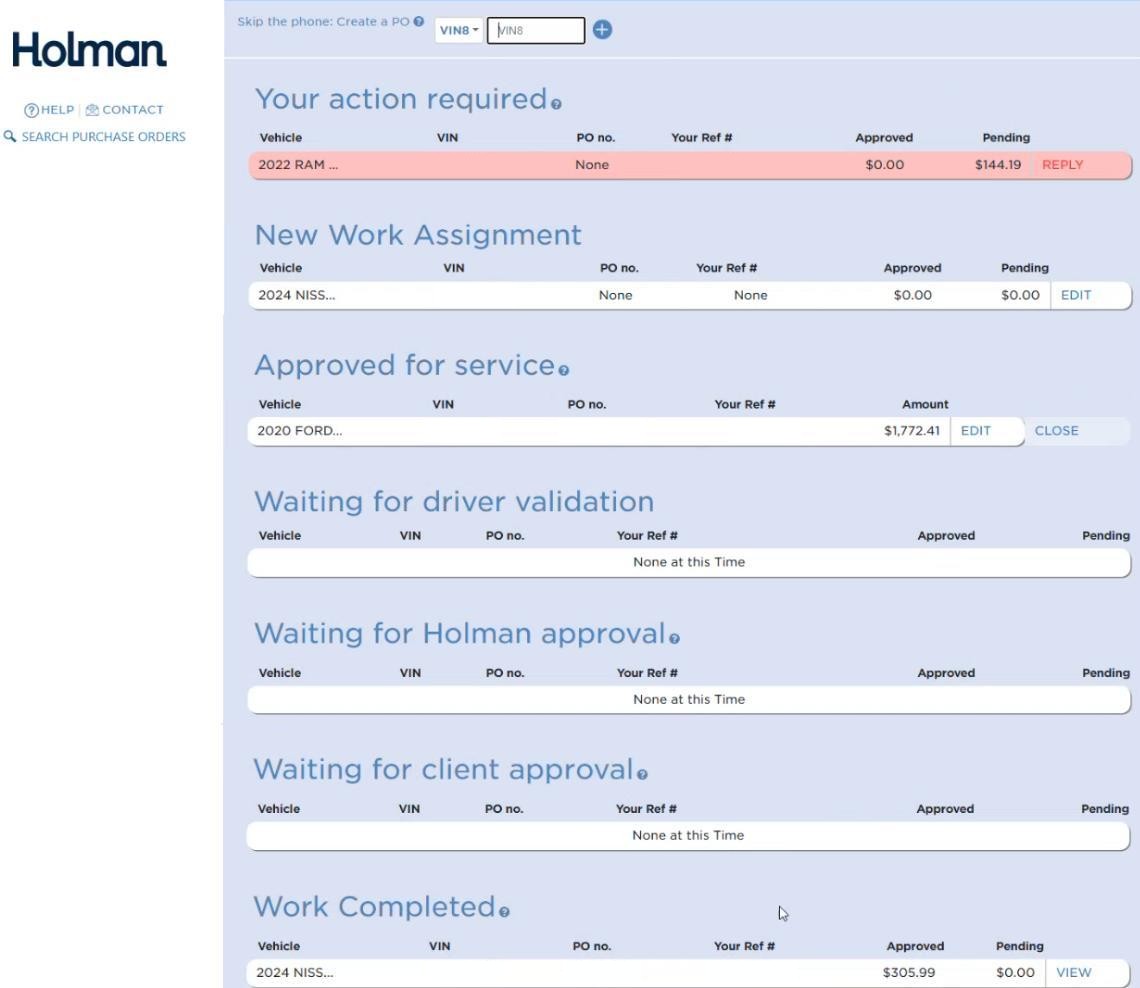 1
Your action required.
2
Approved for service: the PO Number shows here.
In About the Vehicle, enter the mileage in Odometer Reading. Leave Engine Hours blank unless the vehicle has an hour meter. Select Towed (Yes or No), then click Next.
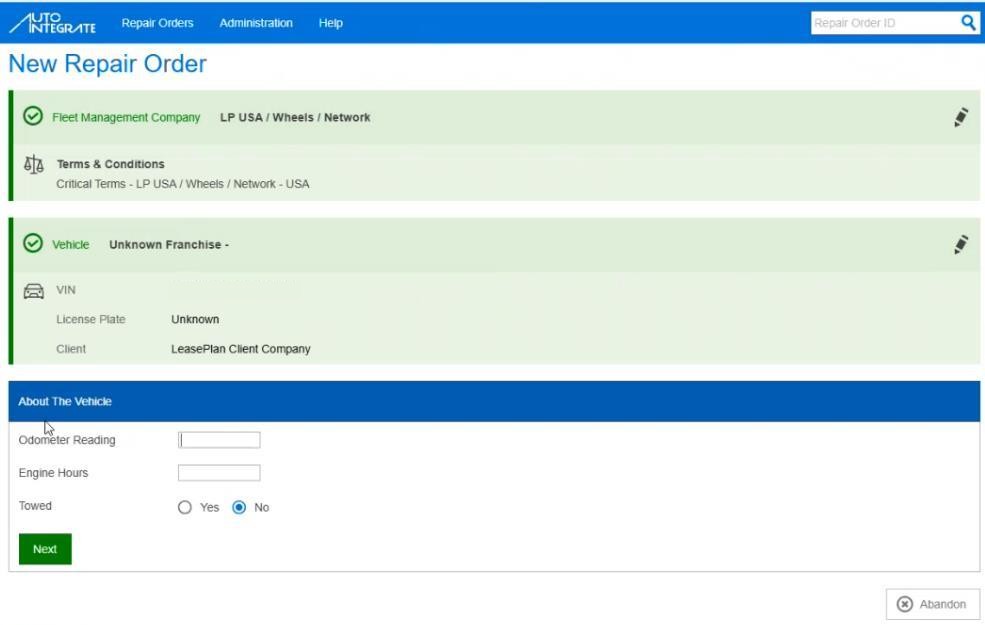 1
Odometer Reading. Engine Hours stays blank unless there's an hour meter.
2
Next.
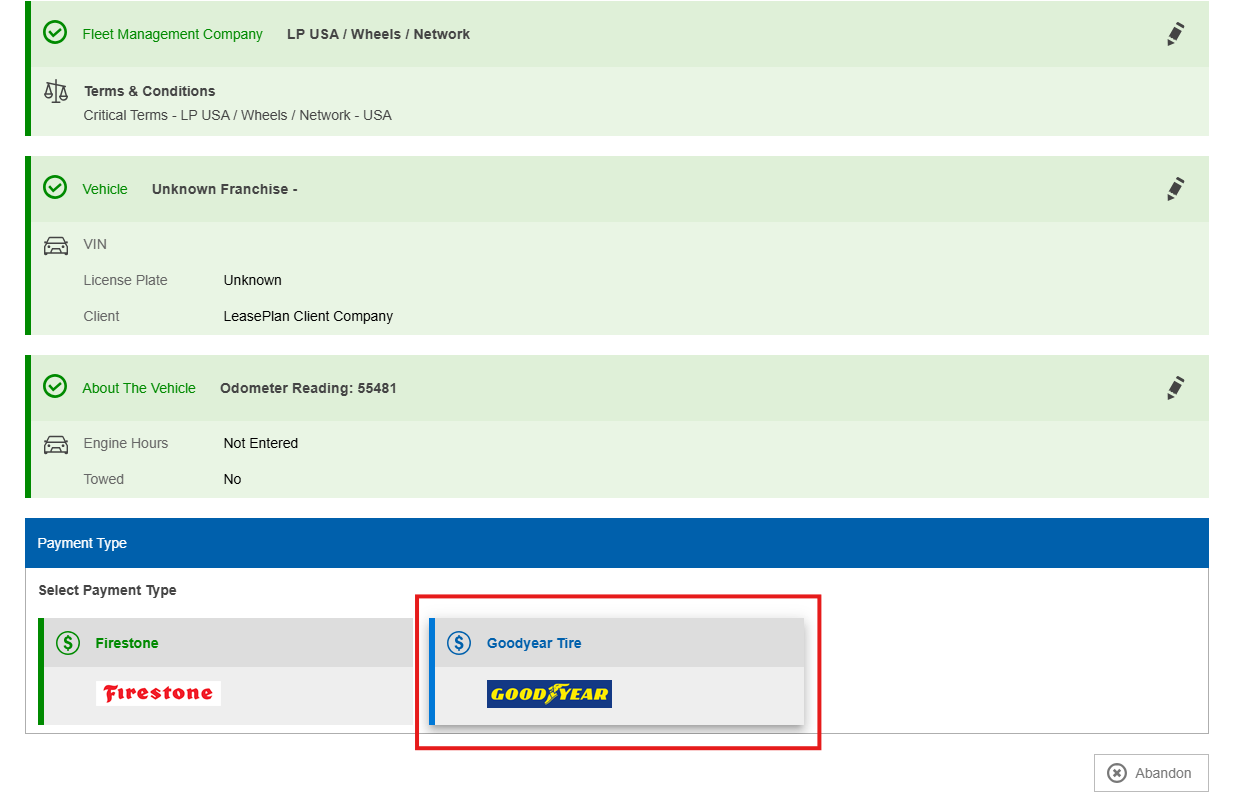
Under Payment Type, click Goodyear Tire. It's always Goodyear Tire on a Goodyear National Account visit.
 1
Goodyear Tire.
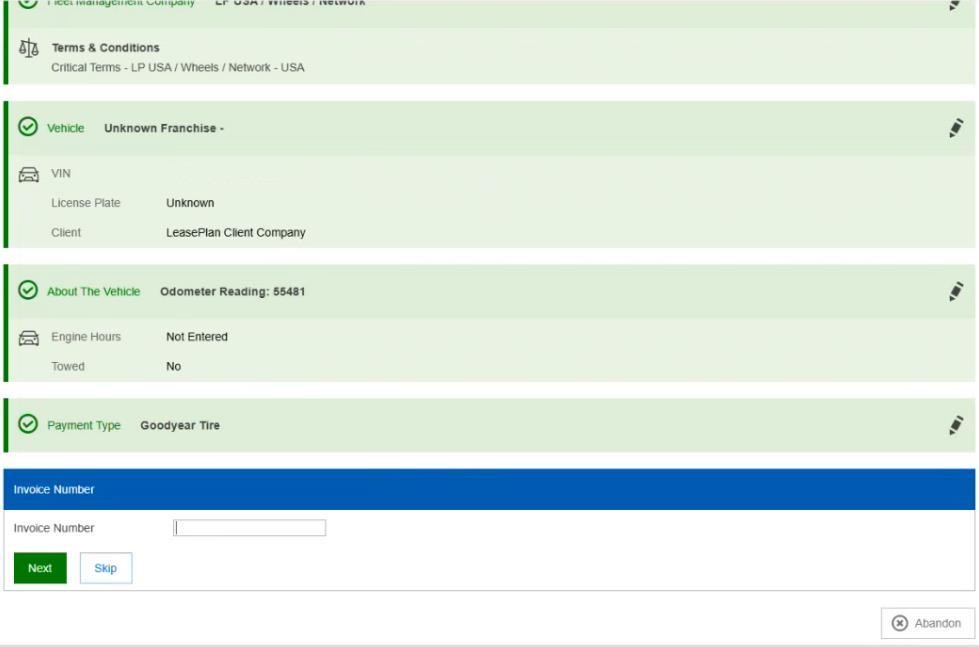
Leave Invoice Number blank and click Skip. Operations enters the invoice number the next day, when they close the job (see Operations Close-Out).
 1
Invoice Number: leave it blank.
2
Skip.
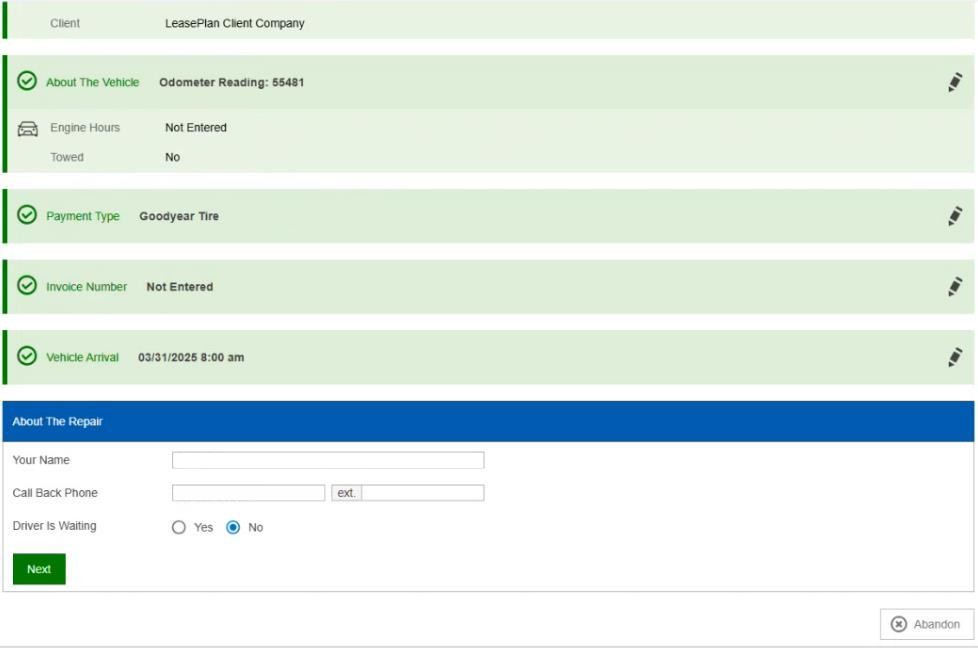
In Vehicle Arrival, enter the date and time the vehicle arrived at the store and click Next. In About the Repair, enter your first name in Your Name and the store phone number in the call back number, select whether the Driver Is Waiting, and click Next.
 1
Your Name: your first name.
2
The call back number: the store phone number.
3
Next.
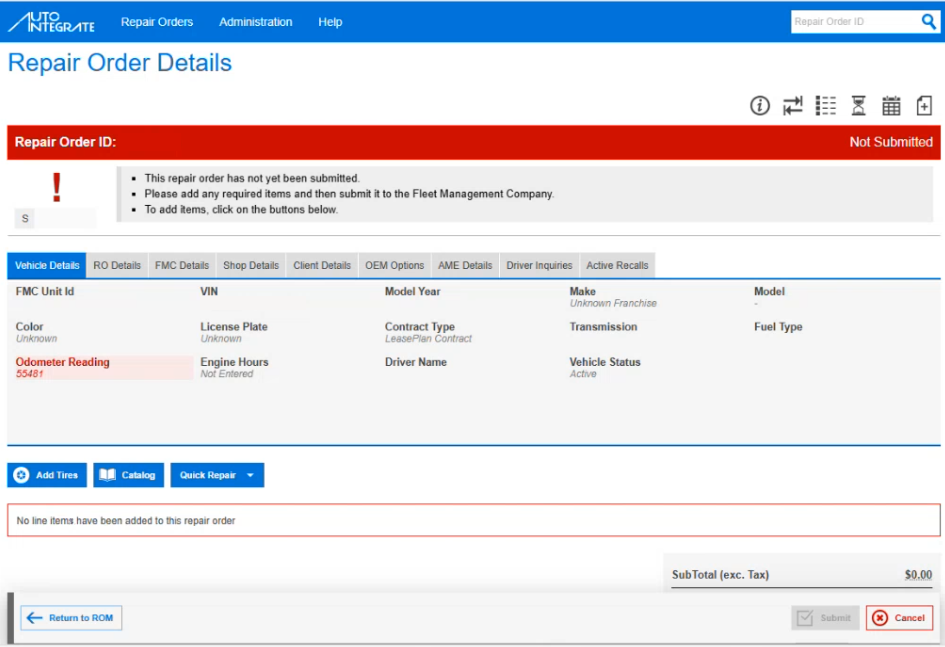
Check everything you selected, then click Create Repair Order. The Repair Order Details screen opens. The repair order is saved, so you can open it from the Home screen, but it isn't submitted yet.
 1
Not Submitted: saved, not sent for approval.
2
Catalog: where you add the codes next.
Open the repair order you just started and click Catalog.
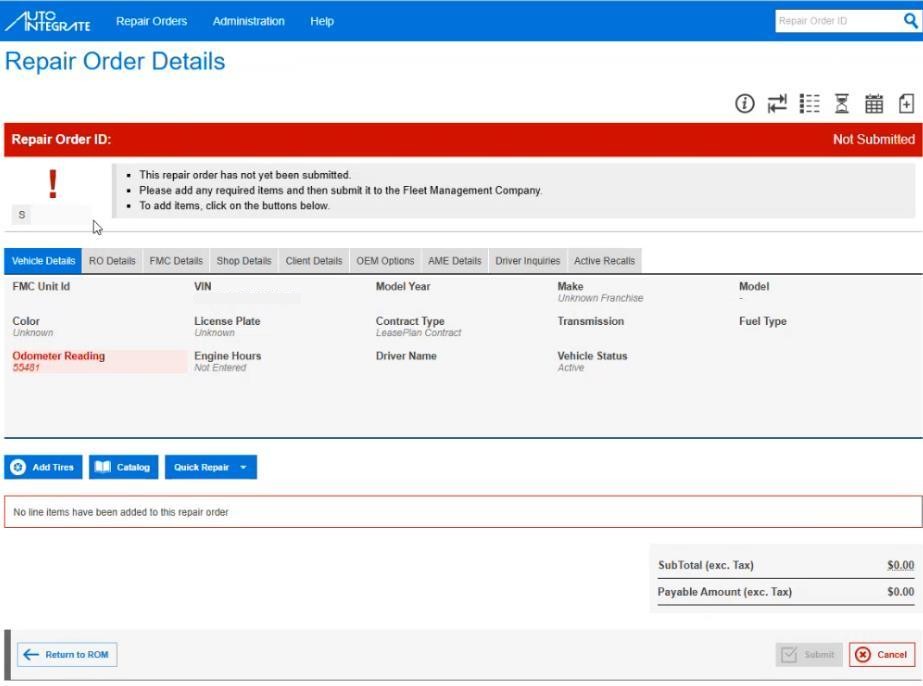 1
Catalog.
Type the Goodyear product code in Catalog Code. Click the blue match that shows, and check its description is the service you're adding. Not right? Check the code.
 1
Catalog Code: the Goodyear product code.
2
Add Items: only after the whole service group is in.
Pick a Cause under Labor and under Part. Unit Cost and quantity not filled in? Enter them to match the OverDrive RO exactly. Contracted prices and quantities can't be changed. Click the X in Catalog Code to clear it and enter the next code.
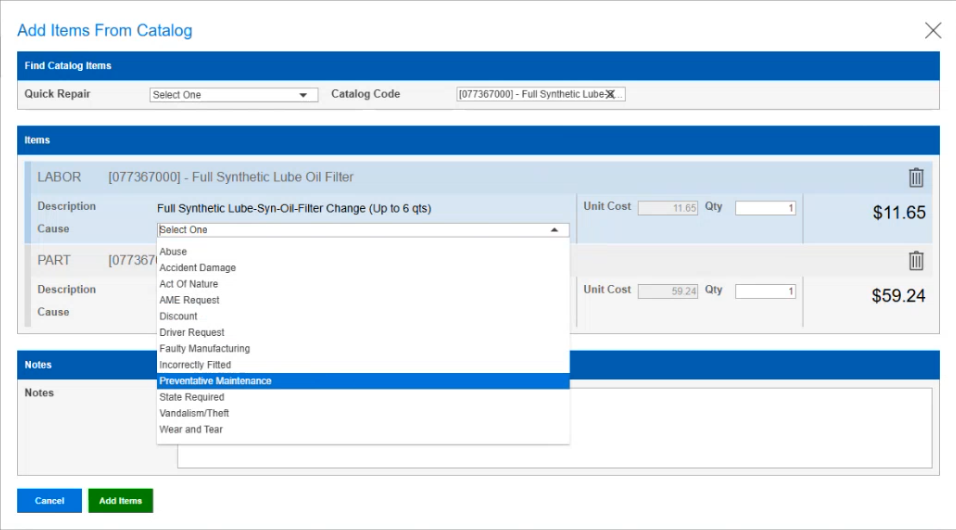 1
Cause: one for the labor, one for the part.
2
For example, Preventative Maintenance.
Group related items (all of the oil change, then the brakes, then the tires). Add Notes for the group, click Next where it shows (for example, brake pad thickness), then click the green Add Items. Repeat for each group until the repair order matches the OverDrive RO.
Compare with the OverDrive RO (below). When it matches, click the green Submit, then Return to RO Manager.
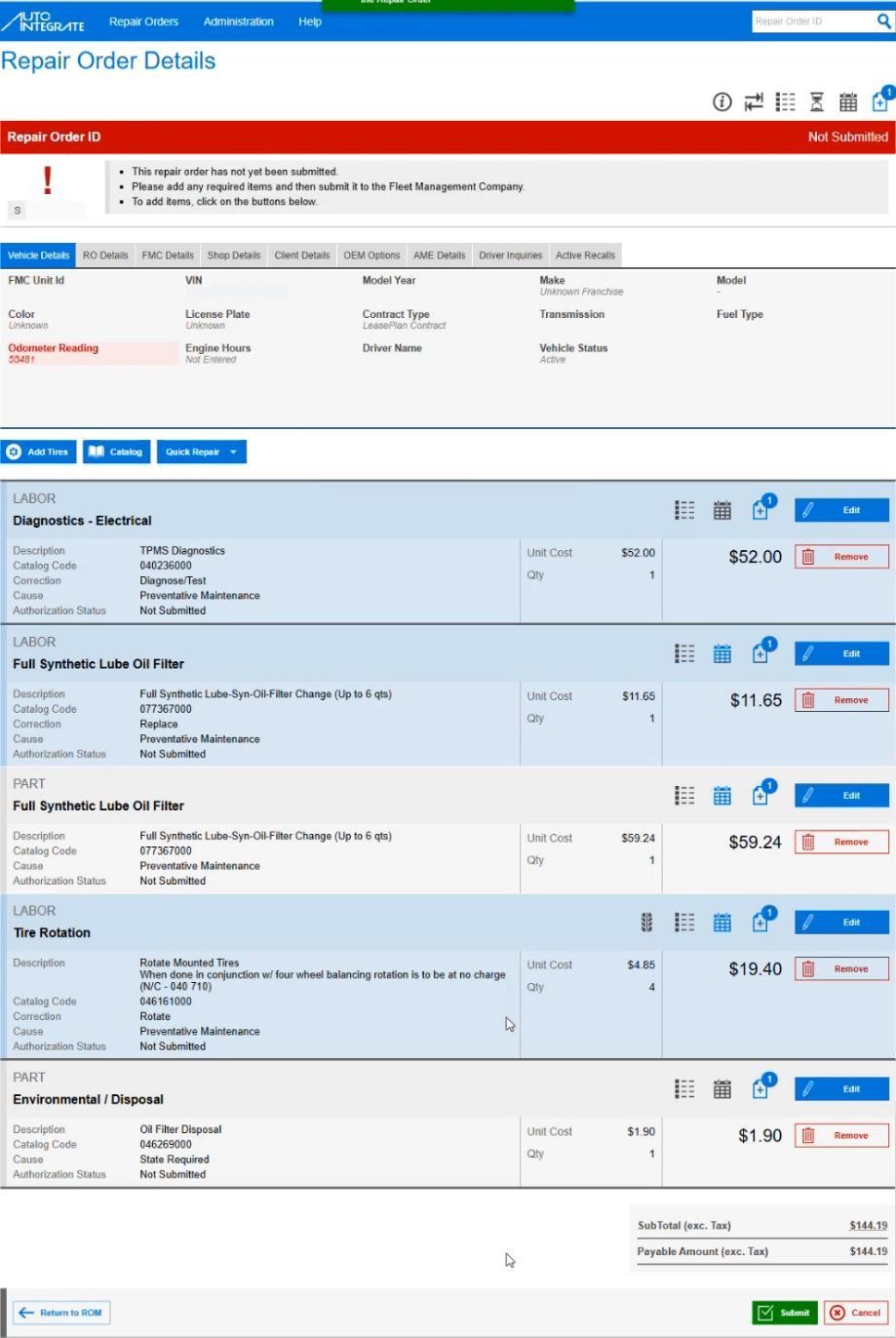 1
The line items. Check them against the OverDrive RO.
2
Submit.
Enterprise Rent-A-Car (EAN Holdings): most approvals won't match the standard price-book codes exactly. Check the packages and pricing in the National Account Manual under Enterprise Rent-A-Car, NA #02807, and make the OverDrive RO match the approval.
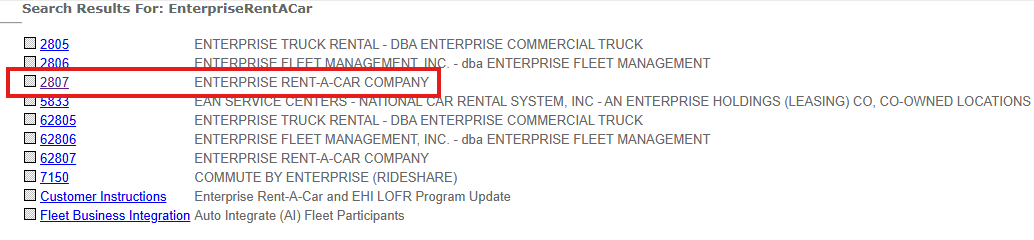 1
2807 ENTERPRISE RENT-A-CAR.
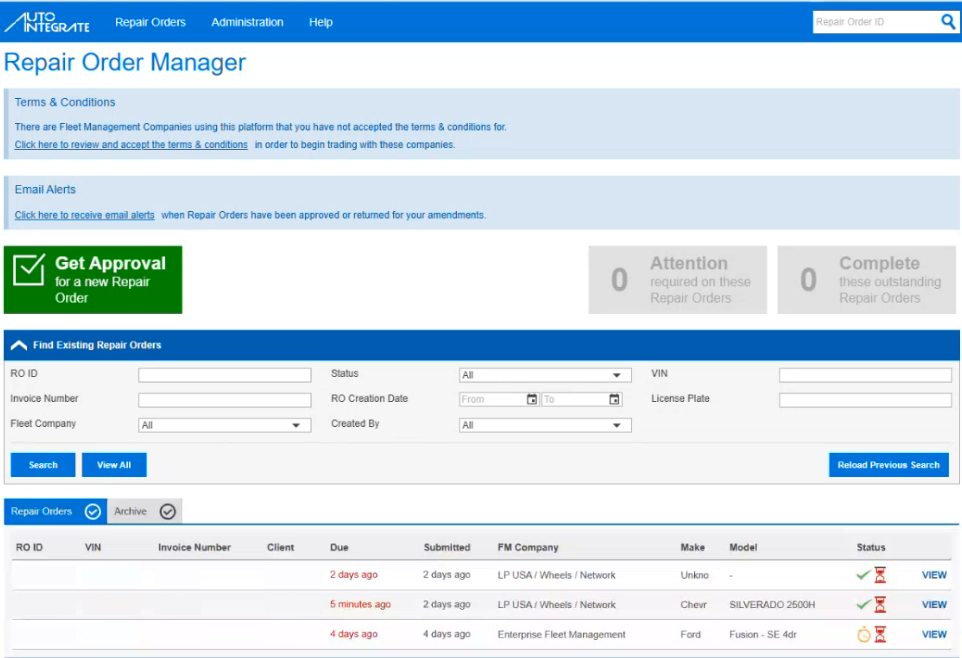
The Status column on the Home screen shows where each repair order is (refresh the browser for the latest). Hover over an icon for its description, and click VIEW to open a repair order.
- Green check: approved.
- Yellow stopwatch: waiting for approval.
- Red exclamation point: not submitted yet, or returned for changes. The store needs to act.
 1
The Status column.
Compare before you submit (both systems). The OverDrive RO total must match the Holman Pending Approval amount or the Auto Integrate Payable Amount exactly. Totals don't match? Go line by line. A mismatch can cause a chargeback or a short payment.
The approval changed (a line declined, a price adjusted)? Update the OverDrive RO so the two match again.
Good to know
For each add-on:
- Add it to the OverDrive RO with a NATL package (step 4).
- Add it to the Holman or Auto Integrate repair order and resubmit:
- Holman: click EDIT on the line, add the codes and resubmit. The status changes to waiting for approval.
- Auto Integrate: edit the repair order, add the codes and resubmit.
-
Wait for the approval, then do the work.
-
Keep the totals matching. After every add-on, the OverDrive RO and the Holman or Auto Integrate repair order must still match (step 5).
- The approval changed (a line declined, a price adjusted)? Update the OverDrive RO so the two match again.
Good to know
Do not close the RO
Do not close the RO in OverDrive, and do not close or complete it in Holman or Auto Integrate. Don't print or email the invoice, and don't take a payment.
An Operations user closes it the next day: see Goodyear National Account Close-Out (Operations).
- The store's part ends here. Approval received, work done, RO open in both systems.
- An open National Account RO on the board is normal. Don't clear it to tidy up the list.
If it goes wrong
- Holman: "We do not have a record of that vehicle in our system." Search Auto Integrate (step 1).
- Auto Integrate: Vehicle Not Found. Click the pencil on the green FMC box and search the next FMC (step 1).
- Not on Holman or Auto Integrate. Find the FMC in the National Account Manual on the Goodyear Dealer Portal (step 1).
- The totals don't match the OverDrive RO. Go line by line through the OverDrive RO and the Holman or Auto Integrate repair order (step 5).
- The approval changed after the RO was built. Update the OverDrive RO to match, and leave it open (steps 5 and 6).
- The job is an engine replacement, engine teardown or transmission replacement. It isn't billed to Goodyear (Before you start).
- No Tire-HQ credentials for the Dealer Portal. Contact the Sun Auto Help Desk.
- The RO was closed by mistake. Don't reopen it and re-invoice it yourself. Report it.
Escalate
Have the FMC, the OverDrive RO number, the Holman or Auto Integrate repair order, and the screen or message you're stuck on. Start with your store manager, then your District Manager. For Tire-HQ access to the Dealer Portal, contact the Sun Auto Help Desk.
Related
- Goodyear National Account Close-Out (Operations) — what Operations does the next day.
- Top Codes — the National Account codes you'll use most. Confirm in the online price book.
- All Codes — every code in the price book. Confirm in the online price book.
- Goodyear National Accounts — everything for National Accounts.
- Creating a National Account — the OverDrive customer setup.
- Searching Customers — finding the fleet in OverDrive.
- Adding a Vehicle — adding the vehicle to the fleet's record.
- Creating a Repair Order — opening the RO on the National Account customer.
- Completing a DVI — the DVI findings you send for approval.