Creating a Repair Order
A Repair Order (RO) is opened once you have the customer in OverDrive and their vehicle on the record. From here, every line of work, every part, and every payment for this visit lives on this RO.
When to create
- The customer is checked in (or on the phone) and you've confirmed who they are.
- Their vehicle is on the record — if not, add it first.
- They've told you what's wrong or what service they need.
The form
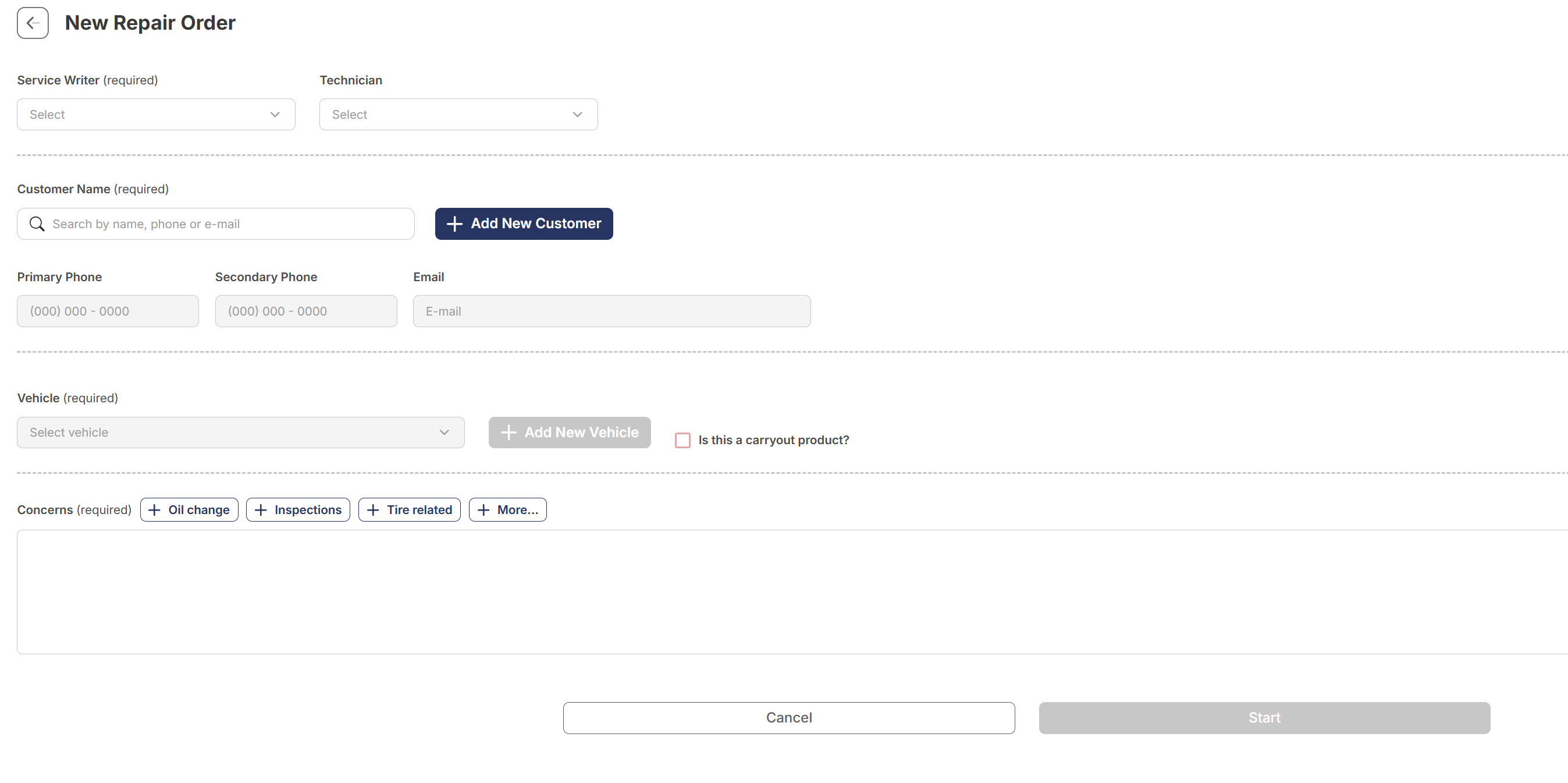
Click New Repair Order and you'll see this. Hover (or tap) any number for a quick explanation.
 1
Service Writer — required. The advisor handling the customer at the counter.
2
Technician — optional at start. Assign the tech now or later once the work is scoped.
3
Customer Name — required. Search first by name, phone, or email. Only click Add New Customer if there's no match.
4
Vehicle — required. Pick from the customer's vehicles. If it isn't there, use Add New Vehicle to the right.
5
Is this a carryout product? — check this only if the customer is buying a part to take with them, not for service done here. Leave unchecked for any RO that includes labor.
6
Concerns — required. Why the customer is here. Tap a chip for a common reason or type the details in the box below.
7
Start — grayed out until Service Writer, Customer, Vehicle, and Concerns are filled. Once it turns red, you're ready to open the RO.
1
Service Writer — required. The advisor handling the customer at the counter.
2
Technician — optional at start. Assign the tech now or later once the work is scoped.
3
Customer Name — required. Search first by name, phone, or email. Only click Add New Customer if there's no match.
4
Vehicle — required. Pick from the customer's vehicles. If it isn't there, use Add New Vehicle to the right.
5
Is this a carryout product? — check this only if the customer is buying a part to take with them, not for service done here. Leave unchecked for any RO that includes labor.
6
Concerns — required. Why the customer is here. Tap a chip for a common reason or type the details in the box below.
7
Start — grayed out until Service Writer, Customer, Vehicle, and Concerns are filled. Once it turns red, you're ready to open the RO.
Fields at a glance
| Field | Required? | Notes |
|---|---|---|
| Service Writer | Yes | The advisor handling the customer |
| Technician | No | Assign now or later once the work is scoped |
| Customer Name | Yes | Search the existing customer first; Add New Customer only if no match |
| Primary / Secondary Phone, Email | Auto | Pulled from the customer's record |
| Vehicle | Yes | Pick from the customer's vehicles; Add New Vehicle if it isn't there |
| Is this a carryout product? | No | Check only when the customer is buying a part to take home — not for service |
| Concerns | Yes | Why the customer is in. Chips for common items, plus free text |
What a filled form looks like
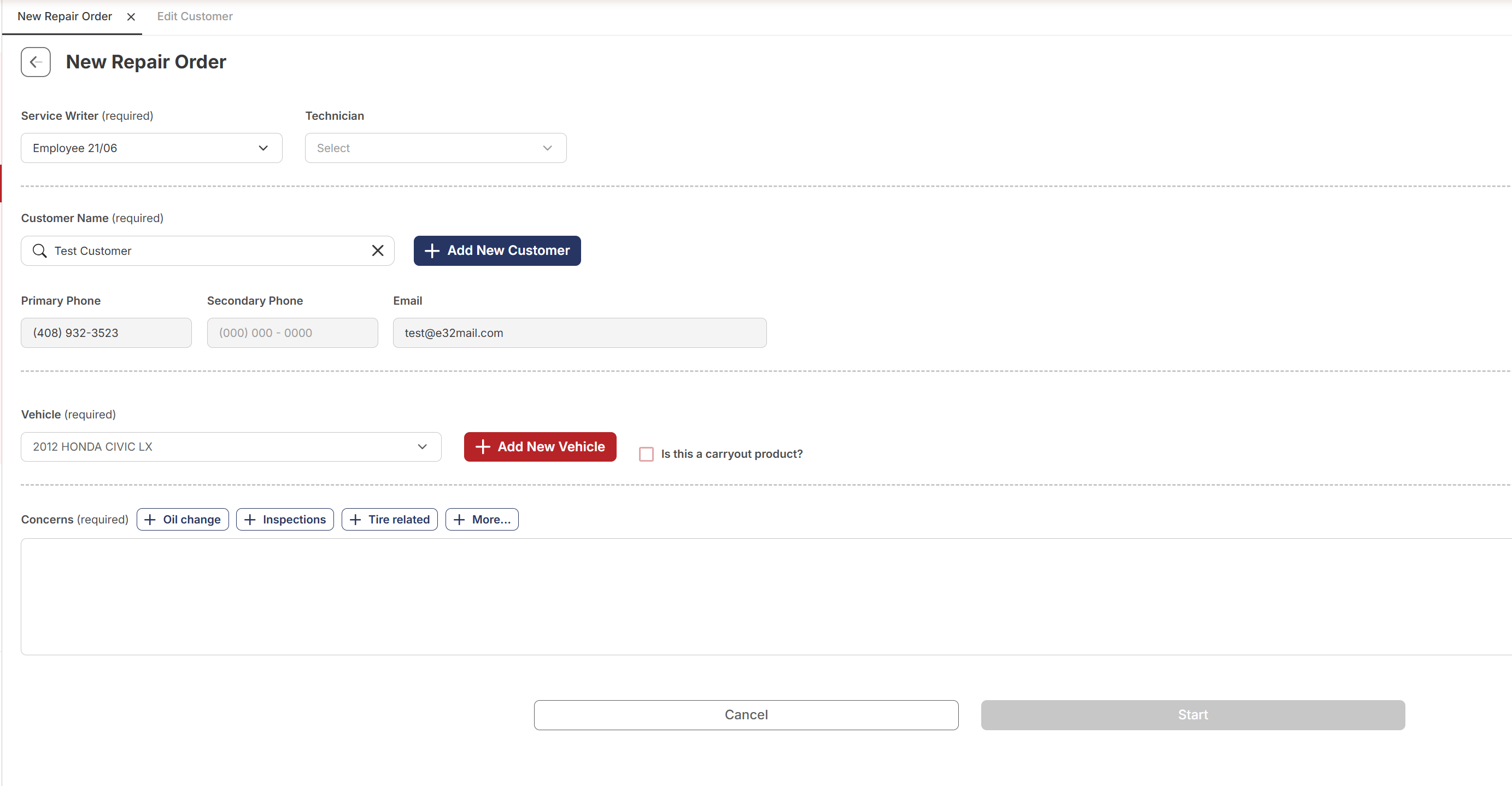
Here's the same form, finished and ready to save:
Watch the flow
The whole thing, end to end:
Concerns become the first Job
Whatever you type in the Concerns box becomes the title of the first Job on the RO once you click Start.

That means the customer's original reason for visit travels straight onto the work record. Keep those items in the first job — don't strip them out if you edit the Job Title later. Doing that loses the record of why the customer came in.
After you click Start
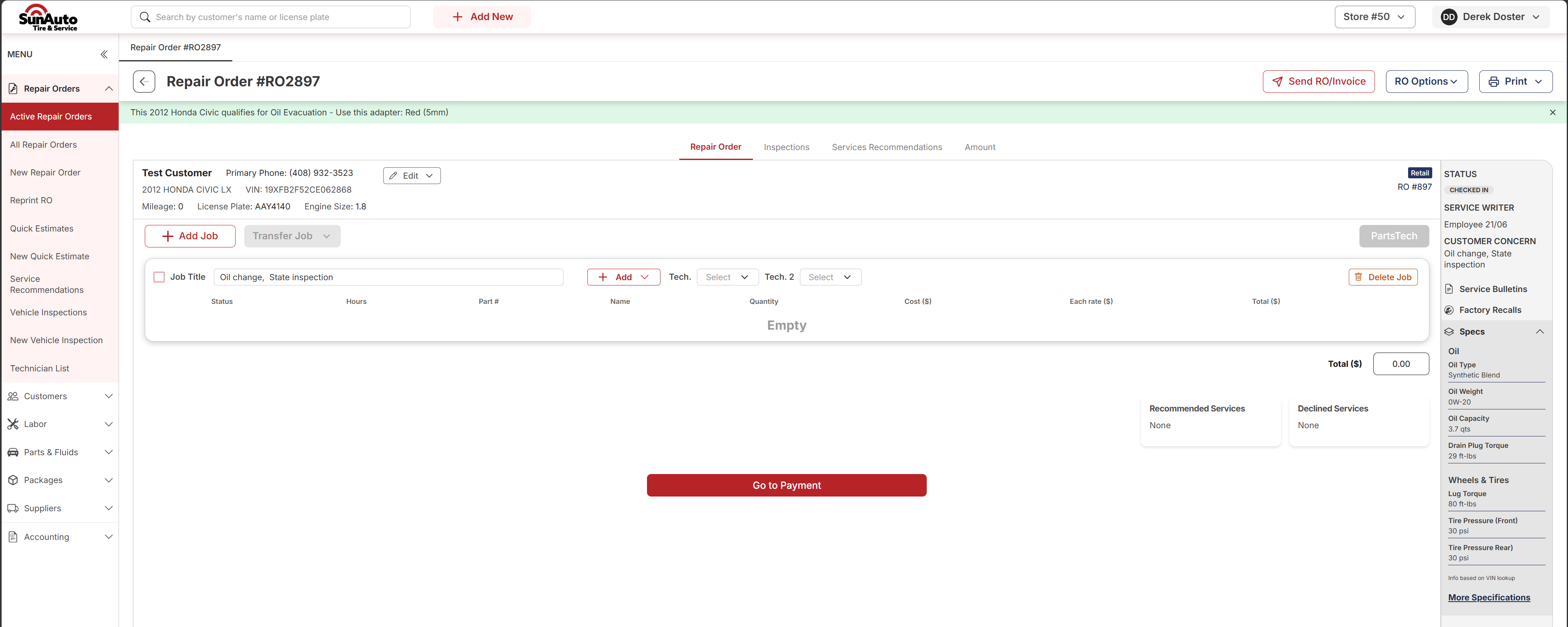
Once you click Start, the RO opens. This is where everything else happens — parts, labor, payment, DVI findings, the customer signing off, all of it.
 1
RO number — assigned automatically when you clicked Start. Lives at the top of every screen for this visit.
2
Oil Evacuation banner — vehicle-specific tech tip. Appears when the Year / Make / Model / Engine matches the oil evacuation database. The note tells the tech which adapter to use to pull oil from the valve cover instead of the drain plug.
3
RO tabs — Repair Order (the active work, this view), Inspections (DVI), Services Recommendations (jobs the customer deferred), Amount (the running total).
4
Add Job — adds another job to the RO. Typically used when the tech finds something during the DVI that the customer authorizes — each red/yellow finding becomes its own job.
5
Transfer Job — moves a job off the active work and into Declined Services or Recommended Services. This is the right move when a customer says no or defers a finding — see Declining Jobs.
6
Customer Concern — the original reason for visit, preserved on the RO so it stays visible to you and the tech.
7
PartsTech — for ordering parts that aren't in our inventory. Covered in Adding Parts → From outside our inventory; the post-add Order / Receive / Return flow lives in Outside Purchases.
8
+ Add — opens a menu to add a line to this Job: Labor (from the catalog), Inventory (parts in stock), Packages (pre-built service bundles), New Item (one-off, not in inventory), Coupon (apply a discount).
9
Go to Payment — take payment and close the RO. Grayed out until there's a balance to collect.
1
RO number — assigned automatically when you clicked Start. Lives at the top of every screen for this visit.
2
Oil Evacuation banner — vehicle-specific tech tip. Appears when the Year / Make / Model / Engine matches the oil evacuation database. The note tells the tech which adapter to use to pull oil from the valve cover instead of the drain plug.
3
RO tabs — Repair Order (the active work, this view), Inspections (DVI), Services Recommendations (jobs the customer deferred), Amount (the running total).
4
Add Job — adds another job to the RO. Typically used when the tech finds something during the DVI that the customer authorizes — each red/yellow finding becomes its own job.
5
Transfer Job — moves a job off the active work and into Declined Services or Recommended Services. This is the right move when a customer says no or defers a finding — see Declining Jobs.
6
Customer Concern — the original reason for visit, preserved on the RO so it stays visible to you and the tech.
7
PartsTech — for ordering parts that aren't in our inventory. Covered in Adding Parts → From outside our inventory; the post-add Order / Receive / Return flow lives in Outside Purchases.
8
+ Add — opens a menu to add a line to this Job: Labor (from the catalog), Inventory (parts in stock), Packages (pre-built service bundles), New Item (one-off, not in inventory), Coupon (apply a discount).
9
Go to Payment — take payment and close the RO. Grayed out until there's a balance to collect.
A few tips
- Search before Add New Customer. Duplicates split the customer's history and break loyalty. Almost every customer is already on file.
- Be specific in Concerns. The tech reads this before touching the vehicle. "Brake noise on the left front when stopping at low speed" beats "weird sound."
- Leave Technician blank if you're not sure — assign it when the tech is actually ready to start work.