Creating a Retail Customer
A Retail Customer is an individual paying for their own vehicle at the counter — card, cash, or check. This is the flow you'll run dozens of times a day.
Search before you create
Always search first. Duplicates split a vehicle's history and break loyalty tracking.
When to use Retail
Use Retail any time the customer is paying for themselves at the counter — including when they're paying for a family member's vehicle they own.
If the customer is a business with a credit account at the shop, use House Charge. If they're driving a fleet or warranty-program vehicle, use National Account.
The form
Once you click New Customer, this is what you'll see. Hover (or tap) any number for a quick explanation.
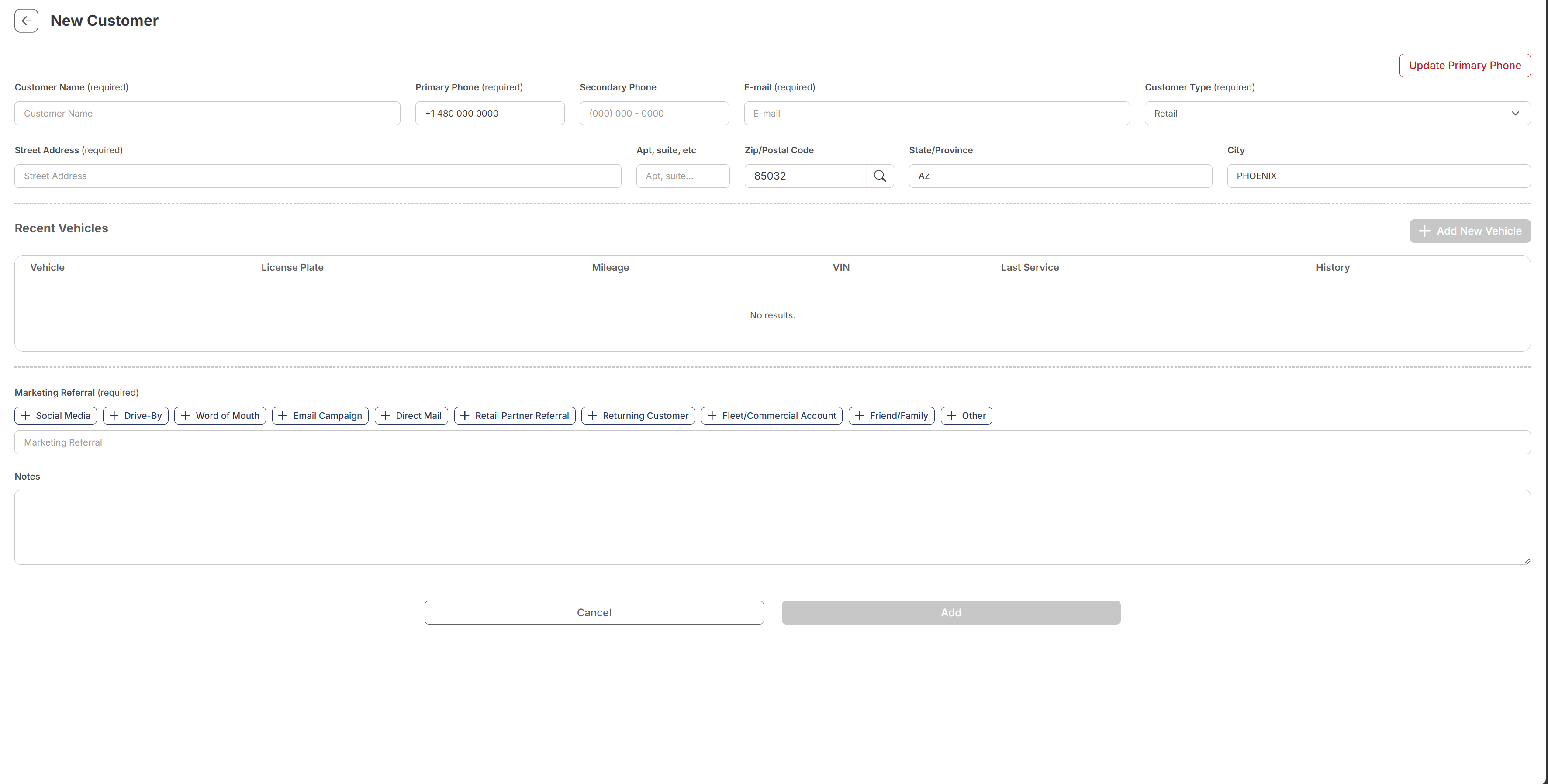 1
Customer Name — first and last, the way the customer says it. Required.
2
Primary Phone — used for SMS confirmations and DVI links. Get this one right.
3
E-mail — used for emailed invoices and DVI links. Required.
4
Customer Type — confirm this is set to Retail. About 9 out of 10 customers belong here.
5
Zip / Postal Code — type the zip and click the magnifier. City and State fill in automatically.
6
Marketing Referral — required. Pick how the customer heard about the shop. Tap a chip to fill it in.
7
Add — stays grayed out until every required field is filled. Once it turns red, you're good to save.
1
Customer Name — first and last, the way the customer says it. Required.
2
Primary Phone — used for SMS confirmations and DVI links. Get this one right.
3
E-mail — used for emailed invoices and DVI links. Required.
4
Customer Type — confirm this is set to Retail. About 9 out of 10 customers belong here.
5
Zip / Postal Code — type the zip and click the magnifier. City and State fill in automatically.
6
Marketing Referral — required. Pick how the customer heard about the shop. Tap a chip to fill it in.
7
Add — stays grayed out until every required field is filled. Once it turns red, you're good to save.
Fields at a glance
| Field | Required? | Notes |
|---|---|---|
| Customer Name | Yes | First and last name |
| Primary Phone | Yes | Used for SMS confirmations and DVI links |
| Secondary Phone | No | Optional backup contact |
| Yes | Used for emailed invoices and DVI | |
| Customer Type | Yes | Almost always Retail |
| Street Address | Yes | |
| Apt, suite, etc. | No | |
| Zip / State / City | Yes (Zip) | Type the zip, click the magnifier — State and City fill in |
| Marketing Referral | Yes | How the customer heard about the shop |
| Notes | No | Anything else worth recording on the customer |
What a filled form looks like
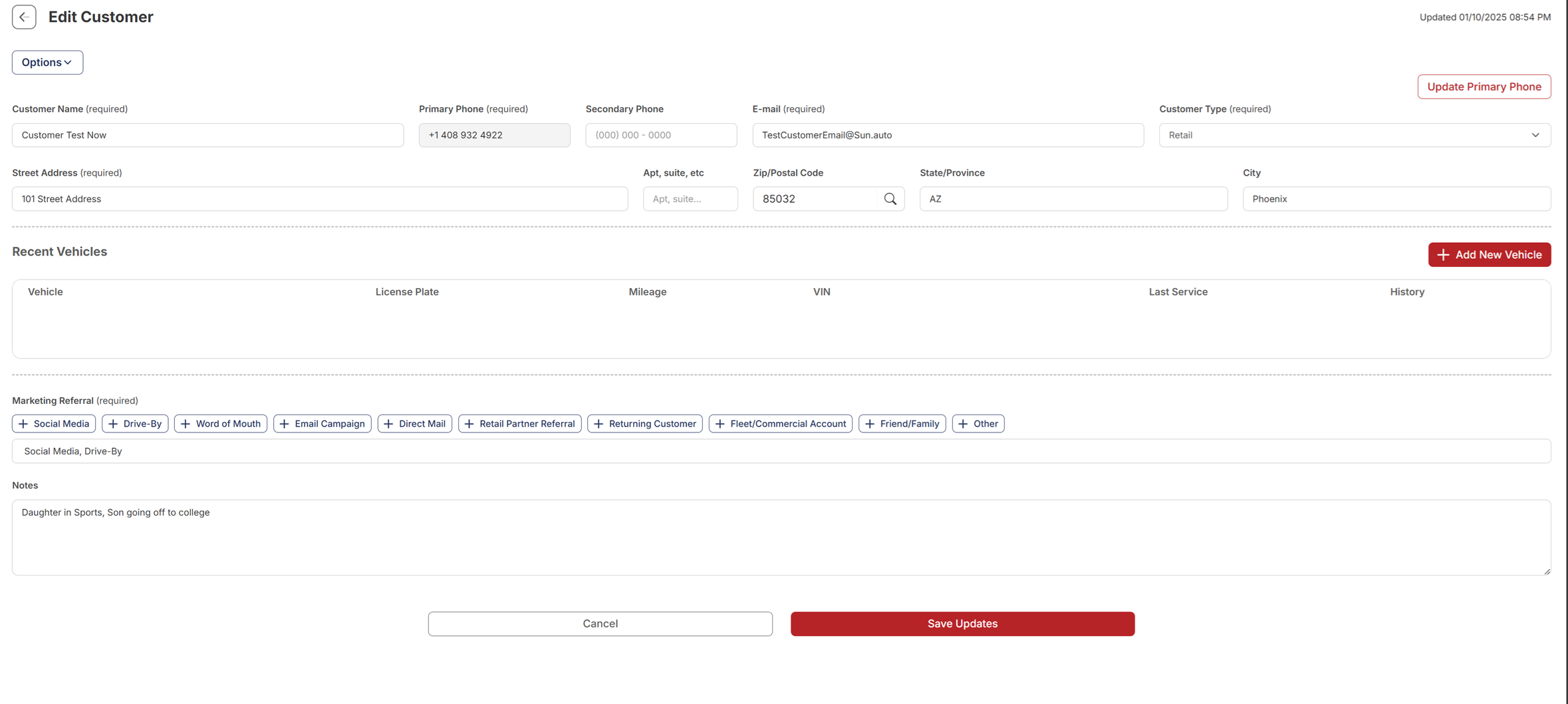
Here's the same form, finished and ready to save:
Watch the flow
The whole thing, end to end: