Creating a National Account
A National Account is a fleet or warranty customer whose work is billed back to the program instead of to the driver standing in front of you. At go-live, the National Account program running through the store is Goodyear.
The store never closes a National Account RO
Leave the repair order open in OverDrive and in Holman or Auto Integrate. Do not close it, do not print the invoice, and do not email it.
An Operations user reviews the order the day after the work is done, and they close it out. If the store closes it first, that review is skipped and the program billing has to be unwound by hand.
When to use National Account
Use this for:
- Fleet vehicles billed to a national fleet management company
- Warranty or extended-service-contract work billed to the program
- Corporate programs that send vehicles through for covered service
Don't run the driver's card — the program pays. A regular walk-in is Retail; a local business with a credit line at the shop is House Charge.
Creating the customer
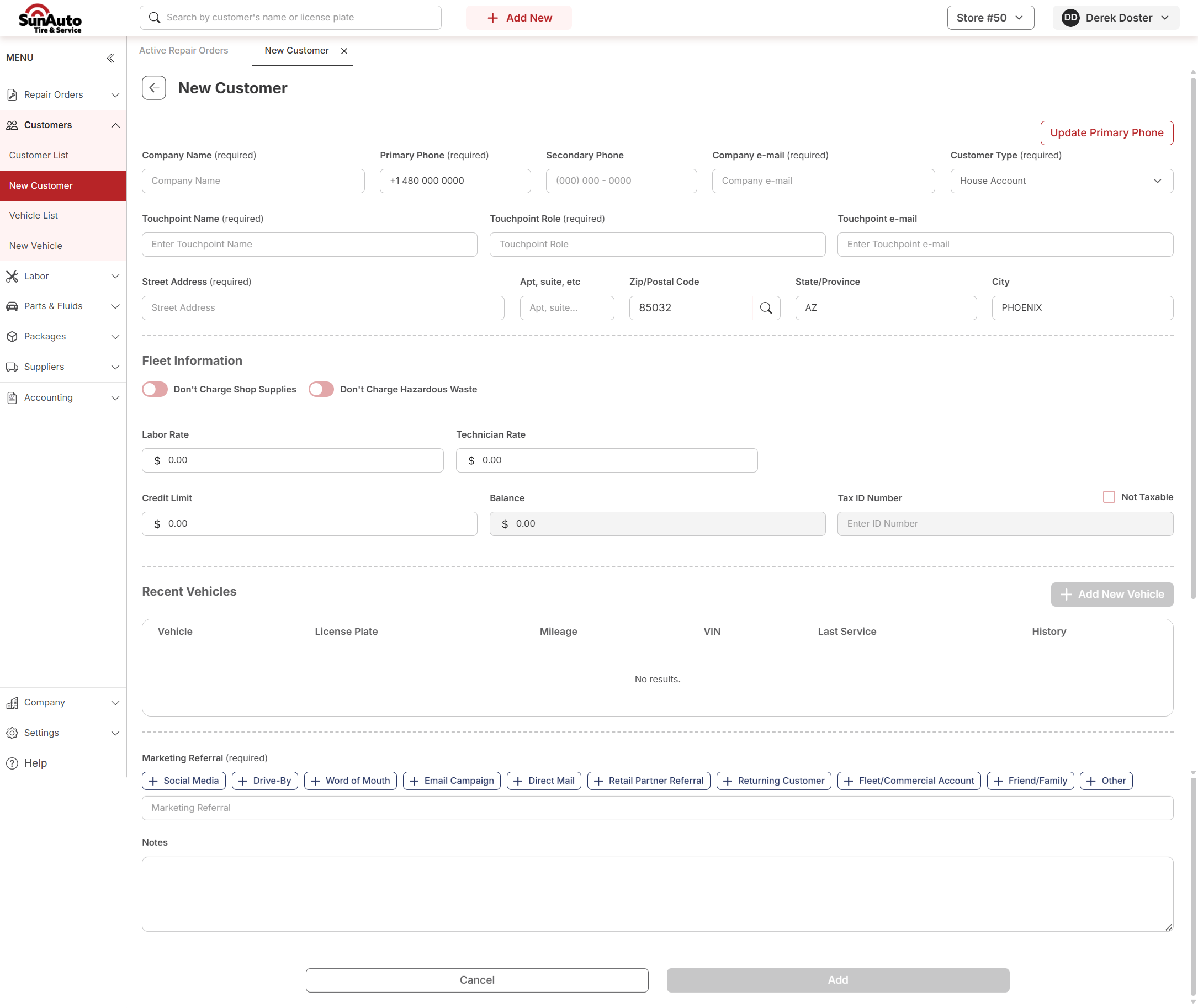
Open New Customer and set Customer Type to National Account. The form switches to the fleet layout — the same layout as a House Charge Account, with a Fleet Information section at the bottom.
About the screenshots below
These captures were taken with Customer Type set to House Account. The National Account form is the same form — set Customer Type to National Account and everything else matches what you see here.
Hover (or tap) any number for a quick explanation.
 1
Customer Type — required. Set to National Account. This swaps the form into the fleet layout below.
2
Company Name — required. The program or fleet company being billed. This is what shows up on the invoice and in search.
3
Touchpoint Name, Role, and e-mail — all required. The contact at the program — usually a fleet manager or program representative, not the driver. More can be added later, but the first one is required.
4
Fleet Information — everything below this line comes from the program agreement, not from the counter. If a value looks wrong, report it rather than working around it.
5
Don't Charge Shop Supplies / Hazardous Waste — for programs whose agreement excludes those fees. Default is to charge both.
6
Labor Rate + Technician Rate — the program's negotiated hourly rates. These override the store's default rates on any RO opened against the account.
7
Credit Limit + Balance — the approved limit and the current outstanding amount on the account. Balance is always calculated, never typed in.
8
Tax ID + Not Taxable — for tax-exempt programs. With Not Taxable checked and a Tax ID Number entered, sales tax drops off any invoice on this account.
9
Add — grayed out until every required field is filled. Once it turns red, the account is good to save.
Fields at a glance
| Field | Required? | Notes |
|---|---|---|
| Customer Type | Yes | Must be National Account |
| Company Name | Yes | The program or fleet company; shows on invoice and search |
| Primary Phone | Yes | Main contact number for the program |
| Secondary Phone | No | Optional backup |
| Company e-mail | Yes | Where program correspondence goes |
| Touchpoint Name | Yes | Contact at the program |
| Touchpoint Role | Yes | e.g., Fleet Manager, Program Rep |
| Touchpoint e-mail | Yes | How we email that contact |
| Street Address | Yes | Program billing address |
| Don't Charge Shop Supplies | No | Default off; per program agreement |
| Don't Charge Hazardous Waste | No | Default off; per program agreement |
| Labor Rate | Yes | Program's negotiated labor rate |
| Technician Rate | Yes | Program's negotiated tech rate |
| Credit Limit | Yes | Approved credit amount |
| Balance | Auto | Current outstanding amount; always calculated |
| Tax ID Number | If Not Taxable | The program's exemption ID |
| Not Taxable | No | Check for tax-exempt programs |
| Marketing Referral | Yes | How the account came to the shop |
| Notes | No | Anything worth recording about how the account operates |
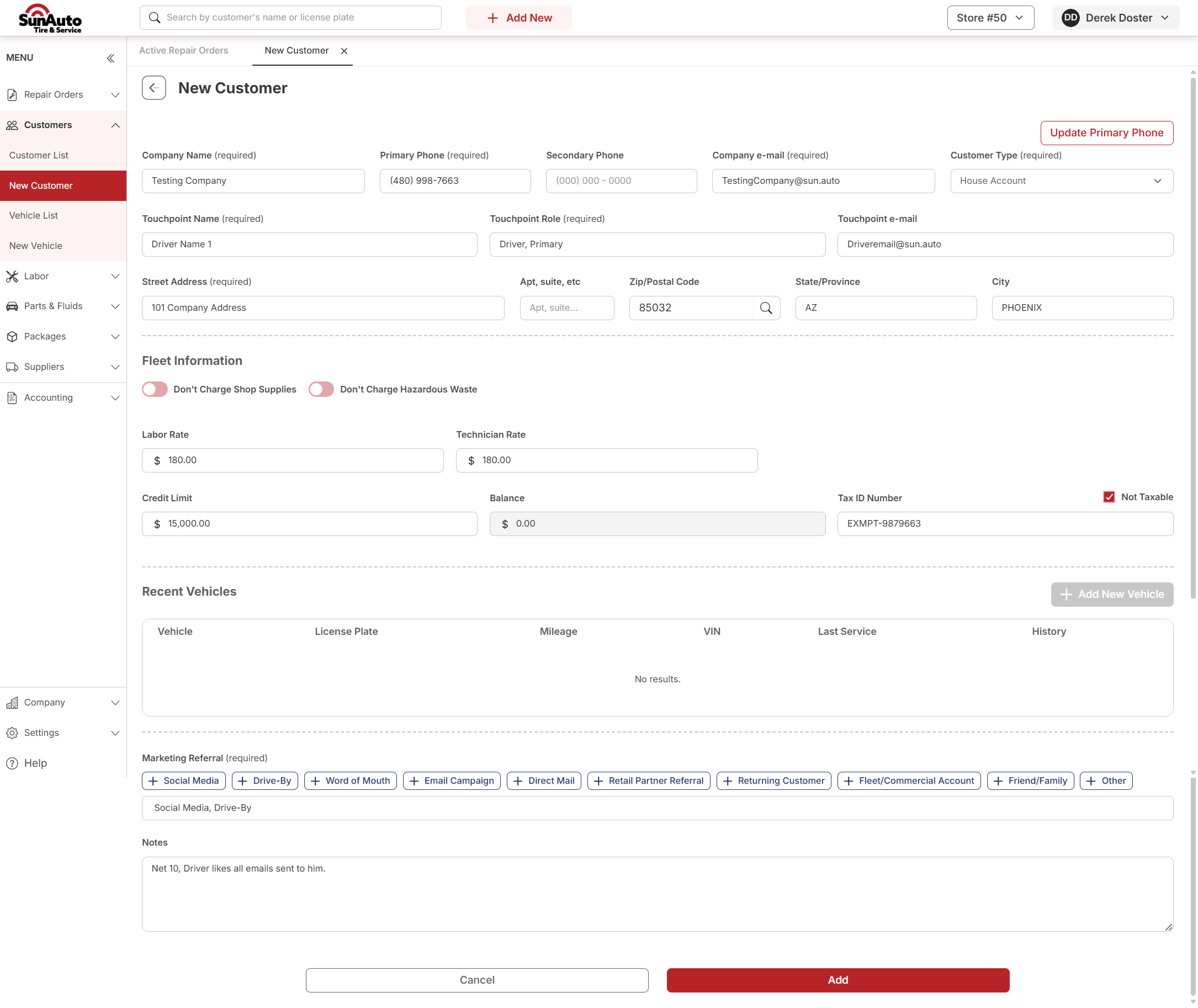
What a filled fleet account looks like
The same form, finished and ready to save:
Goodyear jobs
Goodyear work is authorized outside OverDrive, by the vehicle's Fleet Management Company in Holman or Auto Integrate. In short:
- The store finds the FMC by VIN, finds or adds the National Account customer, adds the vehicle and creates the RO, builds the ticket with NATL packages only, builds the same ticket in Holman or Auto Integrate and gets it approved, does the work (add-ons approved as you go), and leaves the RO open in OverDrive and in Holman or Auto Integrate. The full walkthrough is Goodyear National Account Jobs (Store).
- An Operations user closes it the next day: verifies the RO against Holman or Auto Integrate, adds the fee coupon, re-keys the invoice, closes the RO in OverDrive and marks it complete in Holman or Auto Integrate. See Goodyear National Account Close-Out (Operations).
An open National Account RO sitting on the board is normal: it's waiting on that close-out. Don't clear it to tidy up the list.
If something looks wrong
- The RO was closed by mistake — don't reopen it and re-invoice it yourself. Report it.
- The Holman or Auto Integrate approval changed after the RO was built — update the RO to match the current approval, and leave it open.
- A credit or re-bill looks necessary — these are avoided by design on National Account orders. Report it instead of building a correction.
- A Fleet Information value looks wrong (rate, credit limit, tax status) — report it rather than working around it on the RO.
Start with this site. If it's still stuck, post in the store's OverDrive Teams channel with the RO number and what you were doing.
Related
- Creating a House Charge Account — the same fleet form, for a business with a credit line at the shop.
- Creating a Retail Customer — the everyday walk-in customer.
- Searching Customers — find an existing National Account before creating a new one.
- Creating a Repair Order — opening the RO once the customer and vehicle exist.
- Payments — the payment screen and its methods.
- Goodyear National Account Jobs (Store) — the store's steps, from finding the FMC to leaving the RO open.
- Goodyear National Account Close-Out (Operations) — how Operations closes the RO the next day.
- National Accounts — the back-office process behind the open RO.