Purchase Orders
An Inventory PO is how the shop orders parts in from a supplier to stock the shelves. Every PO moves through a few statuses from when you start it to when the parts are on the shelf.
Inventory PO ≠ Outside Purchase
This is for stocking the shelves. If you're pulling a part in from PartsTech for a customer's RO, that's an Outside Purchase — a different flow with the same vocabulary.
PO Statuses
| Status | What it means |
|---|---|
| Draft | PO is being put together. Hasn't been sent yet. |
| On Order | PO has been placed with the supplier. Waiting on the parts. |
| Partially Received | Some parts arrived but not all. Still open for the rest. |
| Received | All parts arrived. PO is closed. |
| Voided | PO was cancelled before any parts came in. |
The Inventory Management screen has a tab for each batch of statuses: On Order, Received, Pending Return or Returned, and Voided.
Creating a Purchase Order
Step through the slides — click the chips at the top, the Previous / Next buttons, or use the ← → arrow keys.
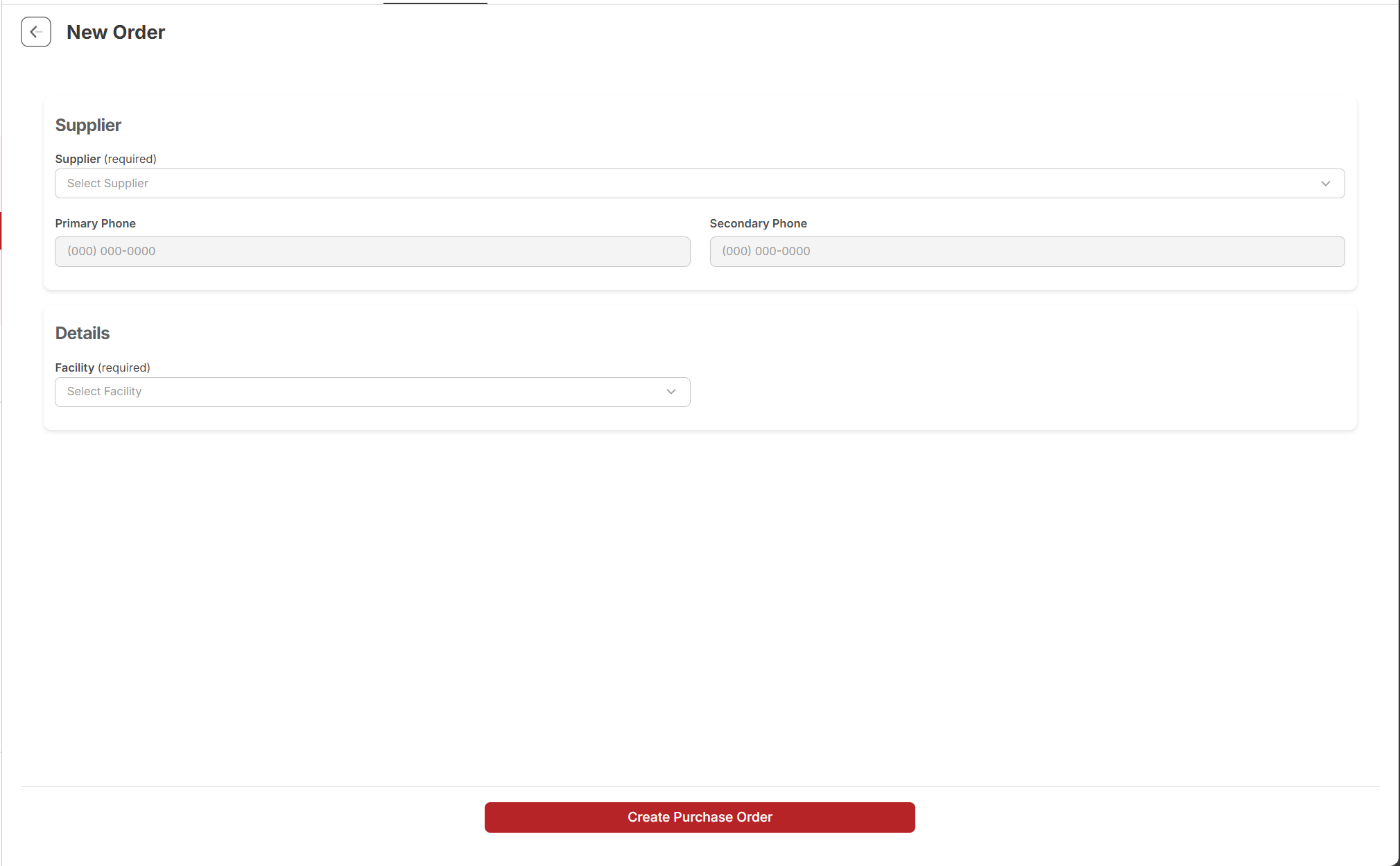
Step 1 — Start a New Order. From Inventory Management, click + New Order. The New Order form opens with the supplier and facility blank.
 1
Supplier (required) — pick the vendor you're ordering from. Phone numbers below auto-fill from the supplier record.
2
Facility (required) — which store / location the parts ship to. Defaults aren't smart here; pick deliberately.
3
Create Purchase Order — disabled until both required fields have values.
1
Supplier (required) — pick the vendor you're ordering from. Phone numbers below auto-fill from the supplier record.
2
Facility (required) — which store / location the parts ship to. Defaults aren't smart here; pick deliberately.
3
Create Purchase Order — disabled until both required fields have values.
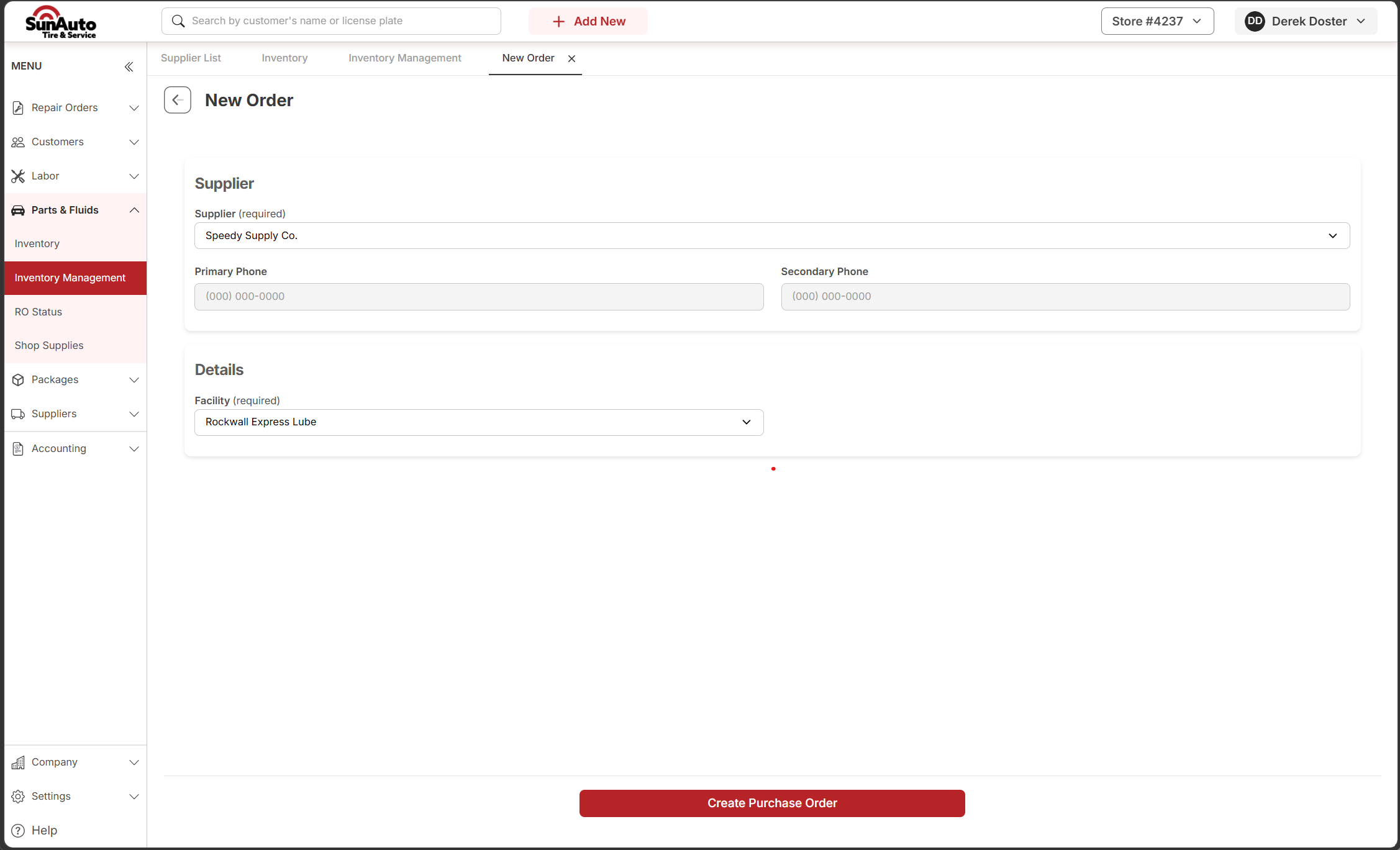
Step 2 — Pick supplier and facility. With both required fields filled (here, Speedy Supply Co. and Rockwall Express Lube), the Create Purchase Order button activates.
 1
Supplier selected — primary/secondary phone fill from the supplier record. Verify them if anything looks off before you place the order.
2
Facility set — the store the parts ship to. Stuck on the wrong store later? Cancel and restart; facility can't be swapped mid-PO.
3
Create Purchase Order — now active. Clicking it creates the draft PO and takes you to the line entry view.
1
Supplier selected — primary/secondary phone fill from the supplier record. Verify them if anything looks off before you place the order.
2
Facility set — the store the parts ship to. Stuck on the wrong store later? Cancel and restart; facility can't be swapped mid-PO.
3
Create Purchase Order — now active. Clicking it creates the draft PO and takes you to the line entry view.
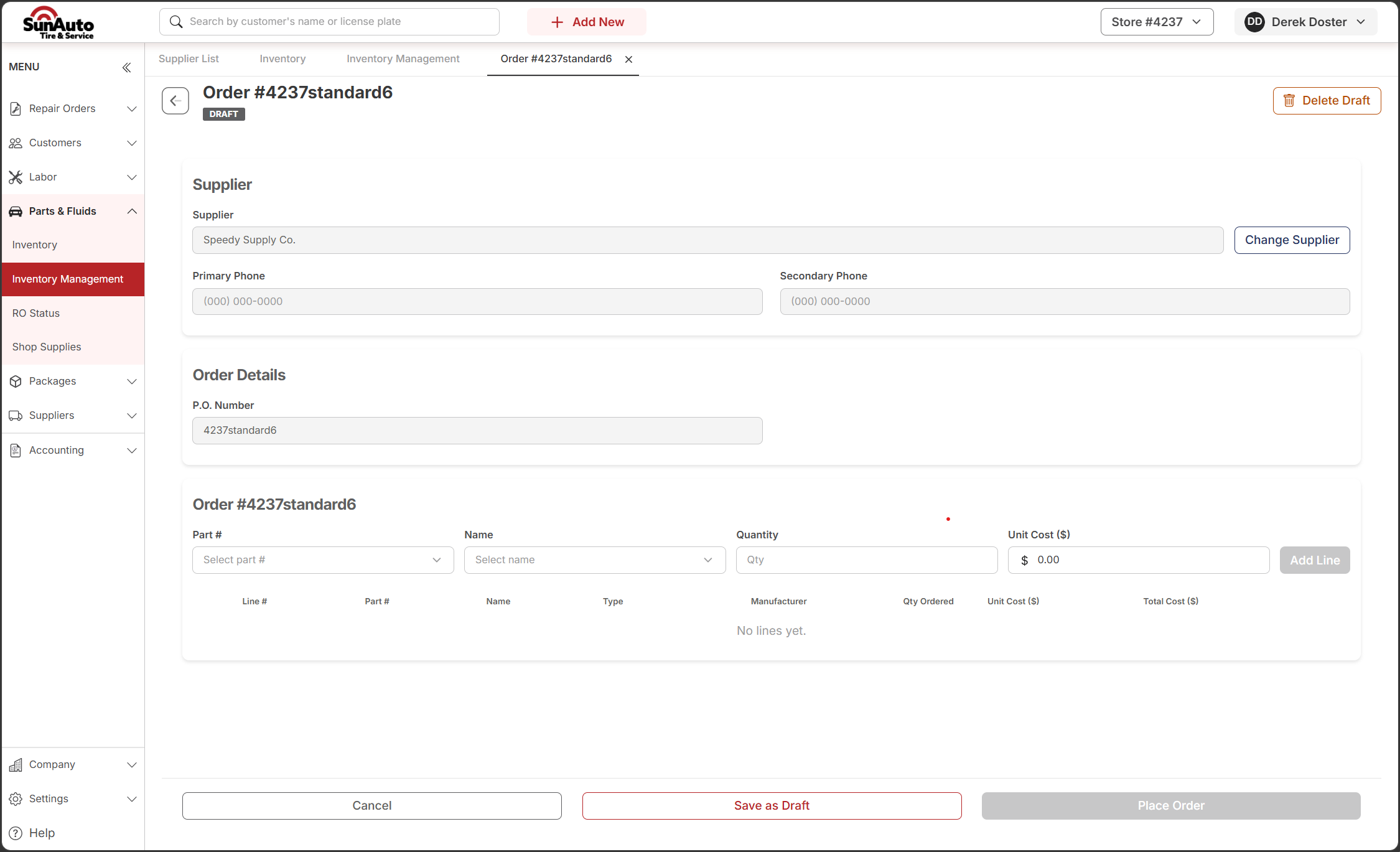
Step 3 — Draft created. A draft PO opens with its own number. Add parts one line at a time from the row at the top of the line area.
 1
DRAFT badge — confirms the PO hasn't been sent yet. Anyone can still walk away by saving as draft or cancelling.
2
Line entry row — pick a Part #, the Name auto-fills, type the Quantity, confirm Unit Cost, then click Add Line.
3
Save as Draft — parks the PO without sending. Pick it up later from Inventory Management → On Order (Drafts show alongside On Order).
4
Place Order — disabled until at least one line is added.
1
DRAFT badge — confirms the PO hasn't been sent yet. Anyone can still walk away by saving as draft or cancelling.
2
Line entry row — pick a Part #, the Name auto-fills, type the Quantity, confirm Unit Cost, then click Add Line.
3
Save as Draft — parks the PO without sending. Pick it up later from Inventory Management → On Order (Drafts show alongside On Order).
4
Place Order — disabled until at least one line is added.
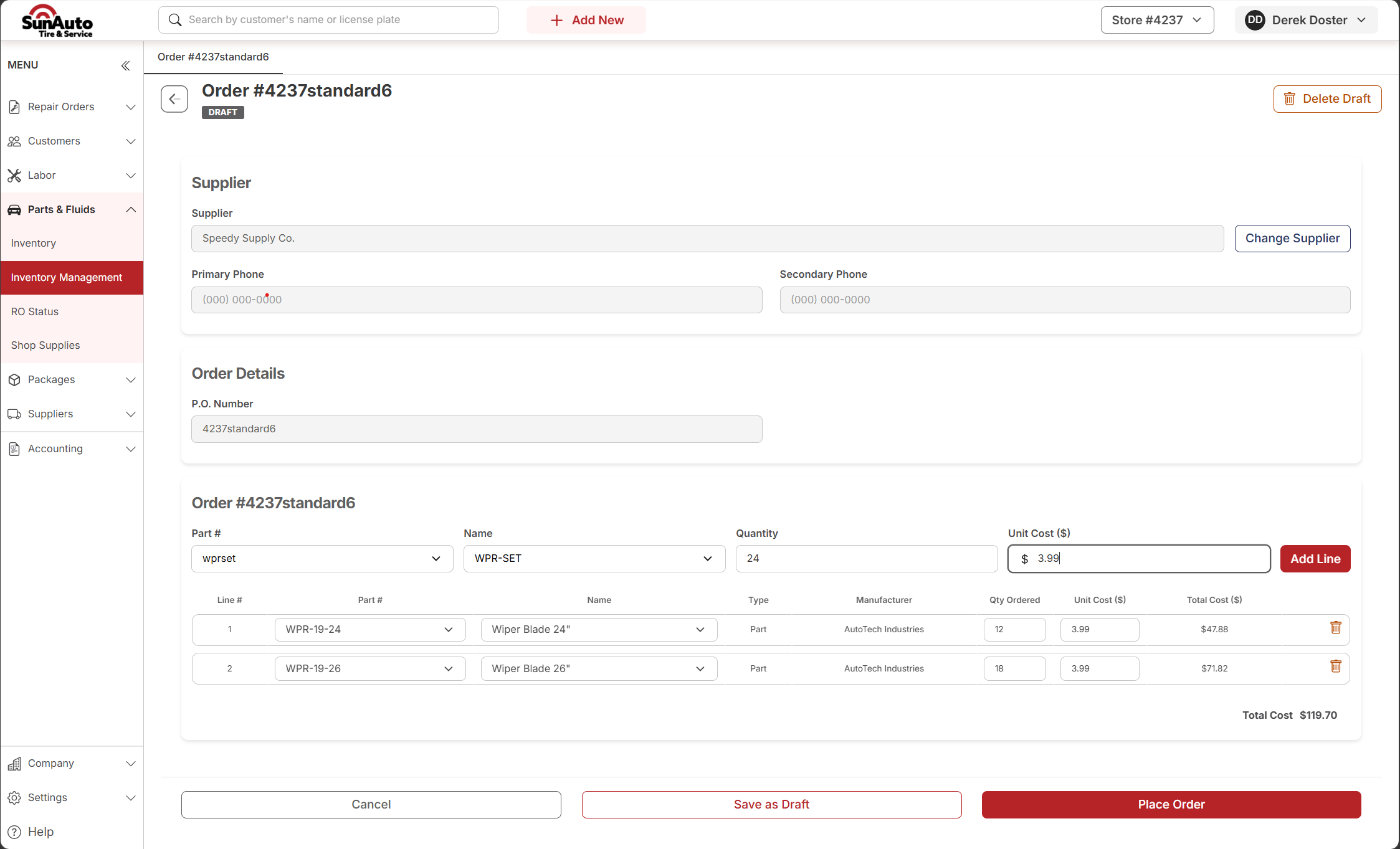
Step 4 — Add lines and Place Order. Each line shows part number, name, type, manufacturer, qty, unit cost, and line total. The running Total Cost updates underneath. When the order is ready, click Place Order.
 1
Line on the PO — each part shows Part #, Name, Type (Part / Fluid), Manufacturer, Qty Ordered, Unit Cost, Total Cost. Use the trash icon on the right to remove a line.
2
Total Cost — sum of every line. This is what'll come due when the invoice arrives with the parts.
3
Place Order — now active (red). Sends the PO to the supplier and flips status from Draft to On Order.
1
Line on the PO — each part shows Part #, Name, Type (Part / Fluid), Manufacturer, Qty Ordered, Unit Cost, Total Cost. Use the trash icon on the right to remove a line.
2
Total Cost — sum of every line. This is what'll come due when the invoice arrives with the parts.
3
Place Order — now active (red). Sends the PO to the supplier and flips status from Draft to On Order.
Step 5 — It's On Order. Back on Inventory Management, the PO shows under the On Order tab. From here you can drill into any row, void it, or get ready to receive once the parts arrive.
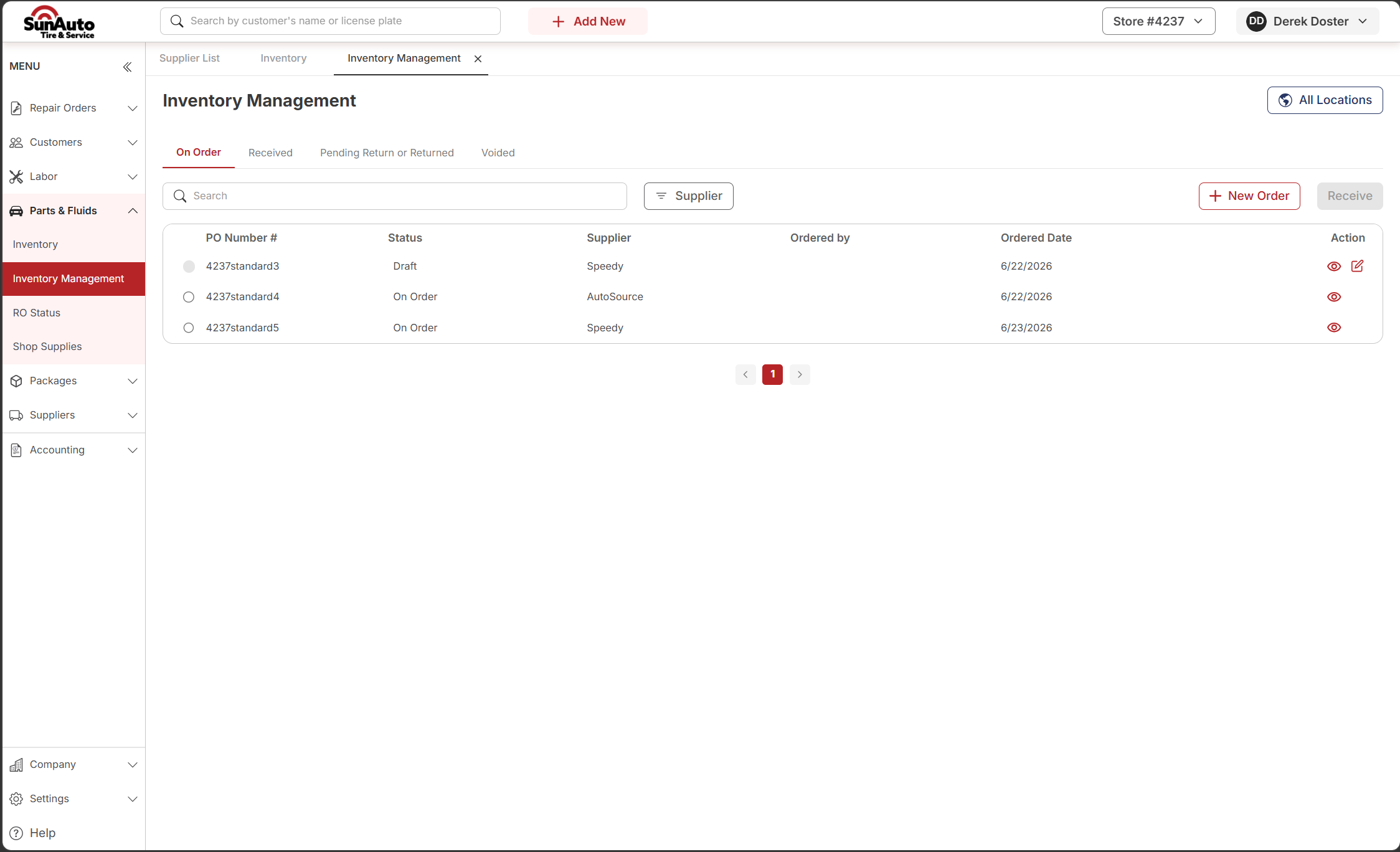 1
Status tabs — On Order (Draft + On Order), Received, Pending Return or Returned, Voided. Each tab is a window into one phase of the PO lifecycle.
2
+ New Order starts a fresh PO. Receive is disabled until you tick a row.
3
PO list — number, status, supplier, who ordered, date. Click the eye icon on the right to drill into a PO.
1
Status tabs — On Order (Draft + On Order), Received, Pending Return or Returned, Voided. Each tab is a window into one phase of the PO lifecycle.
2
+ New Order starts a fresh PO. Receive is disabled until you tick a row.
3
PO list — number, status, supplier, who ordered, date. Click the eye icon on the right to drill into a PO.
Step 6 — Open the PO to receive or void. Drilling into an On Order PO shows the same supplier + line detail you built it with, plus three action buttons at the bottom — Cancel, Void Order, and Receive Order.
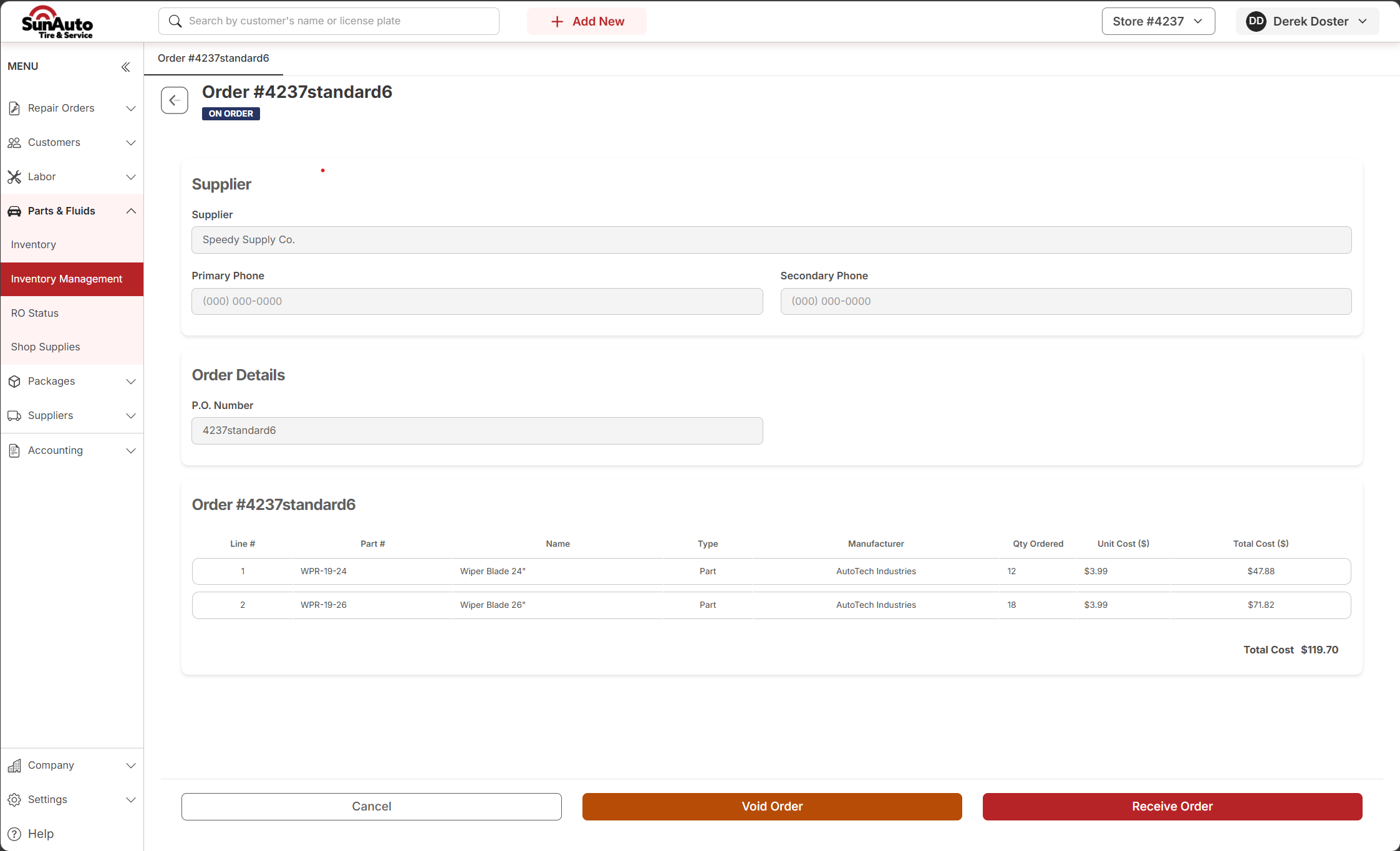 1
ON ORDER badge — the PO is live with the supplier.
2
Void Order — cancels the PO before any parts come in. See the voiding flow below.
3
Receive Order — opens the receive form when the parts physically arrive. See Receiving Parts.
1
ON ORDER badge — the PO is live with the supplier.
2
Void Order — cancels the PO before any parts come in. See the voiding flow below.
3
Receive Order — opens the receive form when the parts physically arrive. See Receiving Parts.
Voiding a PO
If a PO needs cancelled before the parts arrive, void it. Once any part is received, you can't void — you'd need to do a Return instead.
Step 1 — Open the On Order PO. From Inventory Management, drill into the PO that needs cancelled. The Void Order button is at the bottom.
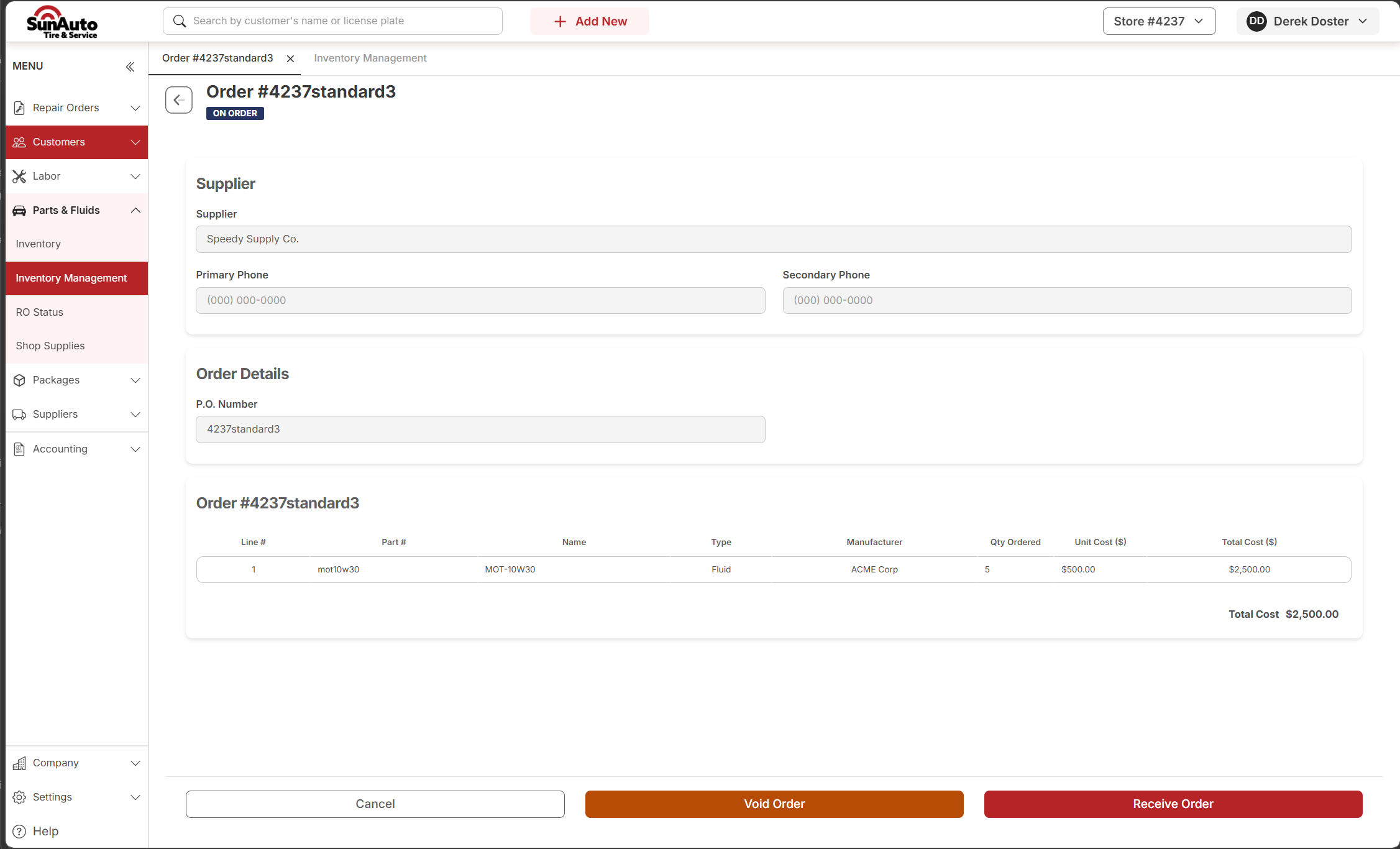 1
ON ORDER badge — voiding only works while the PO is still in this state with no partial receipts on file.
2
Void Order — opens the confirmation dialog.
1
ON ORDER badge — voiding only works while the PO is still in this state with no partial receipts on file.
2
Void Order — opens the confirmation dialog.
Step 2 — Confirm. A dialog warns you that voiding cancels the order and removes all associated items, and that this action cannot be undone. Click Void Order to confirm or Go Back to bail out.
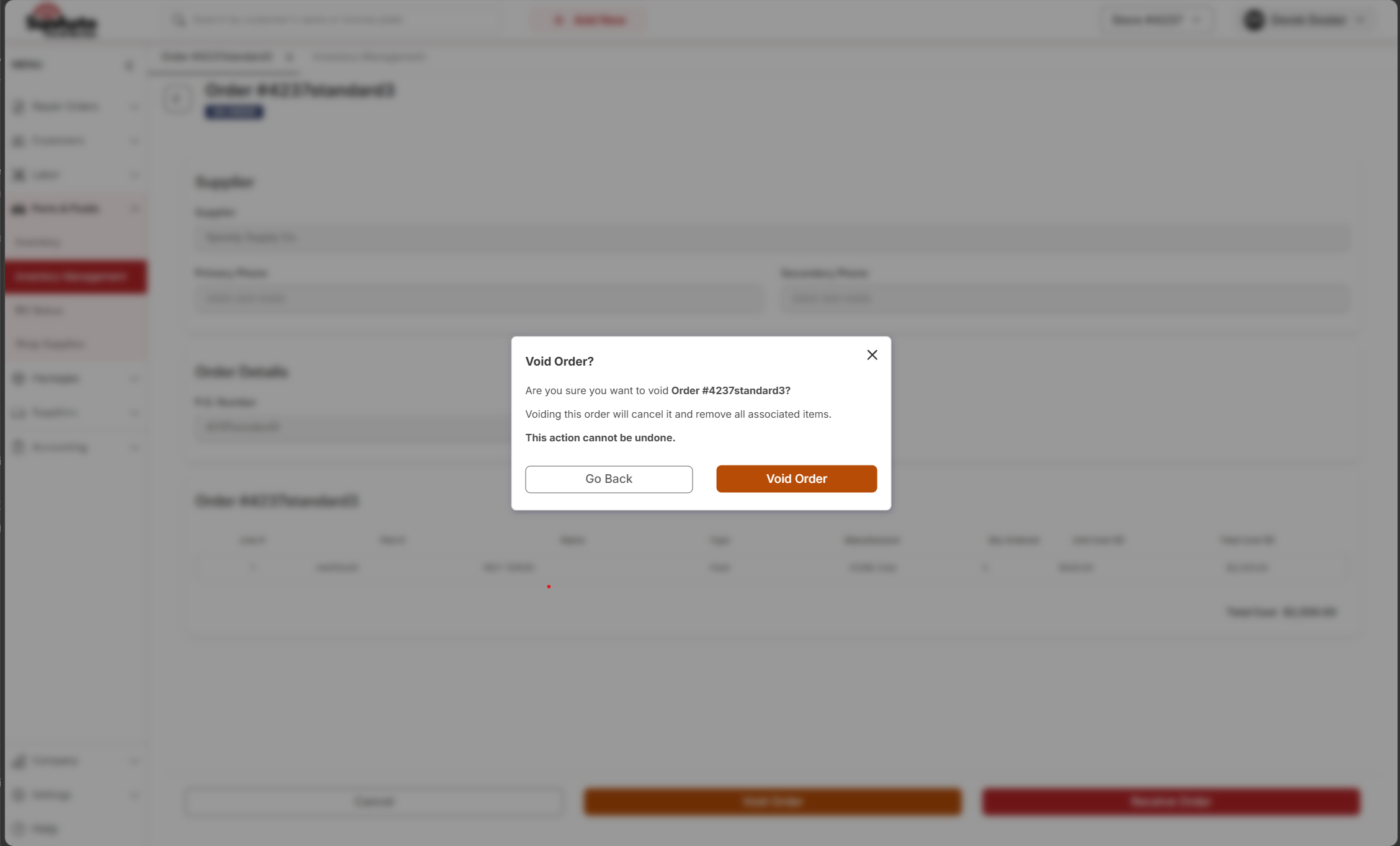 1
"This action cannot be undone" — read this. There's no un-void. If the supplier still ships the parts after you void, you'll need to handle that as a [Return](../returns/).
2
Void Order — confirms and moves the PO to the Voided tab.
1
"This action cannot be undone" — read this. There's no un-void. If the supplier still ships the parts after you void, you'll need to handle that as a [Return](../returns/).
2
Void Order — confirms and moves the PO to the Voided tab.
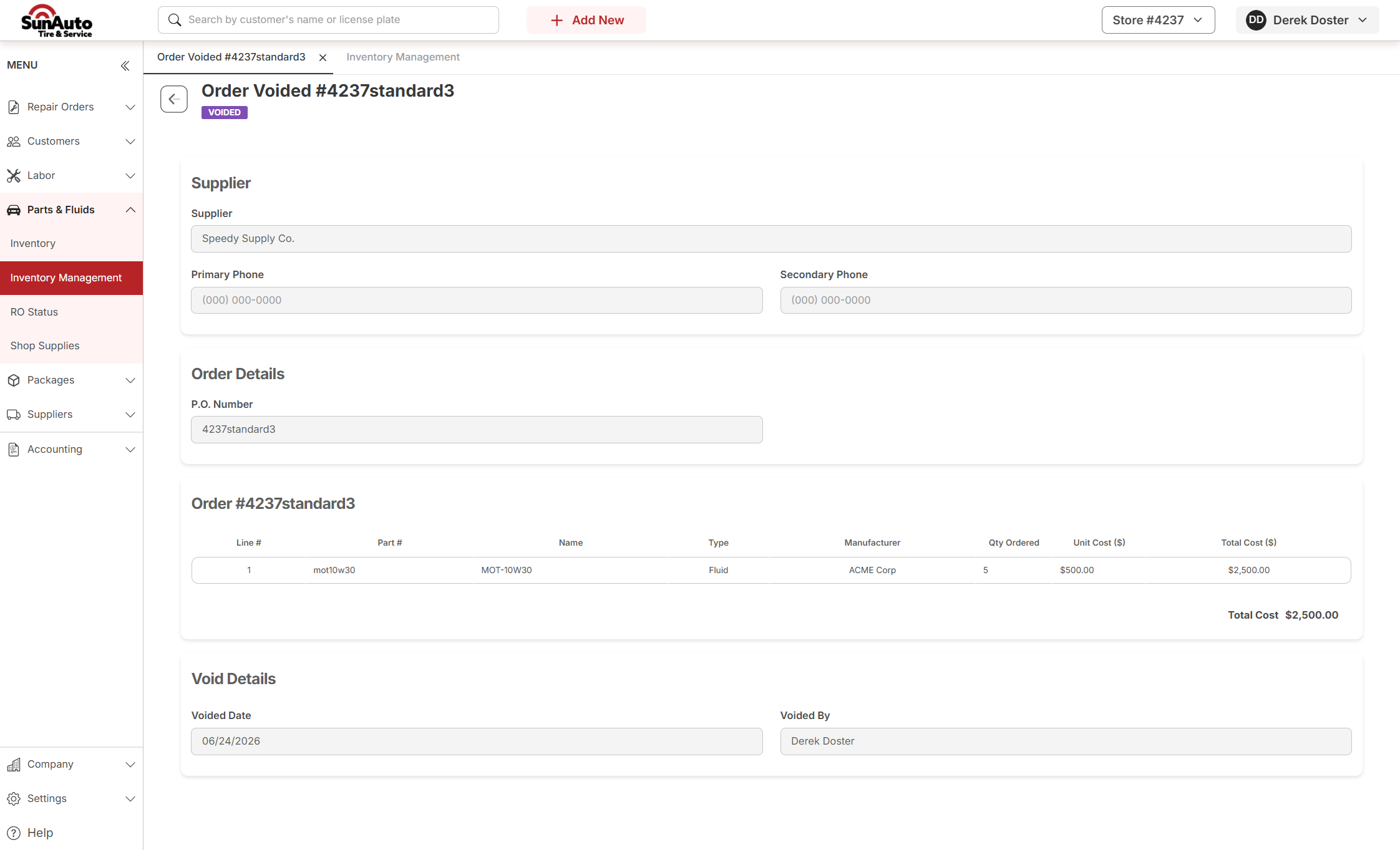
Step 3 — PO is now Voided. The title changes to Order Voided, the badge flips to VOIDED (purple), and a Void Details section logs the date and who did it. The PO moves under the Voided tab on Inventory Management.
 1
VOIDED badge — the PO record stays for the audit trail, but no parts came in and no stock count changed.
2
Void Details — Voided Date and Voided By are logged automatically. Useful for end-of-month reconciliation when a supplier asks "what happened to this order?"
1
VOIDED badge — the PO record stays for the audit trail, but no parts came in and no stock count changed.
2
Void Details — Voided Date and Voided By are logged automatically. Useful for end-of-month reconciliation when a supplier asks "what happened to this order?"
A few tips
- Save as Draft when you're not sure. Drafts don't go to the supplier. You can pick them back up from Inventory Management → On Order.
- Check the Unit Cost on every line. OverDrive may default from the part record; if the supplier's pricing has moved, override it on the line before you place the order. Catches reconciliation surprises at receive time.
- Verify the Facility. Wrong store = parts ship to the wrong building. Pick deliberately on step 2 — there's no swap once the draft is created.
- Void only when nothing has been received. If even one line was partially received, you'd need to handle the rest as a Return instead.