Placing the Order
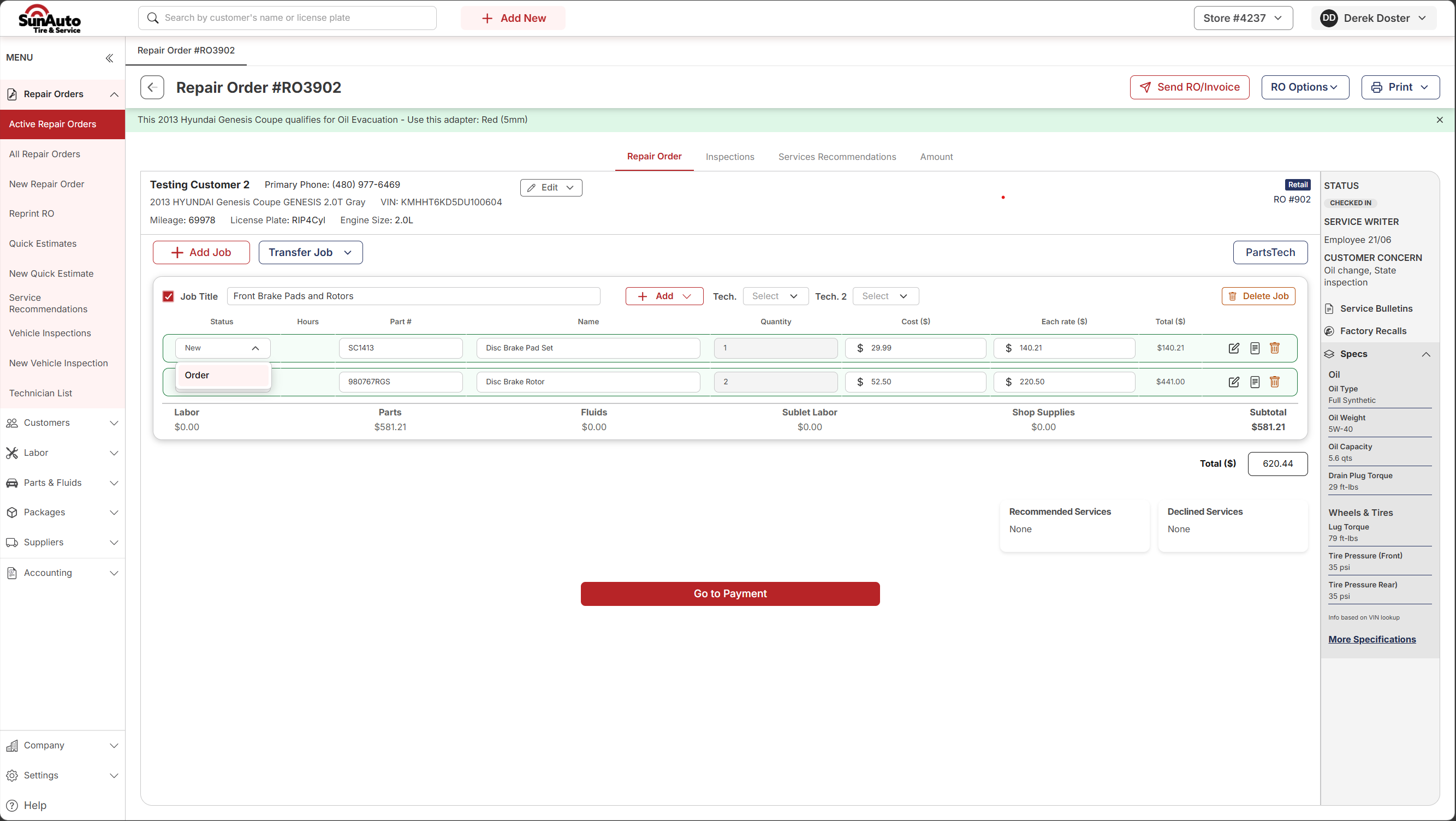
Once a part is on an RO from PartsTech, click the line's Status, pick Order, fill in the supplier + invoice details, and confirm the lines. The line flips to Ordered.
Step 1 — Open the line's status dropdown. Click New in the Status column on the part line, then pick Order. This opens the Order Part page for that line.
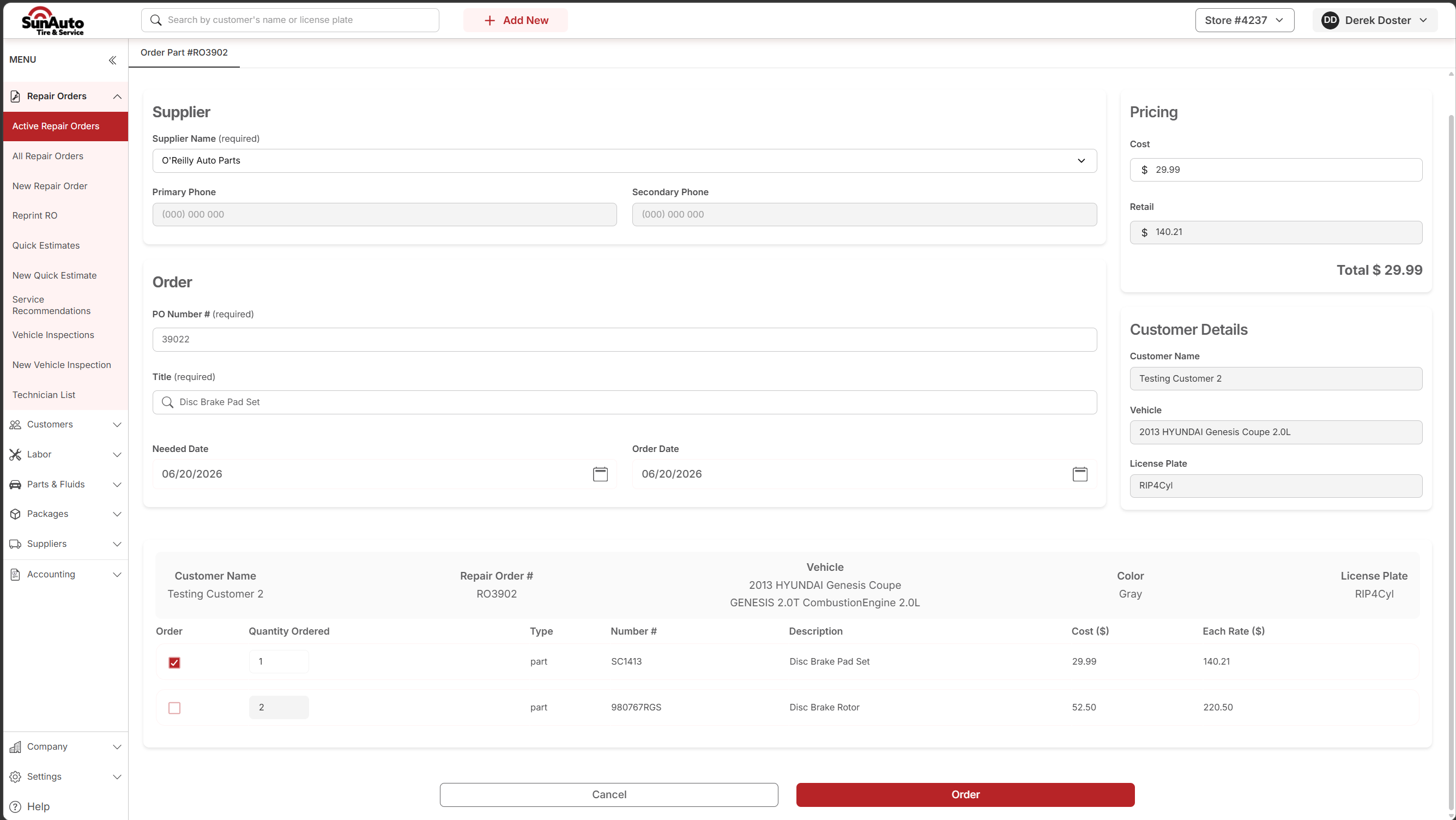
Step 2 — The Order Part page opens. Supplier and pricing pre-fill from the PartsTech selection. The PO Number is the RO number. The line you clicked from is already checked at the bottom — leave any others unchecked if they're not part of this order.
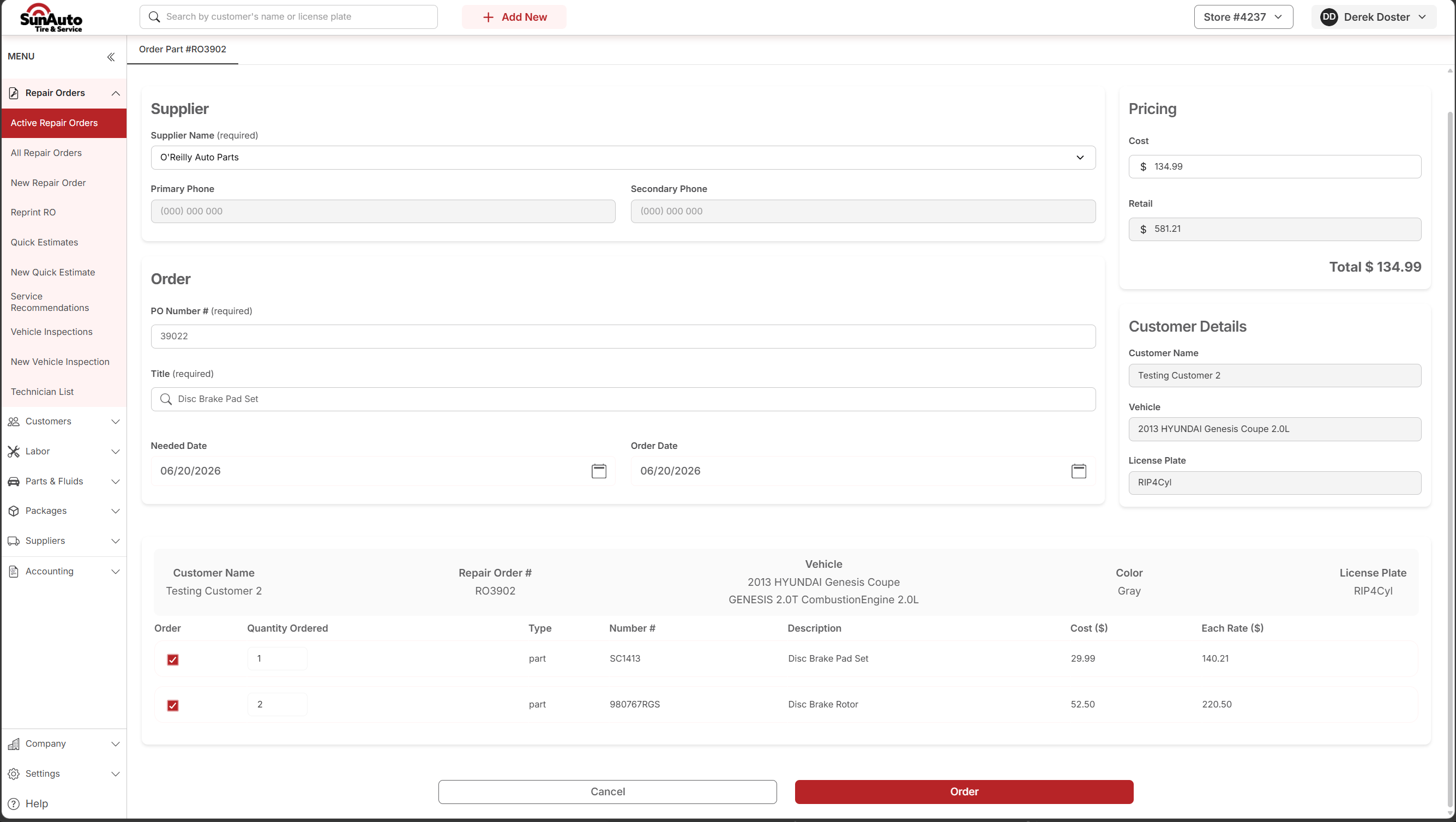
Step 3 — Check every line you're ordering, then click Order. The right-side Pricing total recalculates as you check lines. When everything for this supplier is selected, click Order at the bottom. Each line flips to Ordered back on the RO.
Watch the flow
A few tips
- One supplier per order. If a job has lines from two different suppliers, only check the lines for the one you're placing right now. Come back for the rest separately.
- PO Number = RO number. That's the link between OverDrive and the supplier's record of the order. If it's empty or wrong, back out — don't proceed.
- Capture the supplier confirmation. Once you click Order, the supplier processes it on their end. Save any reference numbers they return — you'll need them at Receive and Return.