First Login
The first time you use OverDrive you don't log in — you set yourself up. You claim your account with your Employee Code, get a one-time code by e-mail or text, and create your password. It takes a couple of minutes, and you only do it once.
Before you start
- Go to overdrive.sun.auto in your browser. That's the address for every store.
- Know your Employee Code. It's usually your first name plus your last initial — John Smith is
JohnS. If someone already has that code, you'll be given a different one when your account is set up. - Have your work e-mail open, or your phone nearby. The one-time code goes to whichever you pick.
Pick e-mail
E-mail usually arrives faster than the text message. If you're standing at the counter waiting, that's the one to choose.
Walkthrough
Step through the slides — click the chips at the top, the Previous / Next buttons, or use the ← → arrow keys.
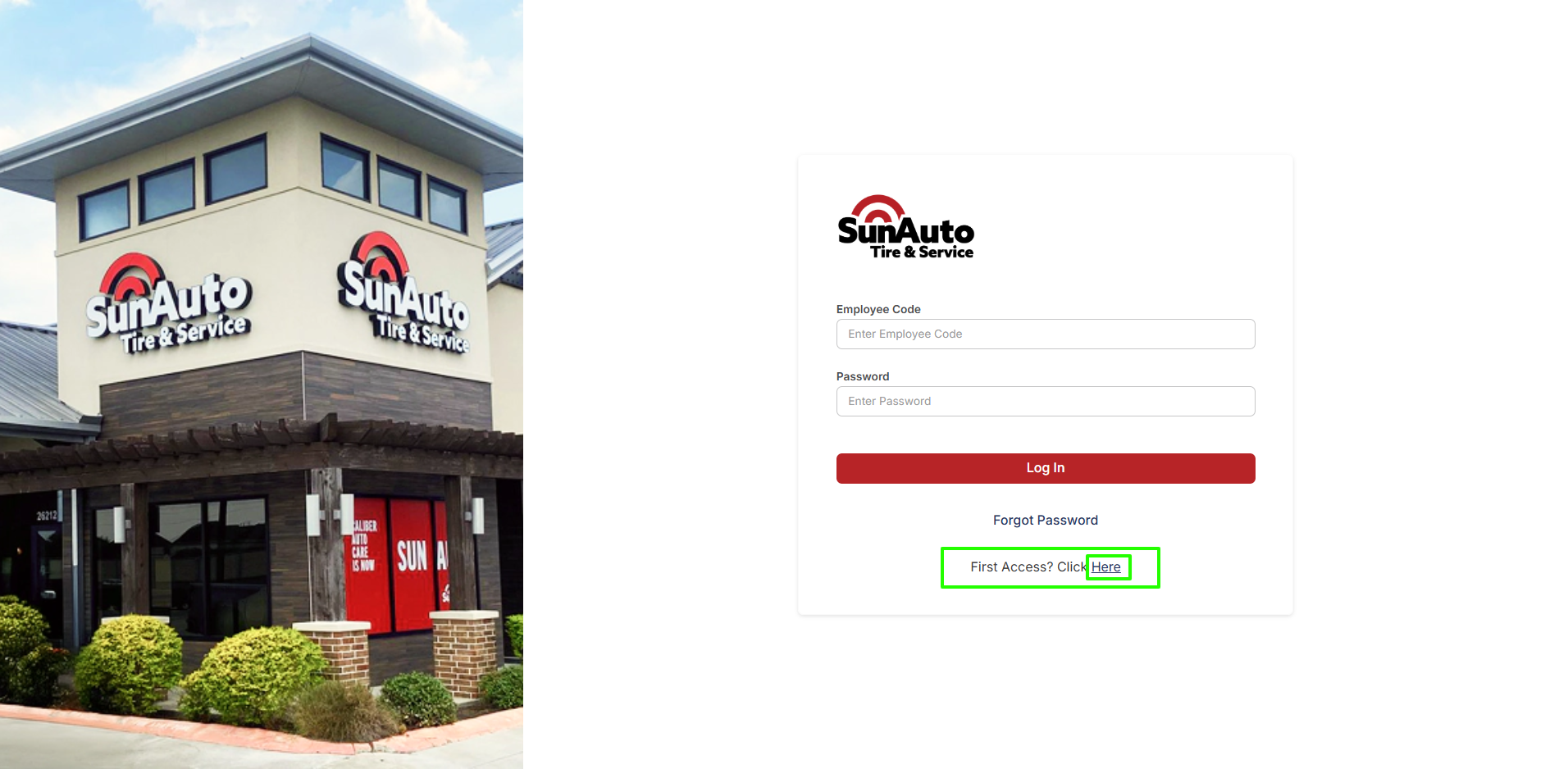
Step 1 — Start First Access. On the login page, don't fill anything in — you don't have a password yet. Under the Log In button, find First Access? Click Here and click Here.
 1
Employee Code and Password — leave both blank on your first visit. You'll use them here every day after today.
2
First Access? Click Here — this is the one to click. It starts the setup.
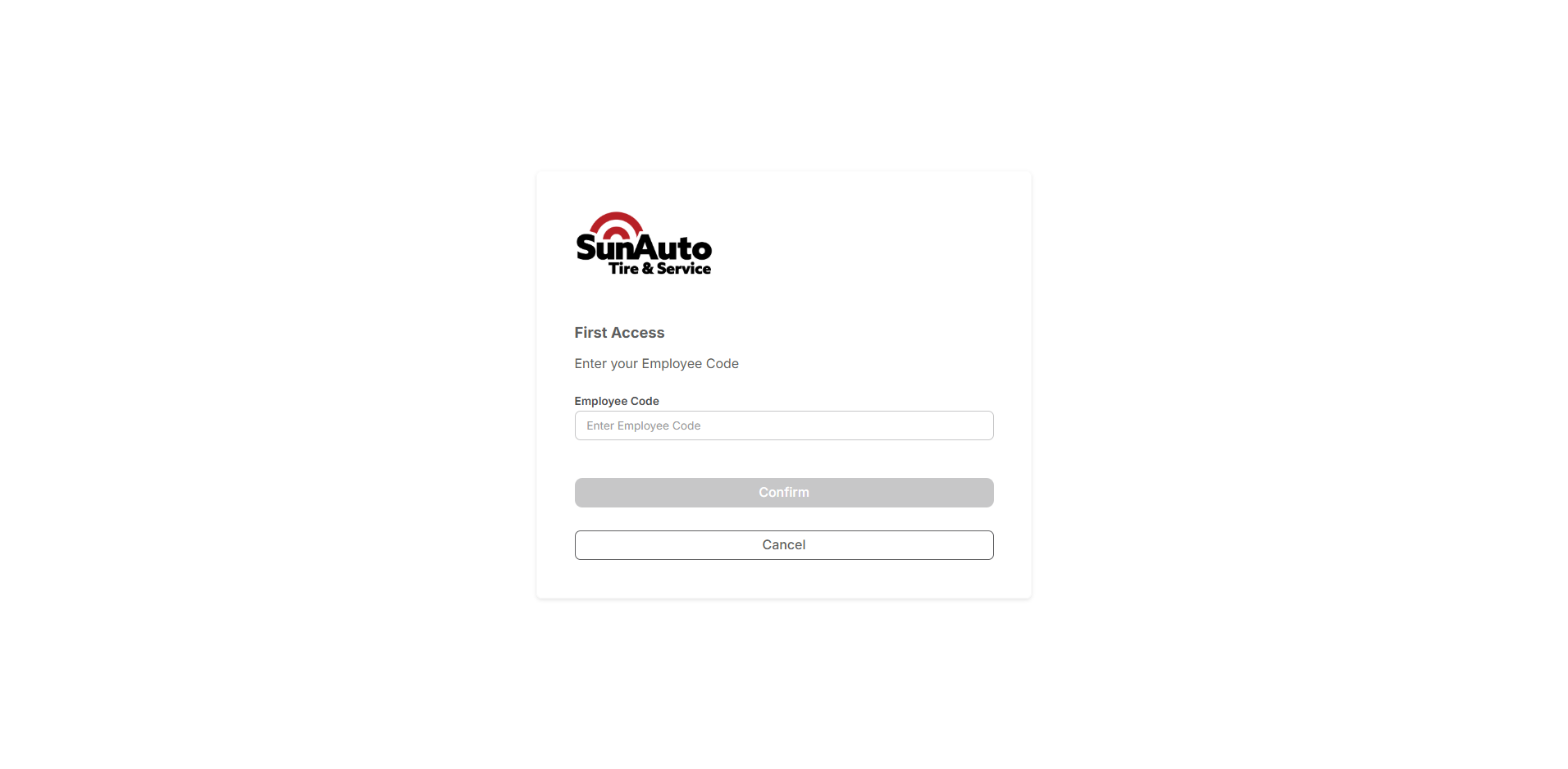
Step 2 — Enter your Employee Code. Type your code into Employee Code — first name plus last initial, like JohnS, unless you were given a different one. Then click Confirm.
 1
Employee Code — your code, not your e-mail address.
2
Confirm — stays greyed out until you've typed a code.
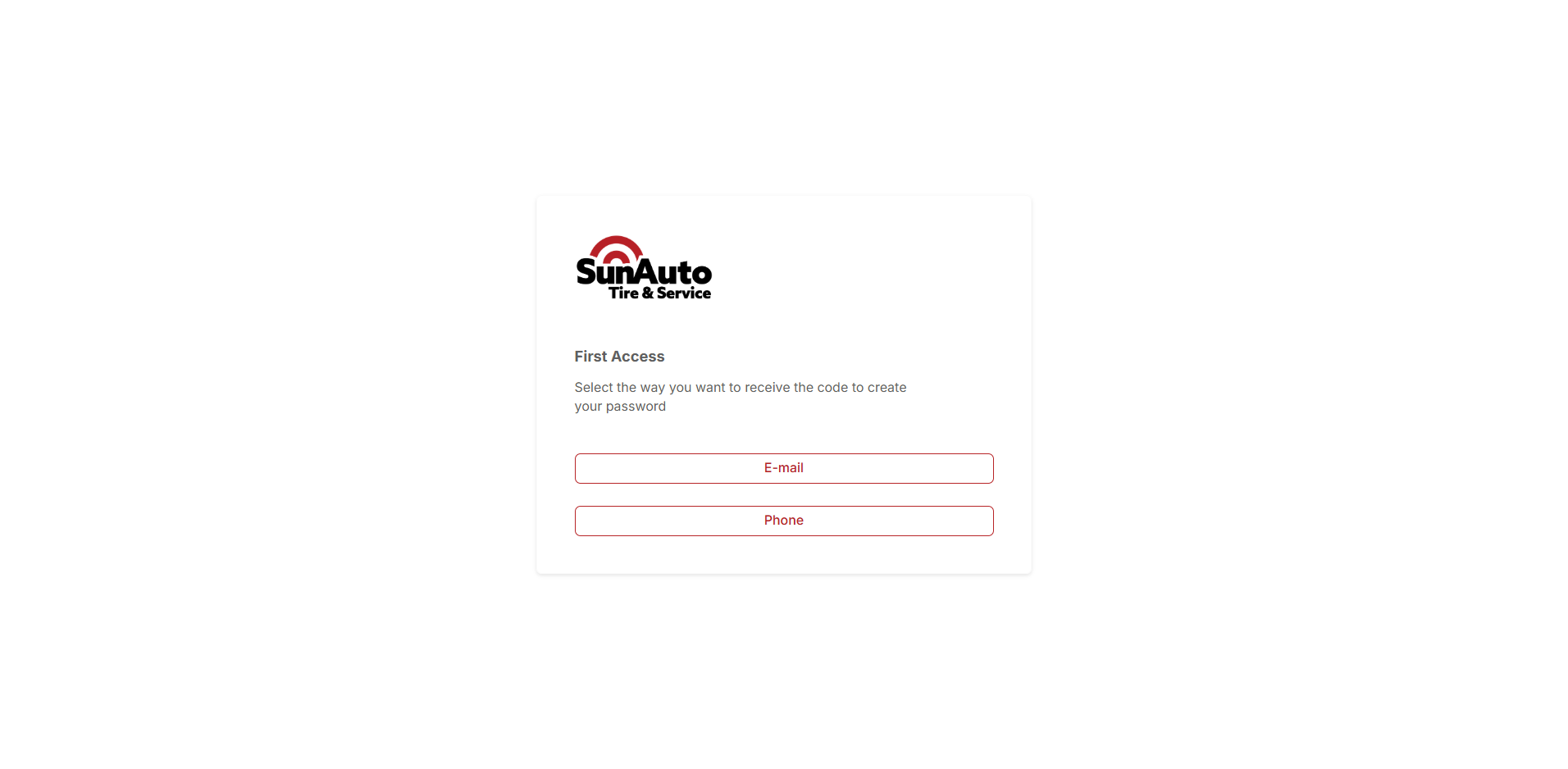
Step 3 — Choose how to get your code. OverDrive sends a one-time code to the e-mail address or cell number on your employee record. Click E-mail or Phone. E-mail is usually faster.
 1
E-mail — goes to the address on your employee record. Usually the quicker of the two.
2
Phone — texts the code to the cell number on your employee record.
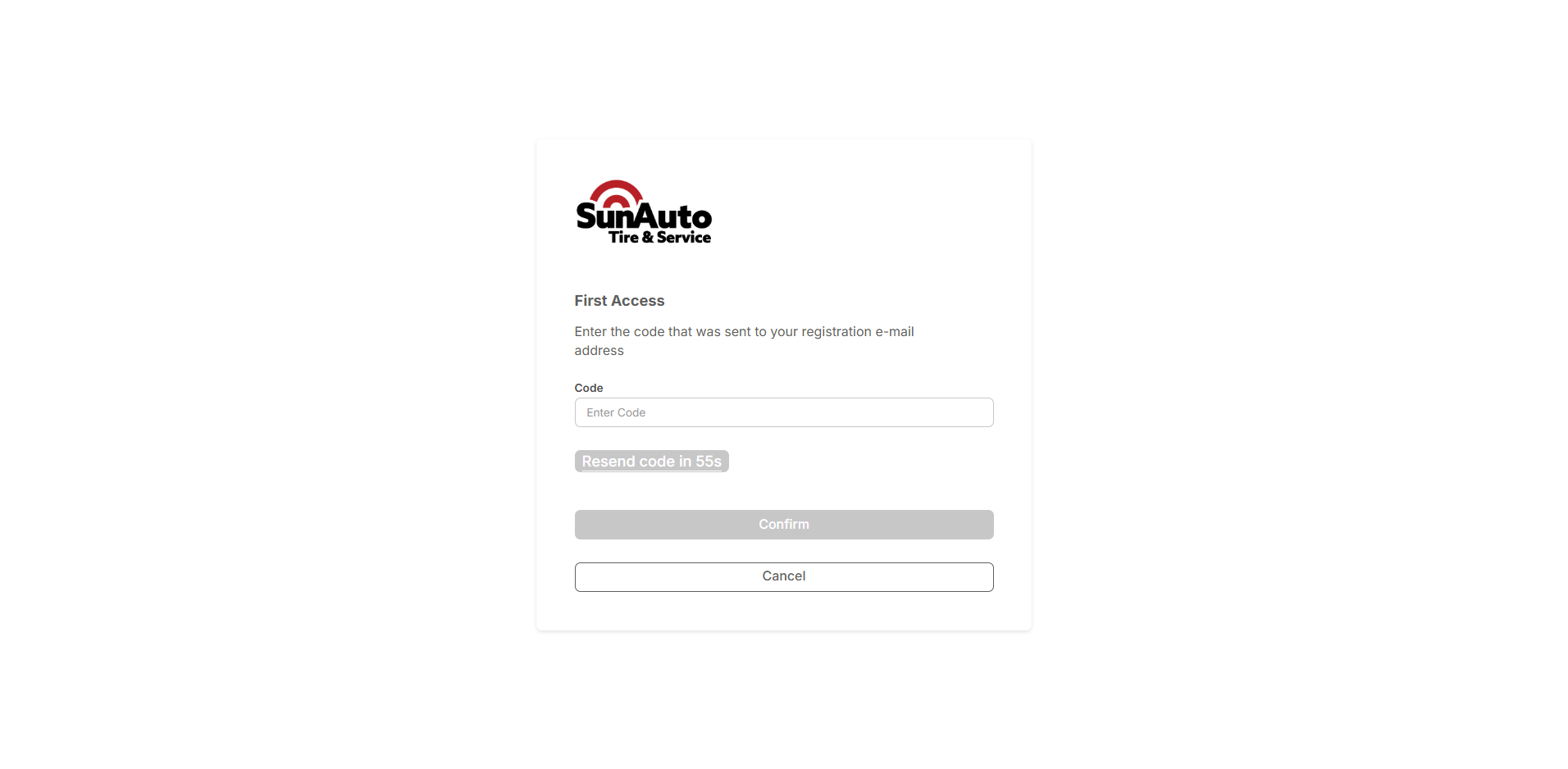
Step 4 — Enter the code. Type the code you received into Code and click Confirm. If it doesn't show up, wait out the Resend code countdown and ask for another one.
 1
Code — the one-time code from your e-mail or text.
2
Resend code — counts down before you can request another. Check your junk folder while you wait.
3
Confirm — stays greyed out until you've typed the code.
Step 5 — Create your password. Type your new password into New Password, type it again into Confirm Password, and click Confirm. The rules are listed on the screen — the button stays greyed out until the password meets all of them and both fields match. That's it; this is your password from now on.
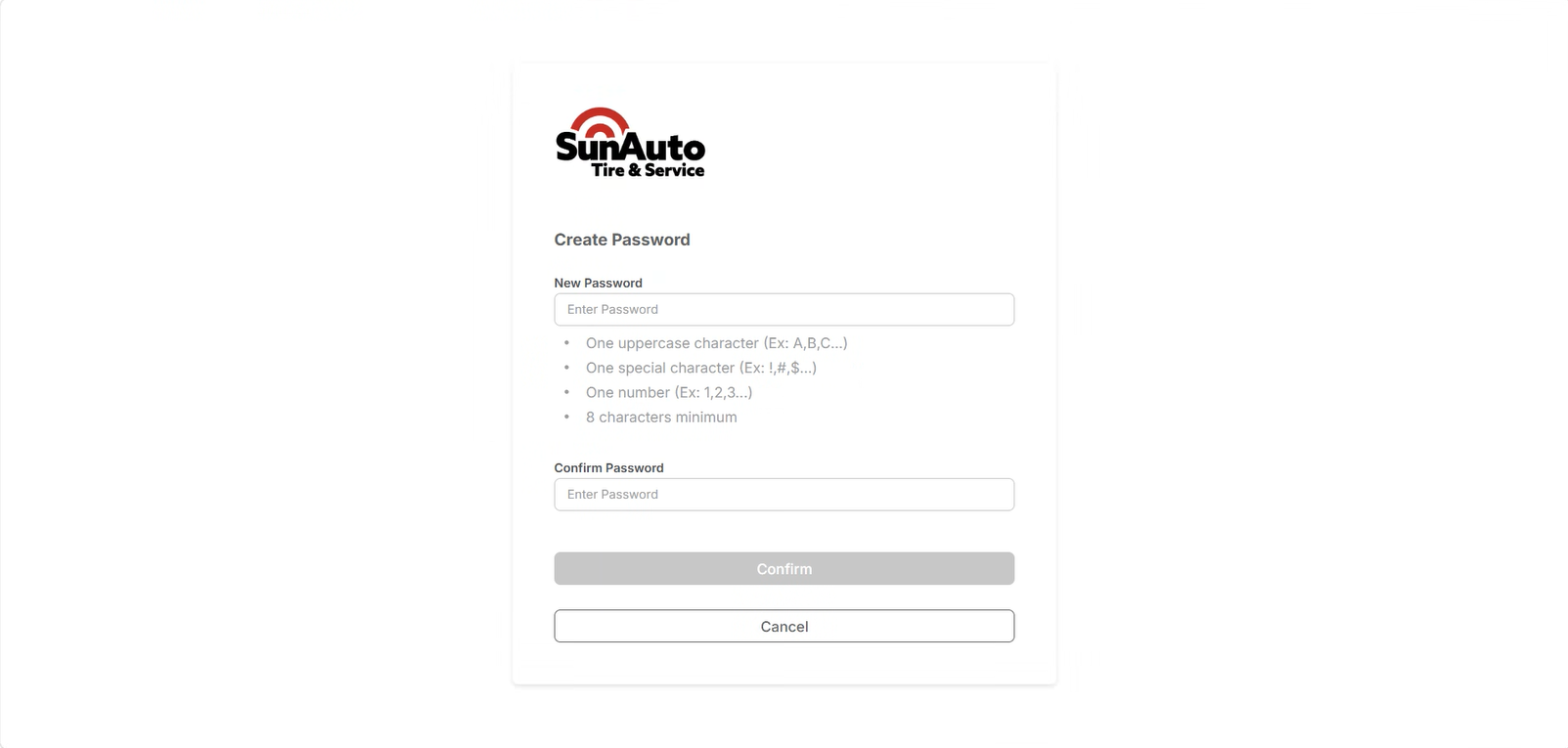 1
New Password — the password you'll use every day.
2
Requirements — one uppercase letter, one special character, one number, 8 characters minimum.
3
Confirm Password — type the same password again. The two have to match.
4
Confirm — greyed out until the password meets every rule and both fields match.
Password rules
- One uppercase character (Ex: A,B,C...)
- One special character (Ex: !,#,$...)
- One number (Ex: 1,2,3...)
- 8 characters minimum
From now on
You're set up. Go to overdrive.sun.auto, enter your Employee Code and Password, and click Log In — that's the routine from here on. Don't use First Access again; if you forget your password later, use Forgot Password on the login page.
If it doesn't work
- The code never arrives. Check junk mail first. Then wait out the Resend code countdown and request it again. If e-mail is slow, click Cancel, start over, and pick Phone instead.
- Your Employee Code isn't recognized. Try first name plus last initial with no spaces. If that fails, your account may not be created yet, or you may have been issued a different code.
- Still stuck? Post in the store's OverDrive Teams channel with your Employee Code and what the screen said.
Related
- Training — every module, in the order the work happens.
- Start of Day — once you're logged in, the store has to be opened before anything else works.