Merging Duplicate Customers
When the same person ends up in OverDrive twice, their history is split across two records — visits on one, payments on the other, and neither one telling the whole story. Merging pulls the two together into a single record. Do it as soon as you spot the duplicate, before it collects any more history.
Make sure it's the same person first
A merge can't be undone from the counter. Match on phone or e-mail, not just the name — two customers really can be called the same thing.
Before you merge
Two things to check:
- It's genuinely the same person. Same phone or same e-mail is the confirmation. A matching name on its own isn't.
- Both records are the same type. You can merge a Customer with a Customer, or a Company with a Company — never one with the other. OverDrive blocks the mismatch and tells you so.
Then decide which of the two records you're keeping. Open the one you want to keep — that's the record everything ends up on, and it's the one you'll still be looking at when the merge finishes.
Merging the records
Step through the slides — click the chips at the top, the Previous / Next buttons, or use the ← → arrow keys.
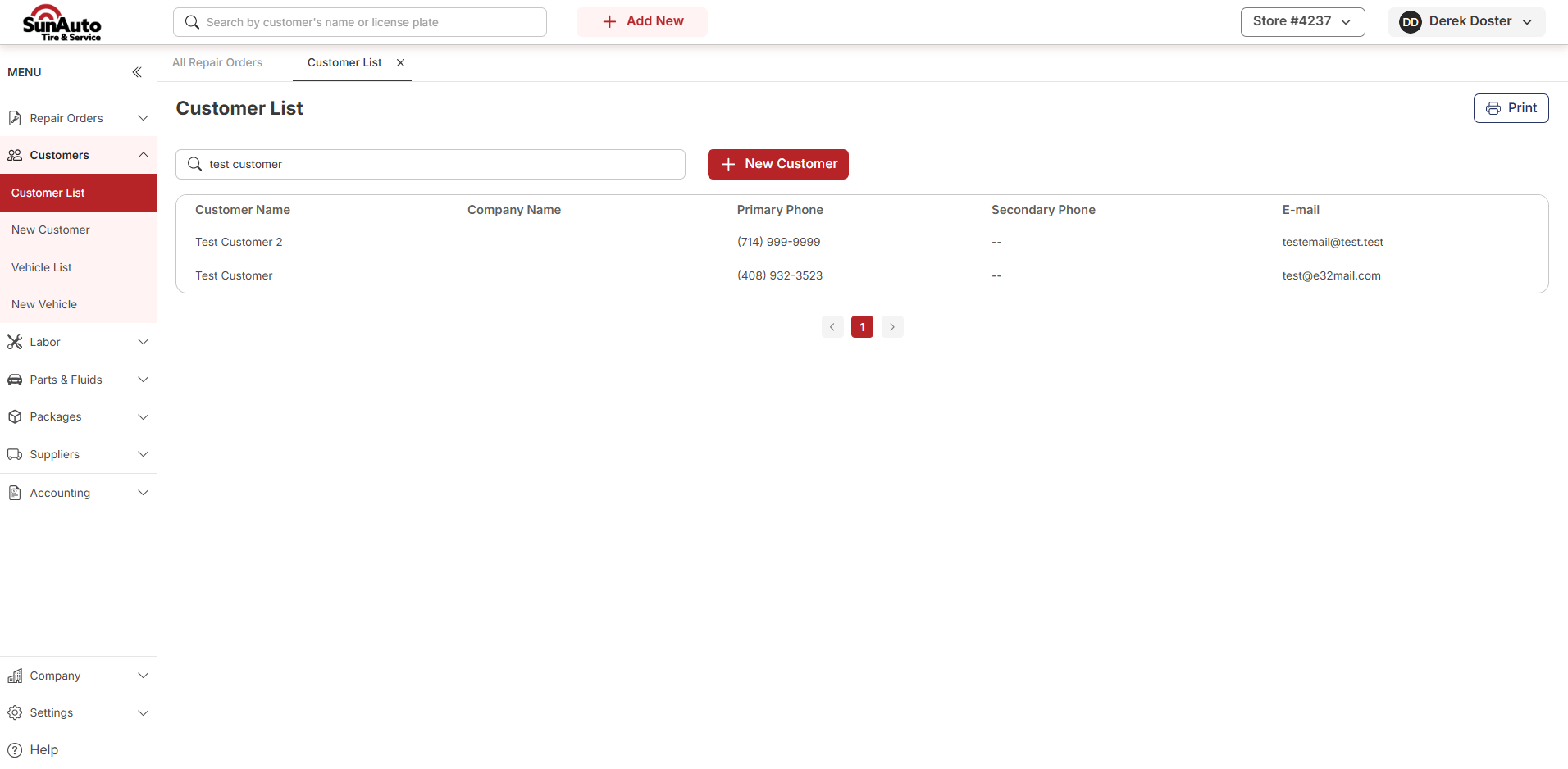
Step 1 — Find both records. Go to Customers → Customer List and search for the customer. Two rows for the same person is your duplicate. Check the Primary Phone and E-mail on each row to confirm it's really one person, then open the record you want to keep.
Step 2 — Open Options. On the customer you're keeping, click Options at the top right, then Merge Customer.
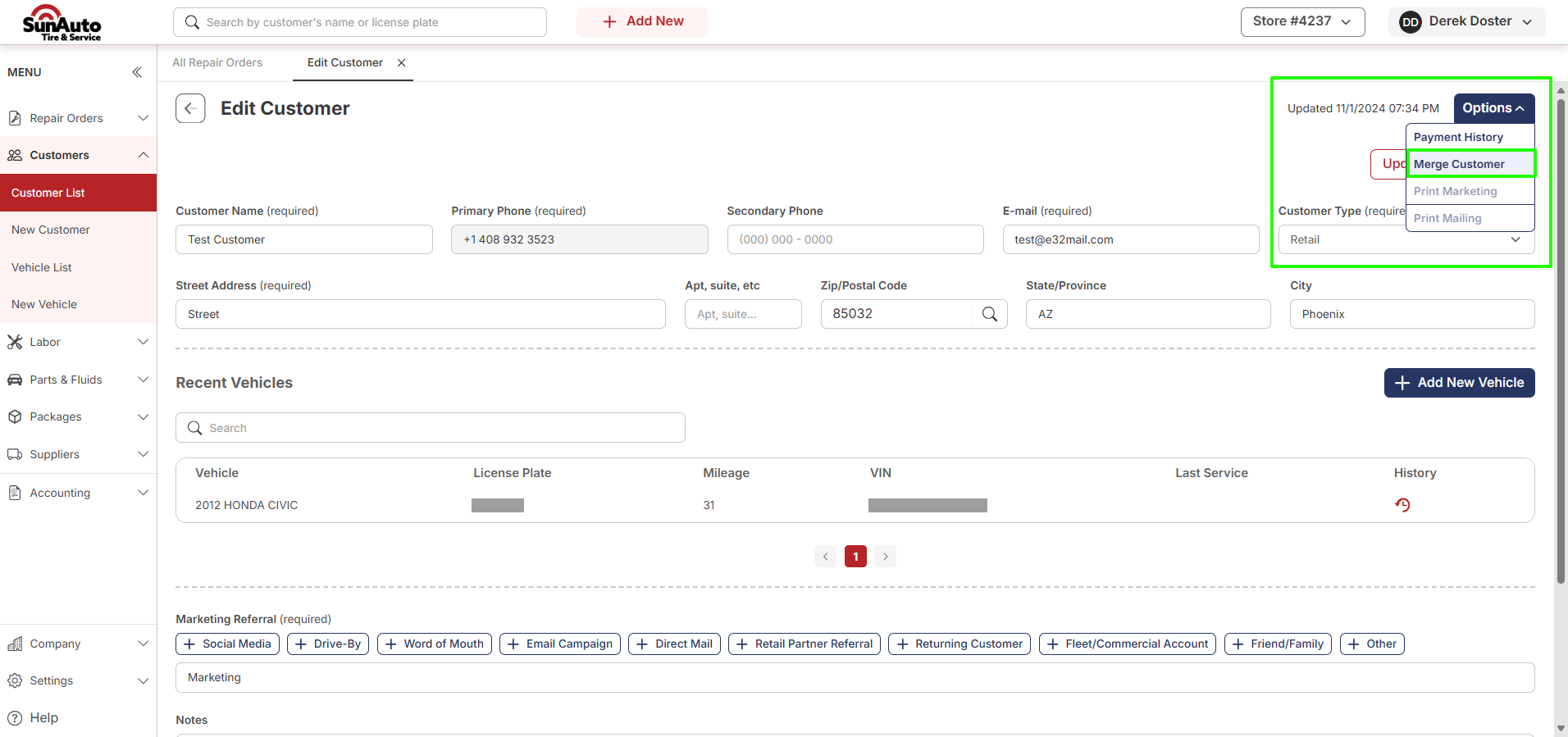 1Merge Customer — click to start the merge.
Step 3 — Find the duplicate. The page becomes Merge Customer and lists every other customer. The record you started from isn't in the list — you can't pick it by mistake. Search for the duplicate by name, phone or e-mail.
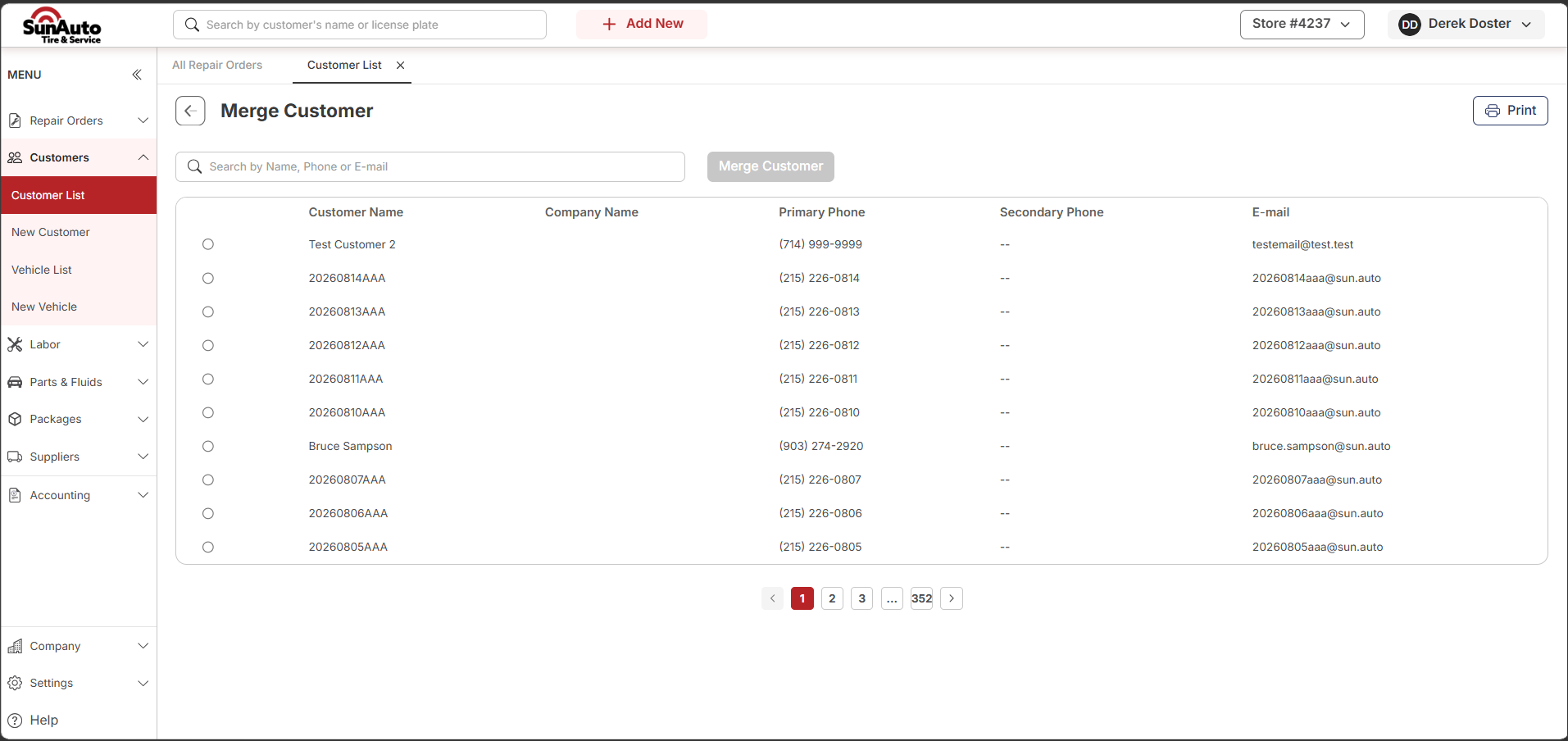 1Merge Customer — the page title confirms you're in the merge flow, not the normal Customer List.
Step 4 — Select the duplicate. Tick the row. The Merge Customer button turns on — it stays disabled until exactly one customer is selected.
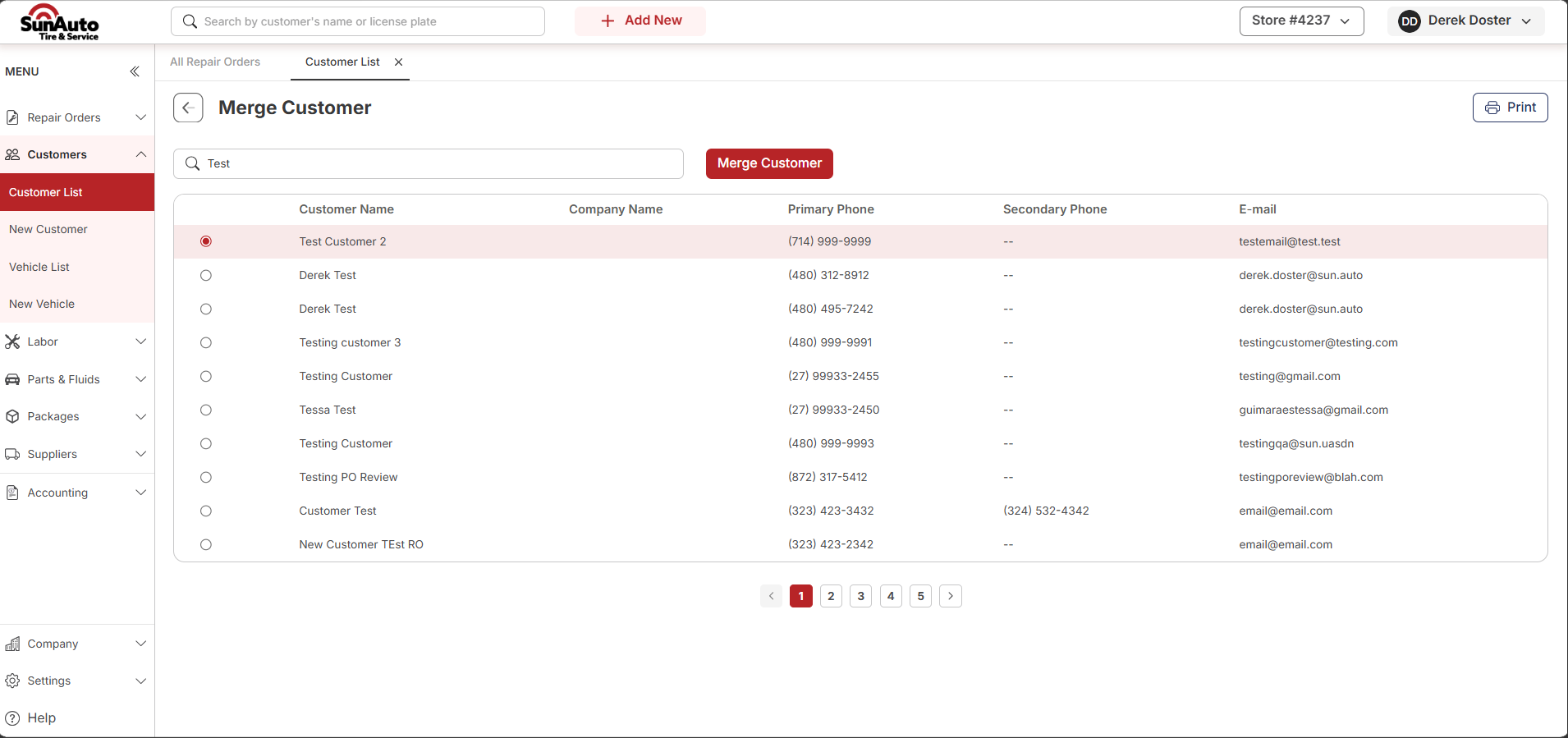 1Merge Customer — now enabled. Click it.
Step 5 — Confirm. A Merge Customer box asks you to confirm, naming both customers. Read the two names one more time — this is the last stop. Click Confirm to merge, or Cancel to back out.
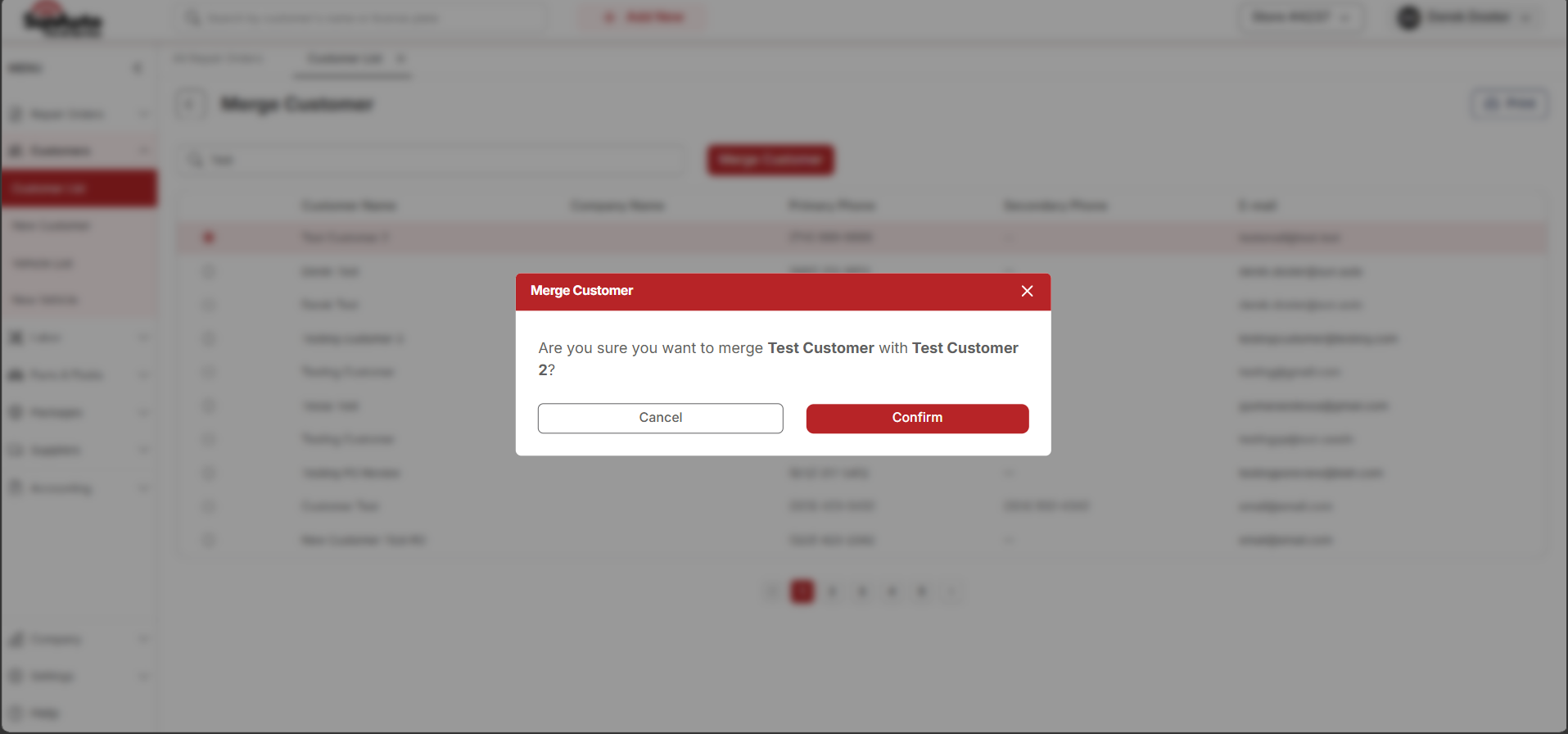 1Both customer names — check them before you confirm.
A message confirms the customers were merged, and you land back on the record you kept. The duplicate's vehicles, repair orders and payments all sit on that record now, and the duplicate itself is switched off — it drops out of the Customer List, so the next search for that customer returns one record instead of two.
"Action denied" — Customers and Companies won't merge
If you pick a row and get Action denied. To merge Customers/Companies, both must be Customers or Companies, the two records aren't the same type — one is a customer and the other is a company. Your selection is cleared.
That's not a duplicate you can merge. Leave both records alone and raise it with your manager.
Related
- Searching for Existing Customers — searching properly before you create is how you avoid duplicates in the first place.
- Selling or Transferring a Vehicle — for when the customer records are fine but a vehicle is on the wrong one.
- Customer or Vehicle Is Wrong — the counter playbook for bad customer or vehicle records.