Creating a House Charge Account
A House Charge Account is for a business with an approved credit line at the shop — work is billed on terms (typically Net 15 or Net 30) instead of paid at the counter.
AR users create these — advisors read them
Only AR users can create or edit a House Charge Account. Service advisors can search for and pull up an existing House Account like any other customer, and you'll see all the same fields below — but everything in the Fleet Information section (rates, credit limit, tax ID, toggles) is read-only on your view. If a field needs updated, route the request to AR.
When to use House Charge
Use this for businesses paying by monthly invoice — a delivery service, a small fleet, a local business with their vehicles serviced here on terms.
Don't use it for individuals (that's Retail) or for national fleet / warranty programs (that's National Account).
The form (AR users)
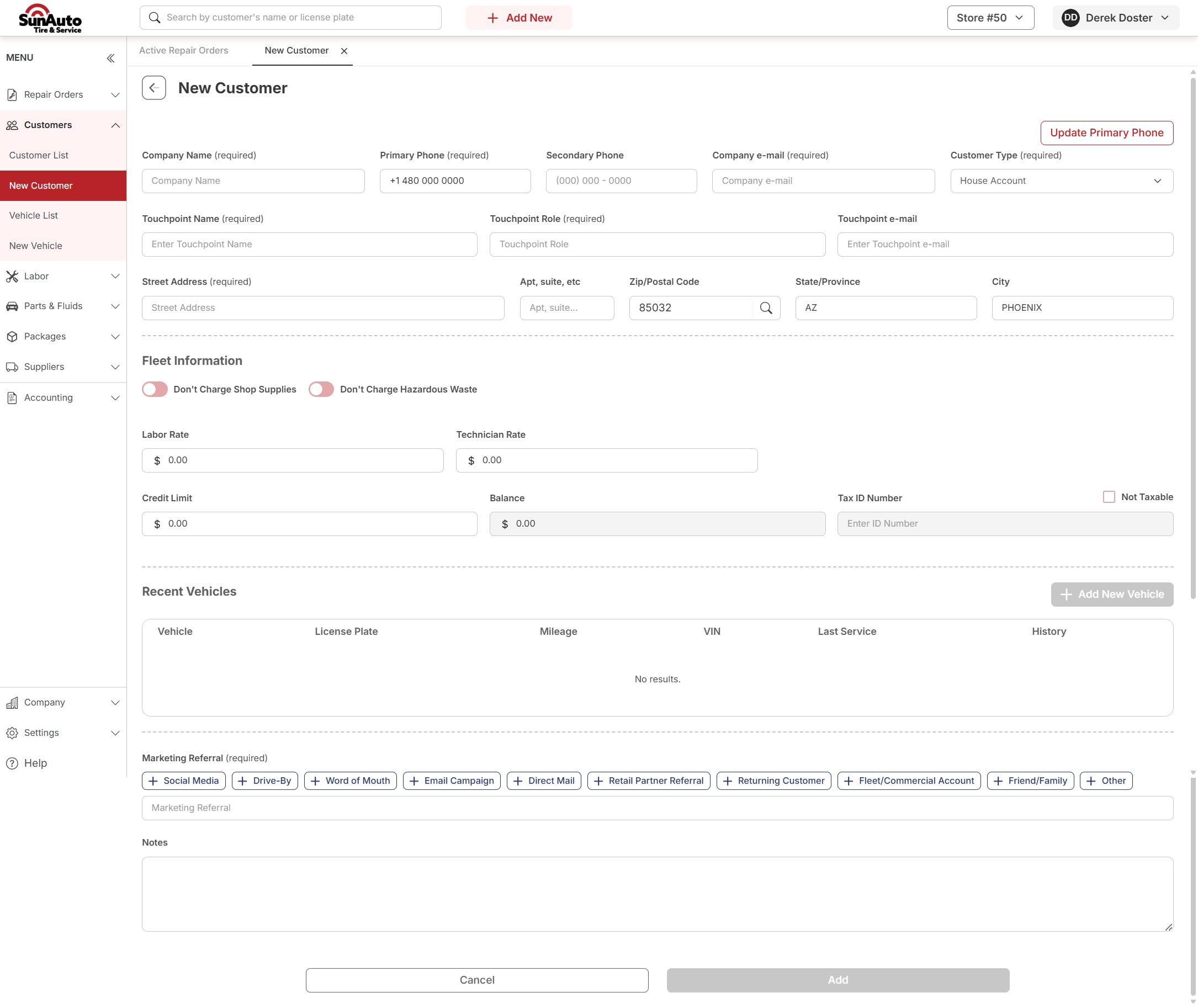
Open New Customer, switch Customer Type to House Account, and the form below appears. Hover (or tap) any number for a quick explanation.
 1
Customer Type — required. Set to House Account. This swaps the form into the layout below.
2
Company Name — required. The business name on the credit line. This is what shows up on the invoice, statement, and search.
3
Touchpoint Name, Role, and e-mail — all required. The person at the company we call and email — usually a primary driver, fleet manager, or A/R contact. Multiple touchpoints can be added later, but the first one is required.
4
Fleet Information — the AR-controlled zone. Everything below this line is set per the negotiated agreement with the business. Read-only for service advisors.
5
Don't Charge Shop Supplies / Hazardous Waste — toggles for accounts whose agreement excludes those fees. Default is to charge both; flip on only if AR confirms the agreement says otherwise.
6
Labor Rate + Technician Rate — the negotiated hourly rates for this account. These override the store's default rates on any RO opened against the account.
7
Credit Limit + Balance — the approved limit and the current outstanding amount on the account. If a job would push the balance past the limit, AR has to clear it before the work goes on.
8
Tax ID + Not Taxable — for tax-exempt businesses. Check Not Taxable and enter the Tax ID Number the business provided. Sales tax drops off any invoice on this account.
9
Add — grayed out until every required field is filled. Once it turns red, the account is good to save.
1
Customer Type — required. Set to House Account. This swaps the form into the layout below.
2
Company Name — required. The business name on the credit line. This is what shows up on the invoice, statement, and search.
3
Touchpoint Name, Role, and e-mail — all required. The person at the company we call and email — usually a primary driver, fleet manager, or A/R contact. Multiple touchpoints can be added later, but the first one is required.
4
Fleet Information — the AR-controlled zone. Everything below this line is set per the negotiated agreement with the business. Read-only for service advisors.
5
Don't Charge Shop Supplies / Hazardous Waste — toggles for accounts whose agreement excludes those fees. Default is to charge both; flip on only if AR confirms the agreement says otherwise.
6
Labor Rate + Technician Rate — the negotiated hourly rates for this account. These override the store's default rates on any RO opened against the account.
7
Credit Limit + Balance — the approved limit and the current outstanding amount on the account. If a job would push the balance past the limit, AR has to clear it before the work goes on.
8
Tax ID + Not Taxable — for tax-exempt businesses. Check Not Taxable and enter the Tax ID Number the business provided. Sales tax drops off any invoice on this account.
9
Add — grayed out until every required field is filled. Once it turns red, the account is good to save.
Fields at a glance
| Field | Required? | Notes |
|---|---|---|
| Company Name | Yes | The business name; shows on invoice, statement, search |
| Primary Phone | Yes | Main contact number for the business |
| Secondary Phone | No | Optional backup |
| Company e-mail | Yes | Where invoices and statements go |
| Customer Type | Yes | Must be House Account |
| Touchpoint Name | Yes | Primary contact person |
| Touchpoint Role | Yes | e.g., Driver, Fleet Manager, A/R |
| Touchpoint e-mail | Yes | How we email this contact |
| Street Address | Yes | Business billing address |
| Don't Charge Shop Supplies | No | Default off; flip on per agreement |
| Don't Charge Hazardous Waste | No | Default off; flip on per agreement |
| Labor Rate | Yes (AR-set) | Negotiated hourly labor rate |
| Technician Rate | Yes (AR-set) | Negotiated tech labor rate |
| Credit Limit | Yes (AR-set) | Approved credit amount |
| Balance | Auto | Current outstanding amount |
| Tax ID Number | If Not Taxable | The business's exemption ID |
| Not Taxable | No | Check for tax-exempt accounts |
| Marketing Referral | Yes | How the business found the shop |
| Notes | No | Payment terms, contact preferences, anything worth recording |
What a filled account looks like
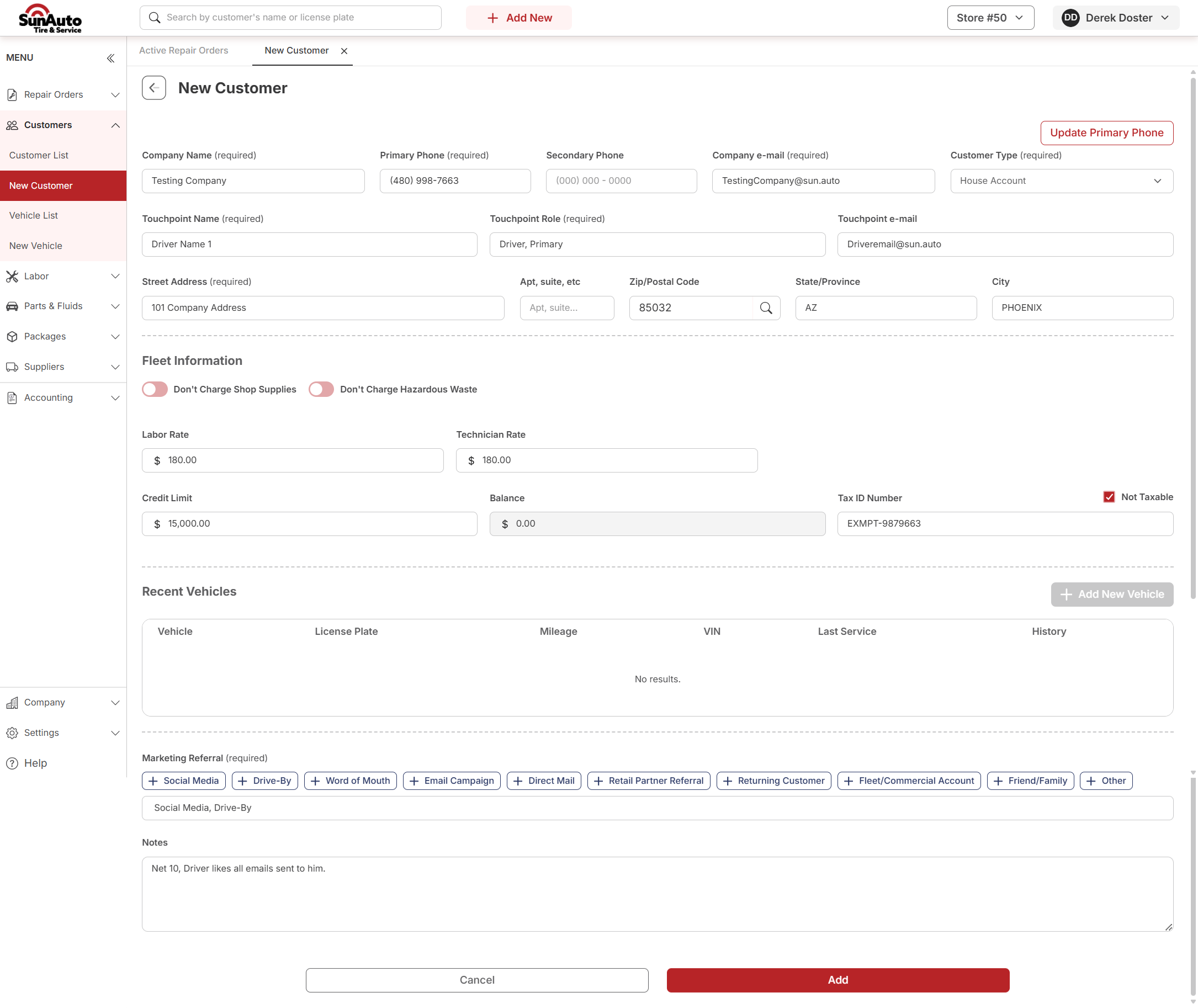
Here's the same form, finished and ready to save:
Watch the flow
What service advisors see
When you pull up a House Account customer through search, you see the same fields above — but the Fleet Information section is read-only on your view. You can:
- See the company name, contact, and notes
- See the Labor Rate and Technician Rate that will carry onto any RO you open
- See the Credit Limit and current Balance — useful when authorizing larger work
- See whether Don't Charge toggles or Not Taxable are on
- Open ROs against the account
- See the account's vehicle and service history
You cannot:
- Adjust the labor or technician rate
- Change the credit limit
- Toggle Shop Supplies / Hazardous Waste billing
- Update the Tax ID or taxable status
If something looks wrong (rate has changed, credit limit needs raised, tax status is off), send the request to AR and they'll update the account.
A few tips
- Confirm Customer Type first. Switching to House Account is what unlocks the Fleet Information section. If you start filling fields and the section doesn't appear, you're still in Retail mode.
- Touchpoint is the person we contact — not necessarily the driver of any one vehicle. A business might have one A/R contact and twelve drivers; the touchpoint is the person who handles the account day-to-day.
- Notes is the place for terms. Net 15 / Net 30, "send statements monthly," "all invoices to driver primary's email" — anything that's about how the account operates, not about the work itself.