Returning Parts
For damaged parts, wrong parts, or anything the tech didn't end up using, click the line's status (now Received) and pick Return. Record the return, capture the supplier's credit memo number, and toggle the return as completed.
Returned lines stay on the RO — don't delete them
Marking a line Returned drops the quantity charged to the customer by the returned amount automatically — you don't need to delete the line to keep it off the bill. Customers don't see returned products on the Repair Order or on the invoice anyway. Leaving the line in place gives you a breadcrumb if the supplier never sends the credit memo: you can see exactly what went back, when, and follow up.
Step 1 — Open the line's status dropdown and pick Return. The dropdown only shows Return once a line is in the Received state. The line you trigger from carries you into the Return Items page.

Step 2 — The Return Items page opens. Supplier and PO pre-fill. Required fields: Employee (who's processing the return) and the Reason free-text. The lines from the order sit at the bottom — unchecked by default.
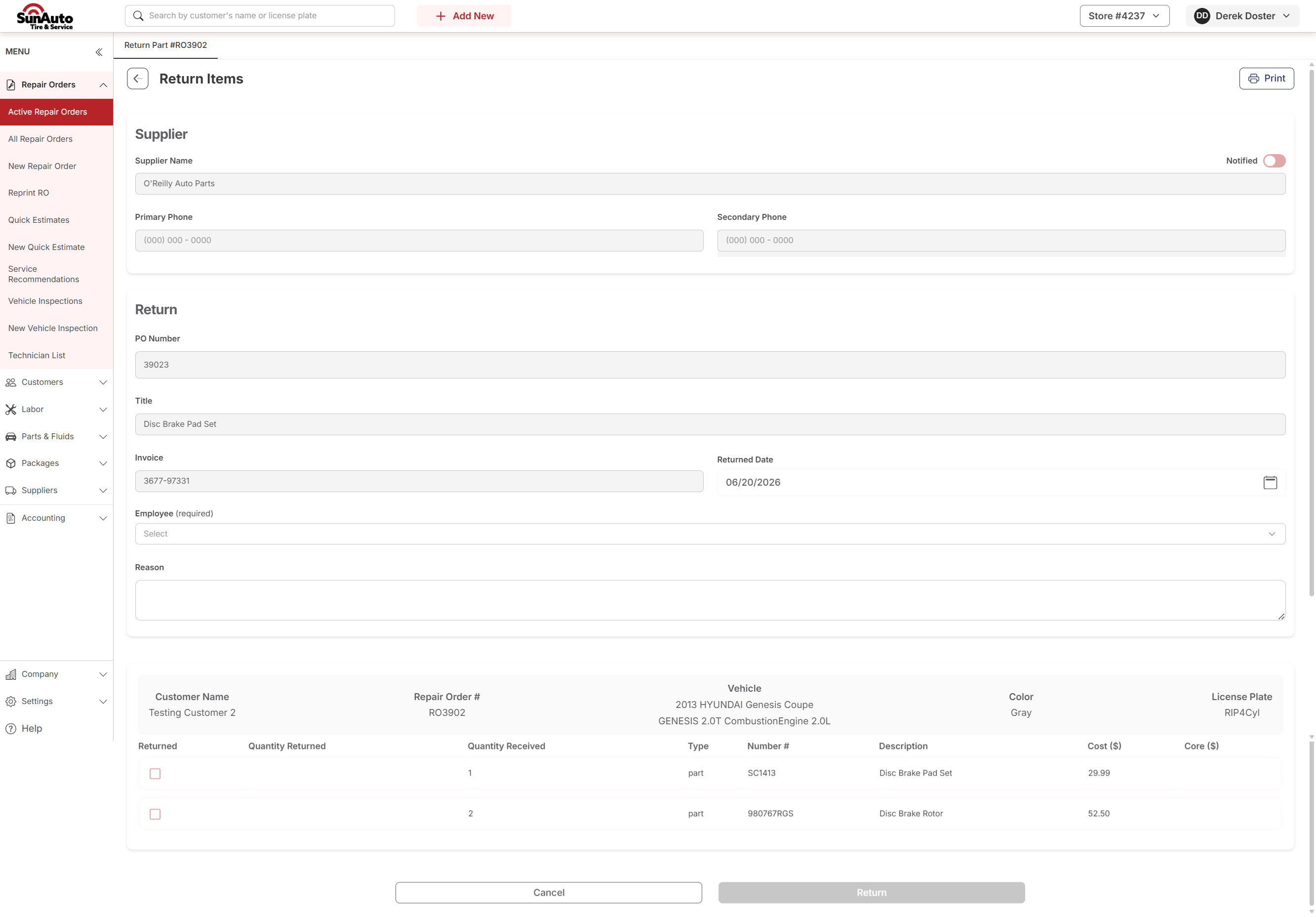
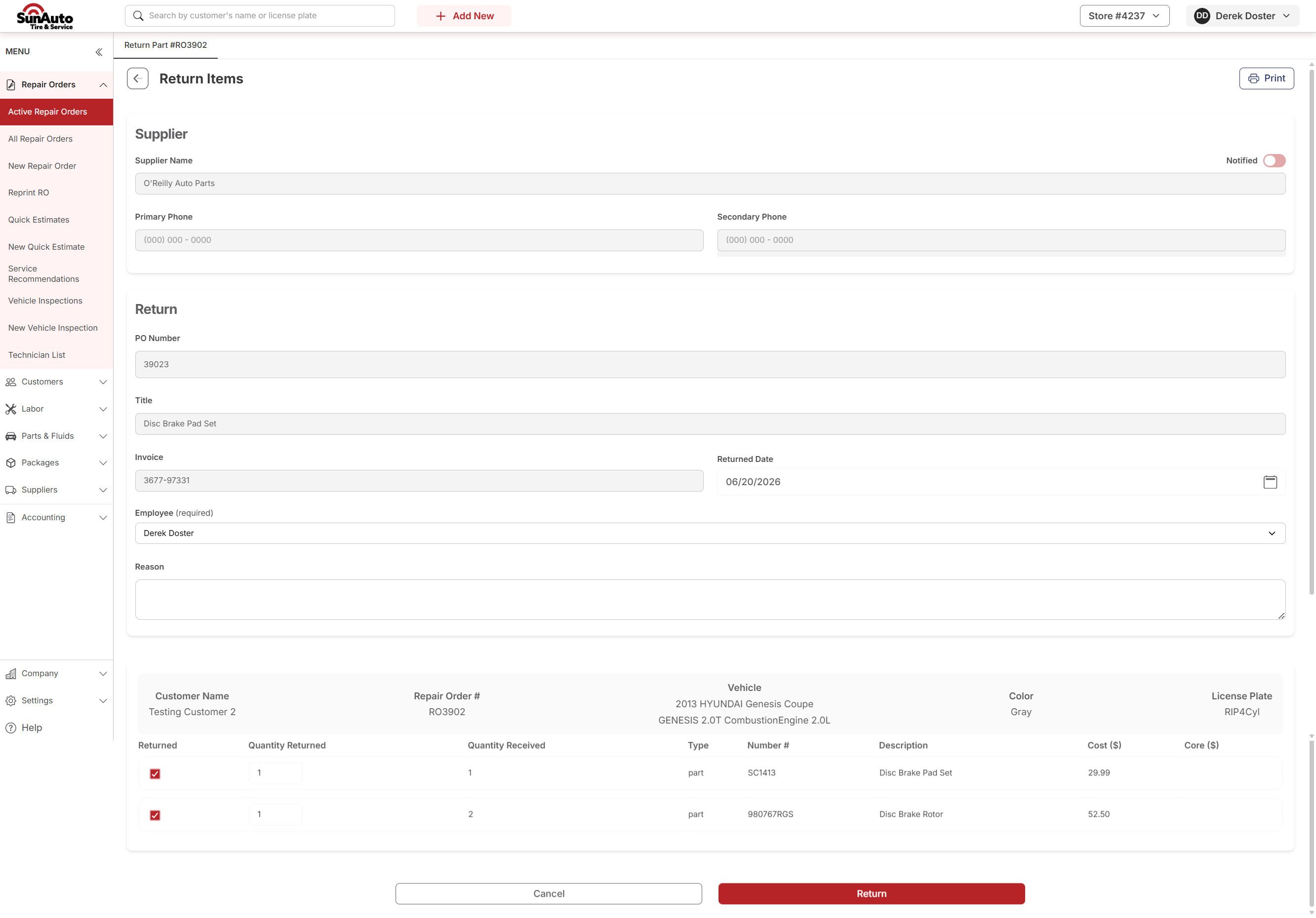
Step 3 — Check the lines and set the quantity being returned. Returning the whole order? Check both, set quantity to match. Returning just one part of a multi-quantity line? Check it and set the smaller number. Add the Reason the supplier will see on their end, then click Return.
Step 4 — Statuses on the RO update. A line returned in full shows Returned with quantity 0. A line where only some went back shows Partially Returned with the remaining quantity. The job subtotal drops to reflect what's still on the job.

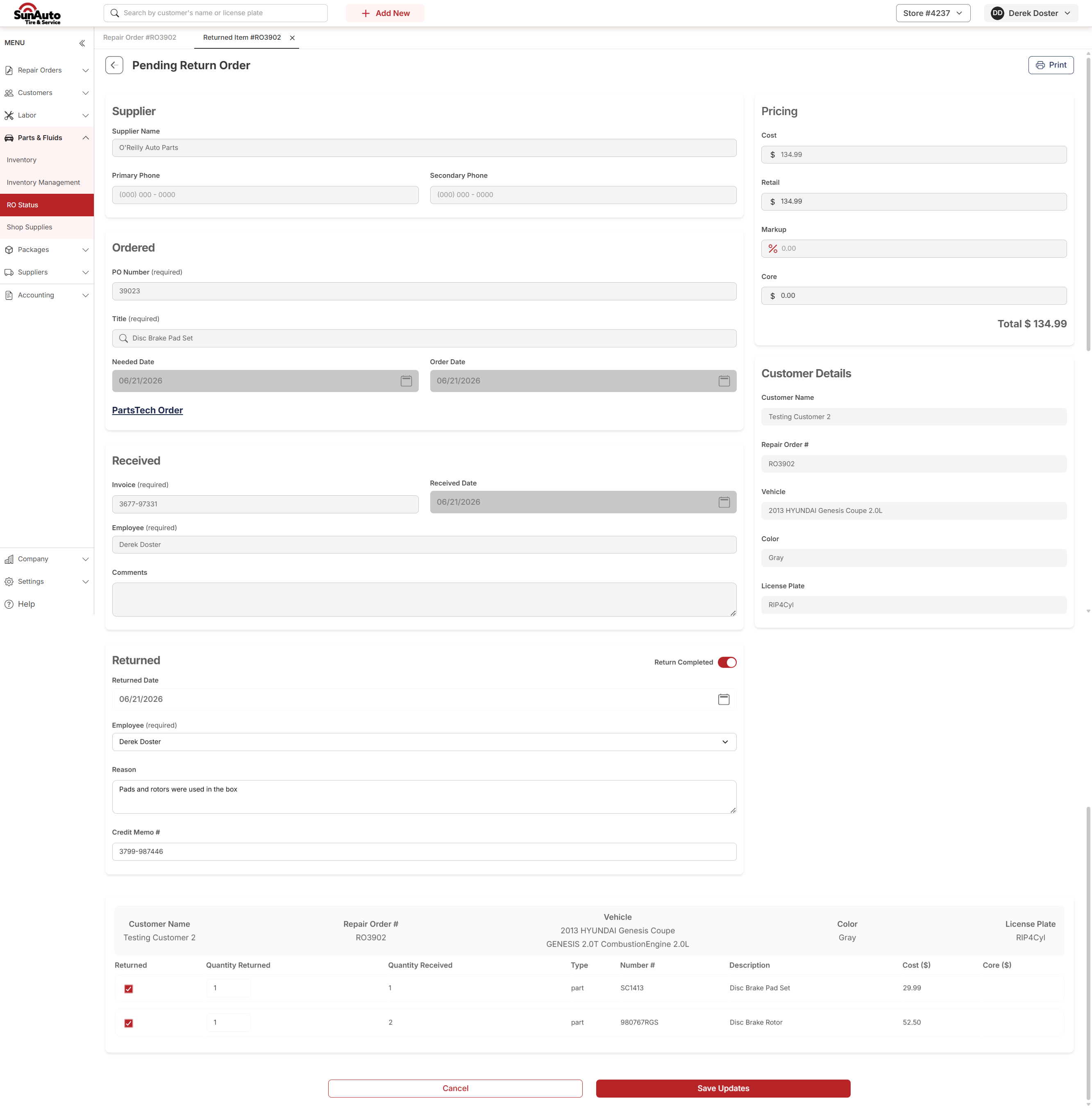
Step 5 — Open the Pending Return Order to finish. Until the supplier confirms and the credit memo lands, the return sits as Pending. Open it, enter the Credit Memo # from the supplier, and toggle Return Completed on. Click Save Updates.
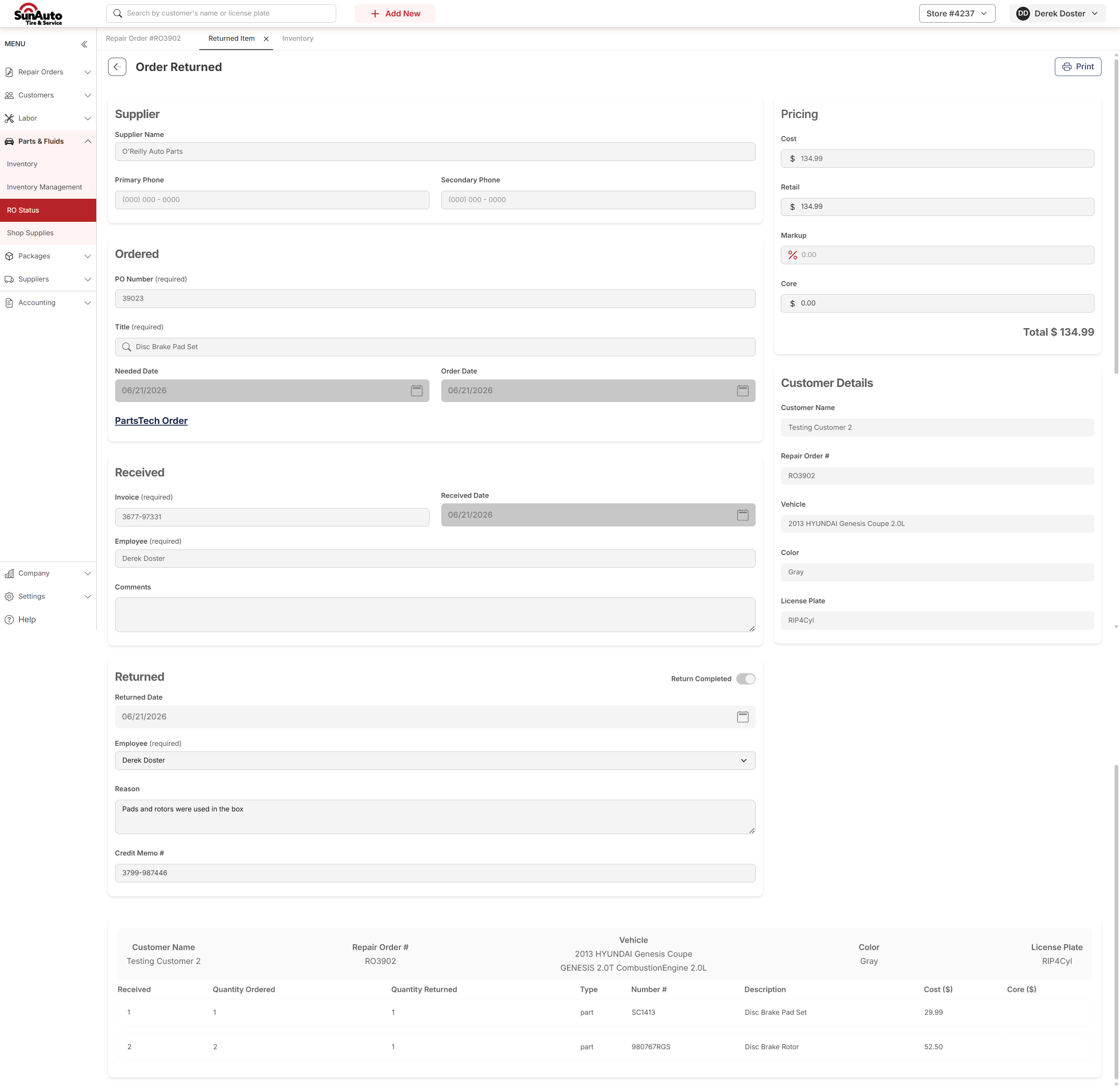
Step 6 — The order shows as Order Returned. The page title flips from Pending Return Order to Order Returned, and the table reads back the final quantities. The return is now closed.
Watch the flow
A few tips
- Don't skip the Reason. The supplier sees it. "Wrong part — needed pad set for 2.0T, supplier sent set for 3.8L" is the kind of note that gets the right replacement sent next time.
- Capture the Credit Memo # at the source. The Pending Return Order sits open until you have it. Don't close out the return without it — that's how credits get lost.
- Partial returns are fine. If you're sending back 1 of 3, set the quantity to 1. The remaining 2 stay on the job at their full cost.