Goodyear National Account Close-Out (Operations)
How Operations closes a Goodyear National Account job the day after the store did the work: check the OverDrive RO against Holman or Auto Integrate, add the fee coupon, re-key the job in VAST and close it there, then close the RO in OverDrive and mark it complete in Holman or Auto Integrate.
Operations only, the next day
An Operations user does these steps the day after the work. The store never does them: the store leaves the RO open in OverDrive and in Holman or Auto Integrate (see Goodyear National Account Jobs (Store), step 7).
Before you start
- Which ROs: the previous day's open repair orders on Goodyear National Account customers. The daily alert that lists them is in National Accounts.
- Have three things open: the OverDrive RO, the Holman or Auto Integrate repair order, and VAST. Everything you key into VAST comes from the first two.
- The driver isn't there. The work is done and approved. You're re-keying it, not selling it.
Always use the newest price book
The VAST screenshots on this page were taken under an older price book, so the prices in them are out of date. Check codes and prices against the current online National Account Service Price Book on the Goodyear Dealer Portal; Top Codes and All Codes follow the current book.
The close-out, step by step
Step through the slides — click the chips at the top, the Previous / Next buttons, or use the ← → arrow keys.
Good to know
- The store built the OverDrive ticket with NATL packages and the Holman or Auto Integrate ticket with the Goodyear product codes: see Goodyear National Account Jobs (Store), steps 4 to 6.
- To check a code or price, use Top Codes or All Codes, and confirm it in the online price book on the Goodyear Dealer Portal. Never change the price on a pre-priced item.
- In Holman, the store entered the OverDrive RO number in Your reference #.
- The oil quantity won't match exactly, and that's expected. Holman and Auto Integrate carry the oil quantity from the price book (for example 8.5 qt); the OverDrive RO carries the vehicle's specification oil level (for example 8.3 qt). It isn't a mismatch to fix.
- Enterprise Rent-A-Car (EAN Holdings): most approvals won't match the standard price-book codes exactly. The packages and pricing are in the National Account Manual under Enterprise Rent-A-Car, NA #02807. The OverDrive RO should match the approval.
Good to know
- Adding a coupon is covered in Adding Coupons to a Repair Order.
Show me how
- Type 9 for every Goodyear National Account. Type 8 is Corporate Fleet and is also used for Firestone and Michelin accounts, not Goodyear.
- A new Goodyear National Account customer (the store created it in OverDrive yesterday) has to be created in VAST before you can re-key the job. Operations creates it: that's the Add New route below. See "Setting up a new Goodyear National Account" in National Accounts.
- Holman Bill-To accounts. Holman bills some companies (FedEx, Union Pacific Railroad, Red Bull and others) on their own accounts. In VAST, a company that bills through Holman's Bill-To is NA Name Automotive Rentals.
- NA history isn't shared between stores. A company another store has used may not be listed at this store.
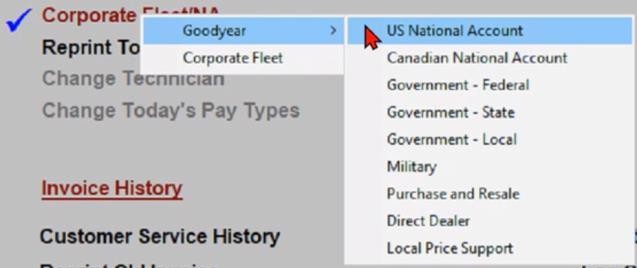
From the Point of Sale Home screen, click Corporate Fleet/NA, then Goodyear and the account type (for example, US National Account).
 1
Corporate Fleet/NA.
2
Goodyear.
3
The account type, for example US National Account.
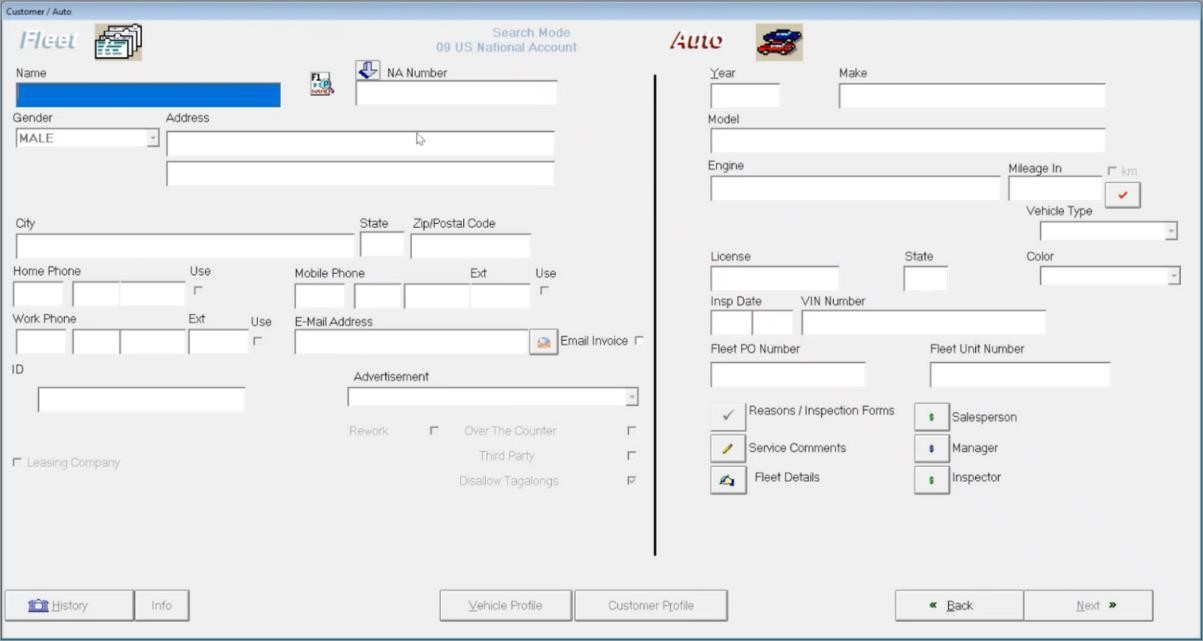
The Customer Fleet/Auto screen opens. The customer type shows at the top (Type 9 is a Goodyear National Account). Click the arrow next to NA Number to change the field to NA Name, type the FMC's name and press F1.
 1
NA Number. Click the arrow next to it to change it to NA Name, type the FMC, press F1.
2
The arrow that switches the field.
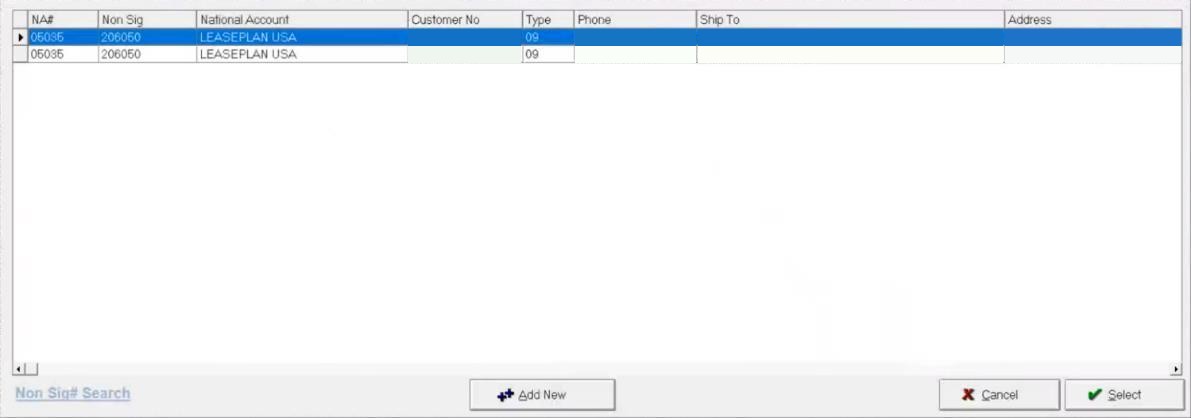
The search lists customers who've used that FMC at this store. The company on the OverDrive RO is listed? Select it. Not listed, or the FMC is new to the store? Click Add New.
 1
An existing company for this FMC. Select it to move on.
2
Add New: a company that isn't listed.
3
Select.
Most accounts also list an OTR (On the Road) account. Its NA Number is five digits starting with 6. Pick it only for a Goodyear-issued Roadside Service Call, which is rare.
 1
65035: the OTR account, for a Goodyear-issued Roadside Service Call only. 05035 above it is the national billing account.
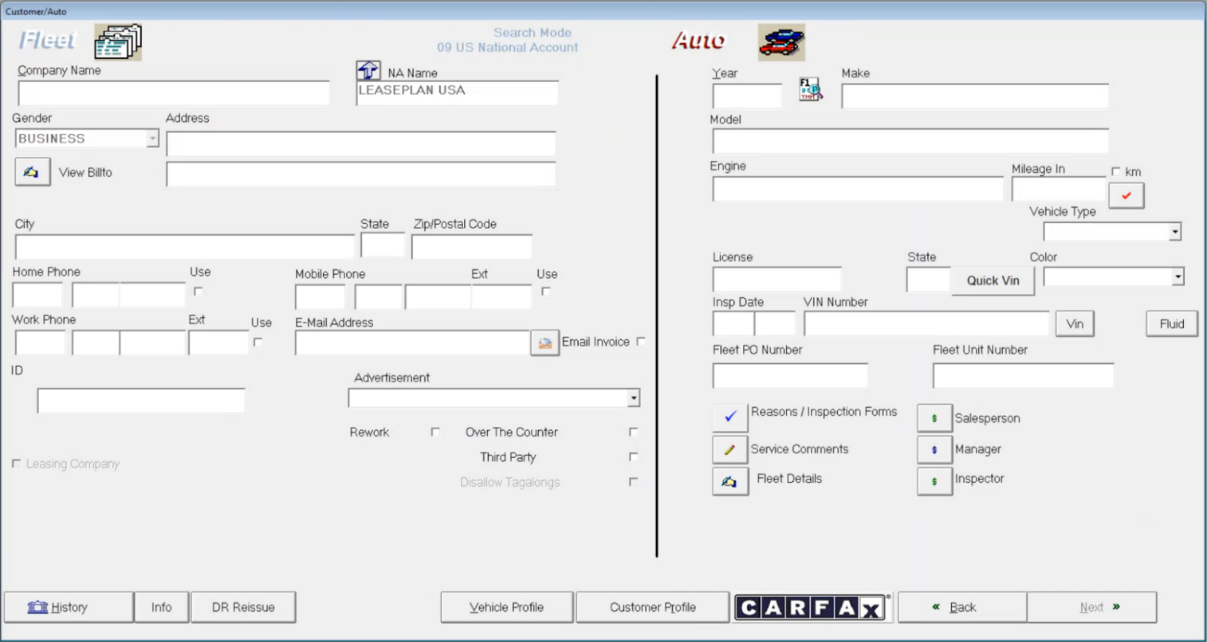
Adding a new company: after Add New, click in NA Name again (leave the name you typed), press F1 again, click the FMC line that has no customer attached and click Select. The FMC name greys out in NA Name. That means you selected it correctly.
 1
NA Name greyed out: the FMC is selected correctly.
2
Company Name: start the company details here.
Copy the company from the OverDrive customer record: Company Name, Address, City, State and Zip/Postal Code. Put the company phone in Home Phone, the driver's phone in Mobile Phone and the company email in Email Address, then tick Use next to the number to reach the driver on. Fleet Details is optional, for driver details.
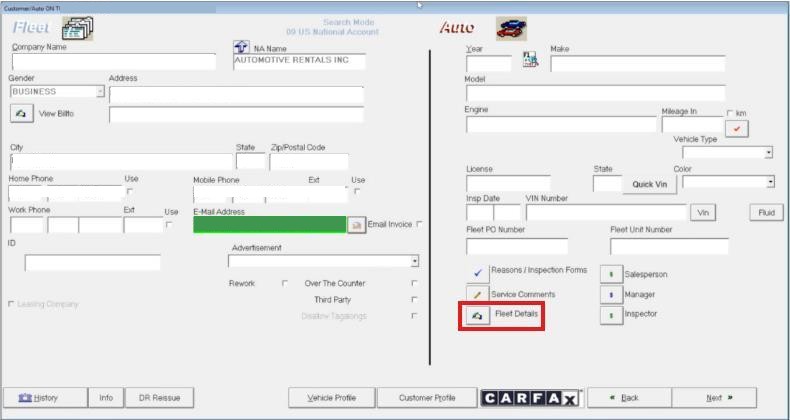 1
NA Name: the FMC.
2
Fleet Details: optional driver details.
Enter the vehicle information from the OverDrive RO as you normally would, and enter Service Comments with the driver's request as it reads on the RO. Comments document the request if questions come up later. Click Next.
A warning says you can't go on until you view the NA Requirements. Click Go.
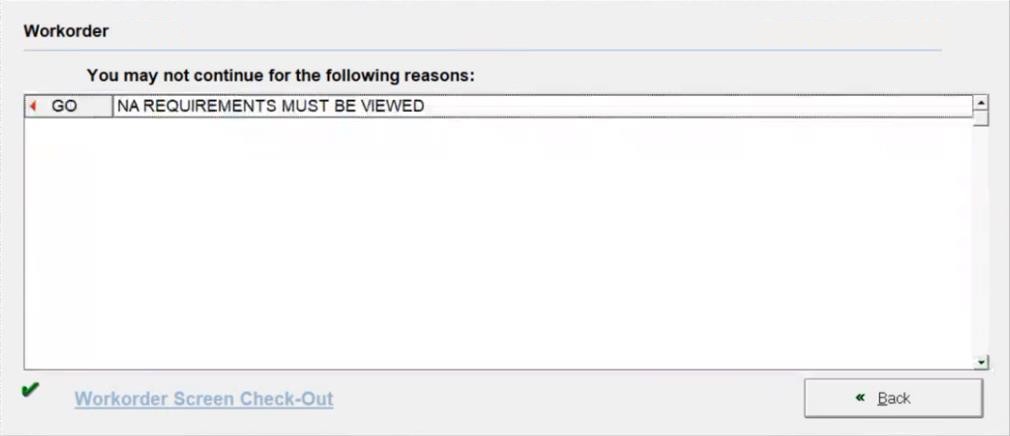 1
Go: open the Requirements screen.
The fields on the Requirements screen change with the FMC. For a repeat customer, click Update Responses and confirm that the filled-in answers match Holman or Auto Integrate. You fill every requirement at step 5. Click Save.
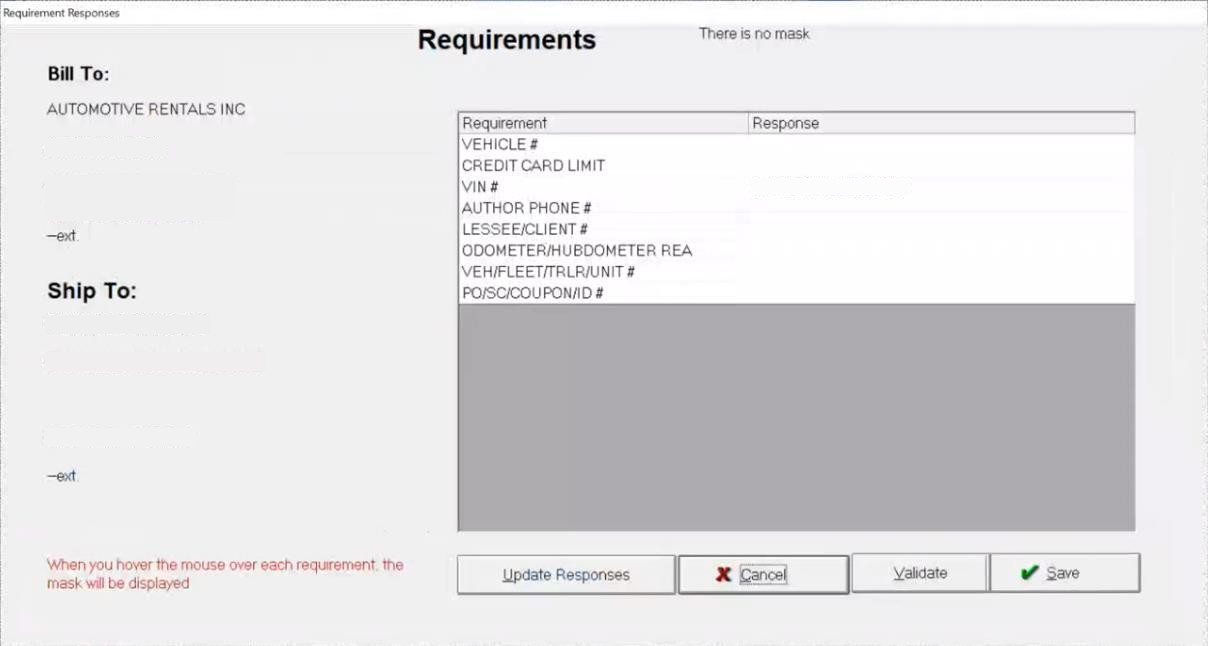 1
The requirements. They change with the FMC.
2
Update Responses: a repeat customer. Check them against Holman or Auto Integrate.
3
Save.
Show me how
- Match exactly. VAST must match the OverDrive RO and the Holman or Auto Integrate approval line for line, with two exceptions: the Invoice Date, which in VAST is the day you re-key, the day after the work; and the oil quantity, which in VAST follows the Holman or Auto Integrate approval (for example 8.5 qt), not the OverDrive specification level.
- Never change the price on a pre-priced item.
- Every NA oil change has a tire rotation or a brake inspection (not both), plus the oil disposal fee.
- VAST part numbers. The VAST Part Number is the 9-digit price-book code: the code with the space removed and 000 added (046 269 is 046269000). The Copy VAST code buttons in the oil change picker on Top Codes copy it for you.
- Outside purchase on the order: re-key it against the dummy stocked item (Operations loads dummy inventory in VAST as needed), changing the description and price to match the OverDrive RO, then alert Retail Systems. See the notes in National Accounts.
The package. Click Package. In Sort Description, select NATL Services, select the package that matches the OverDrive RO and click Build.
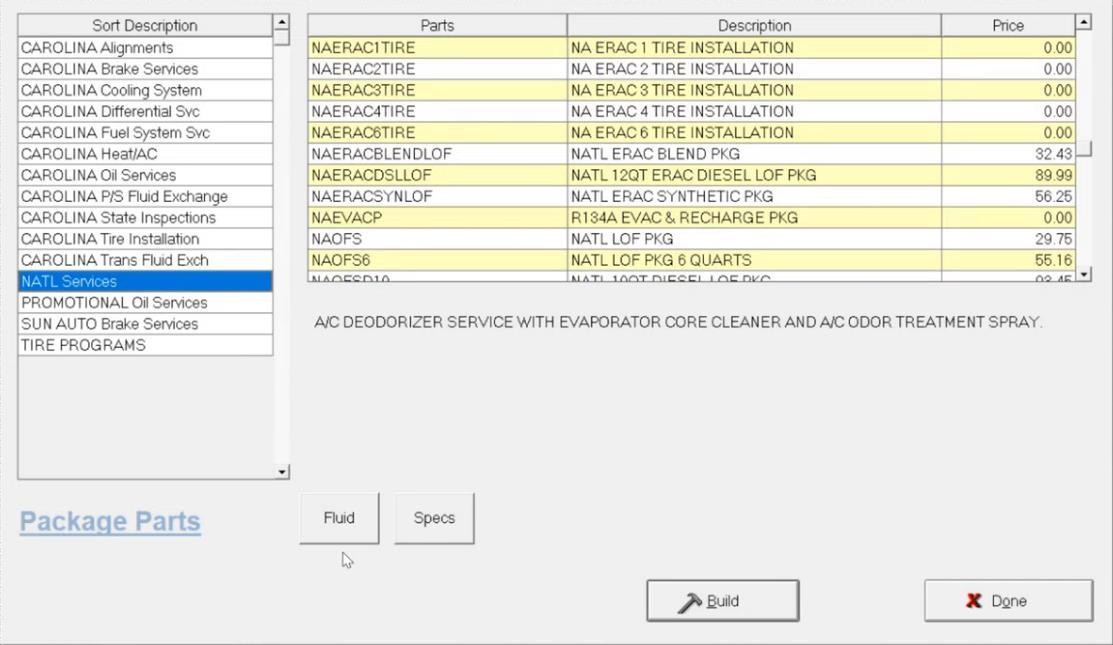 1
NATL Services in Sort Description.
2
The national account packages. ERAC items are for Enterprise Rent-A-Car only.
3
Build.
For an oil change (LOF) that's normally NAOFSSYN6, the 6-quart synthetic. Pick the one the OverDrive RO has.
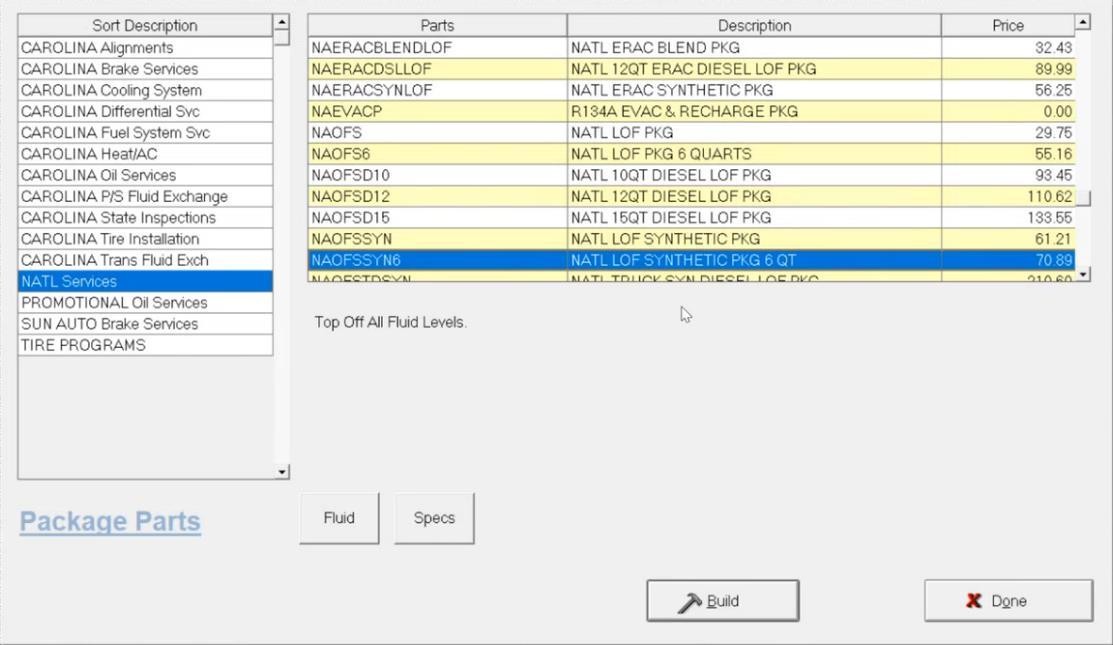 1
NAOFSSYN6: the normal LOF package for most vehicles.
2
Build.
On Package Build, click Build. In vItemBroker, tick the filter (a quantity in yellow means it's in stock). Select the oil, highlight one with an available quantity in Parts Selection and click Select, then pick the oil capacity in Vehicle Options. Back on Package Build, click Build.
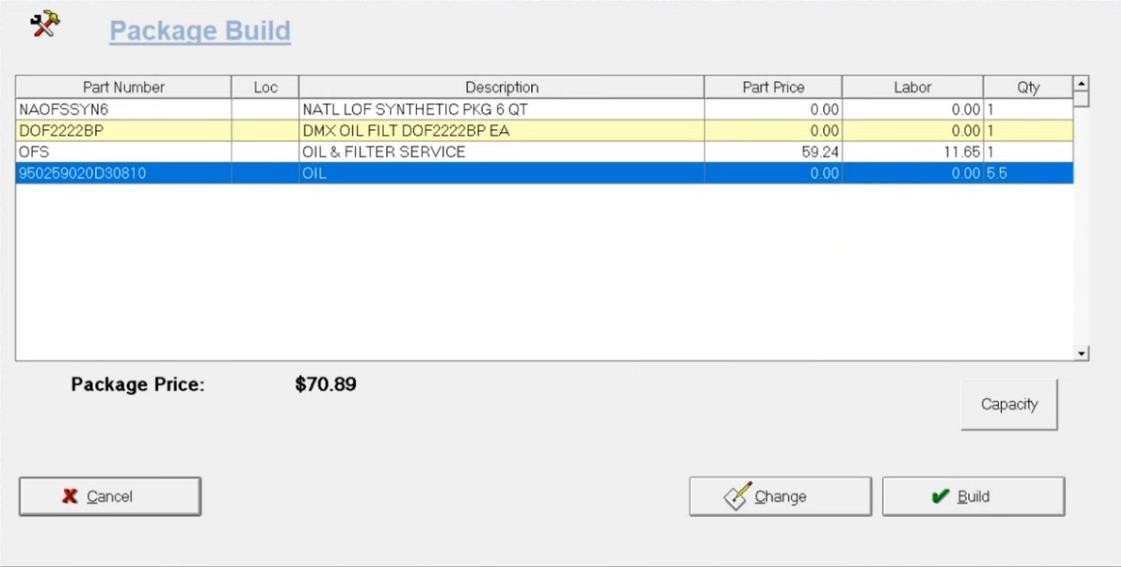 1
The package price. Check it against the OverDrive RO.
2
Build: the package goes on the work order.
Items outside a package (for example a tire rotation, a brake inspection or the oil disposal fee): type NAT in Part Number and press Tab.
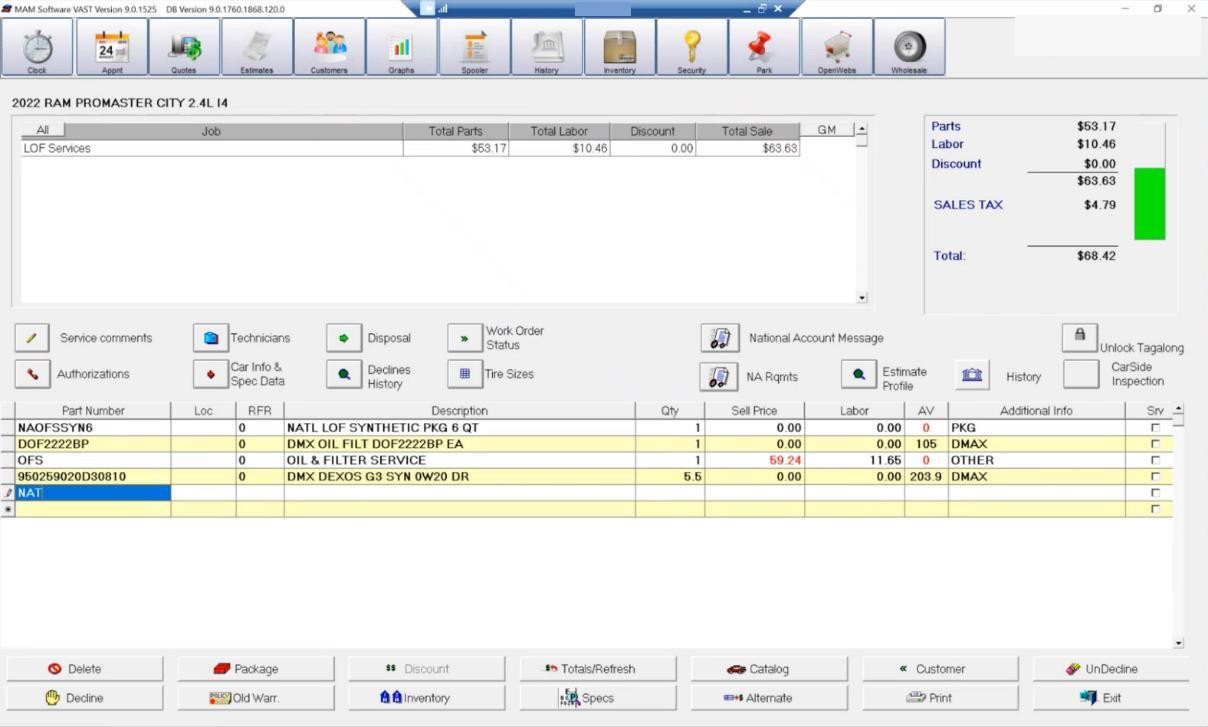 1
NAT in Part Number, then Tab.
2
Package: add another package.
Parts Selection lists every National Account product code by its 9-digit Part Number. Find the code, set the quantity with the buttons at the lower right or type it (for a tire rotation, click 4), then click Select.
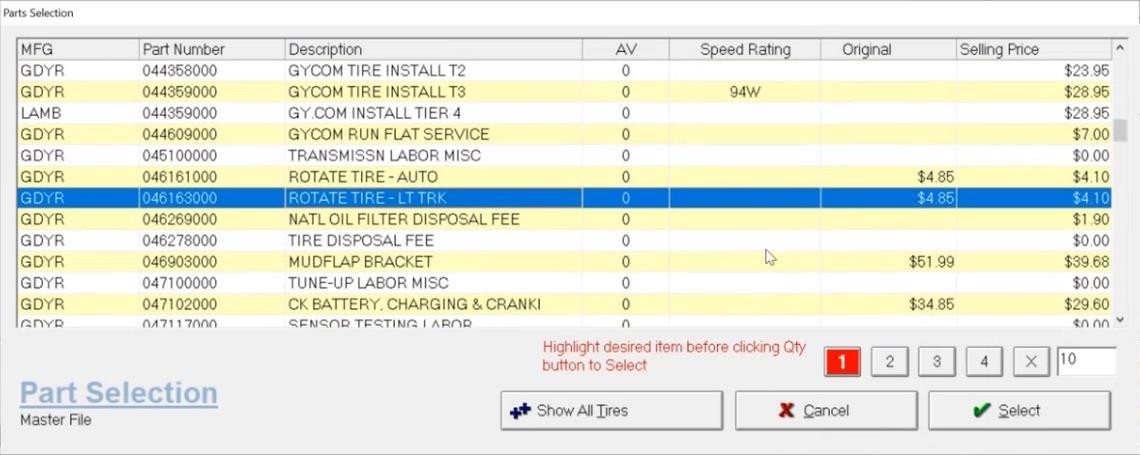 1
The code, here a tire rotation.
2
The quantity: 4 for a rotation.
3
Select.
The oil disposal fee and the tire rotation are on the work order. Repeat for every line on the OverDrive RO.
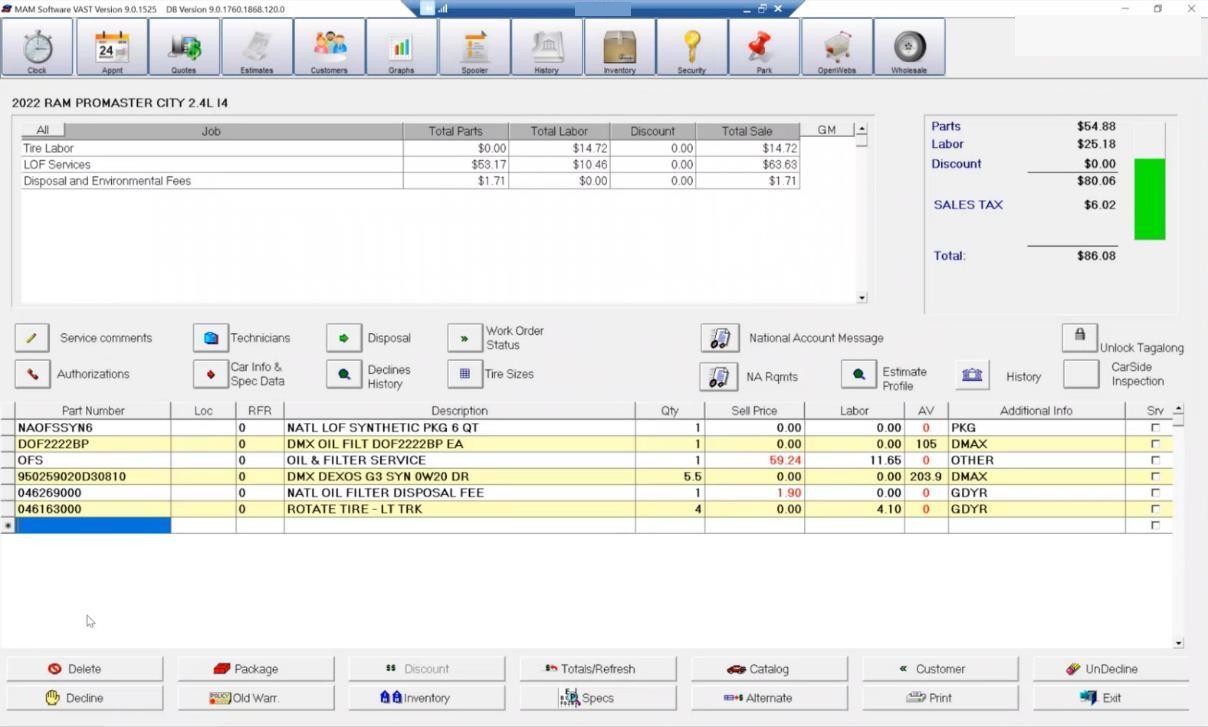 1
The oil disposal fee.
2
The tire rotation.
TPMS relearn. Right-click in Part Number and select VAST Commerce, then Labor. Type a keyword such as Tire Press in the search at the bottom left, select the item, tick the labor line and click Post.
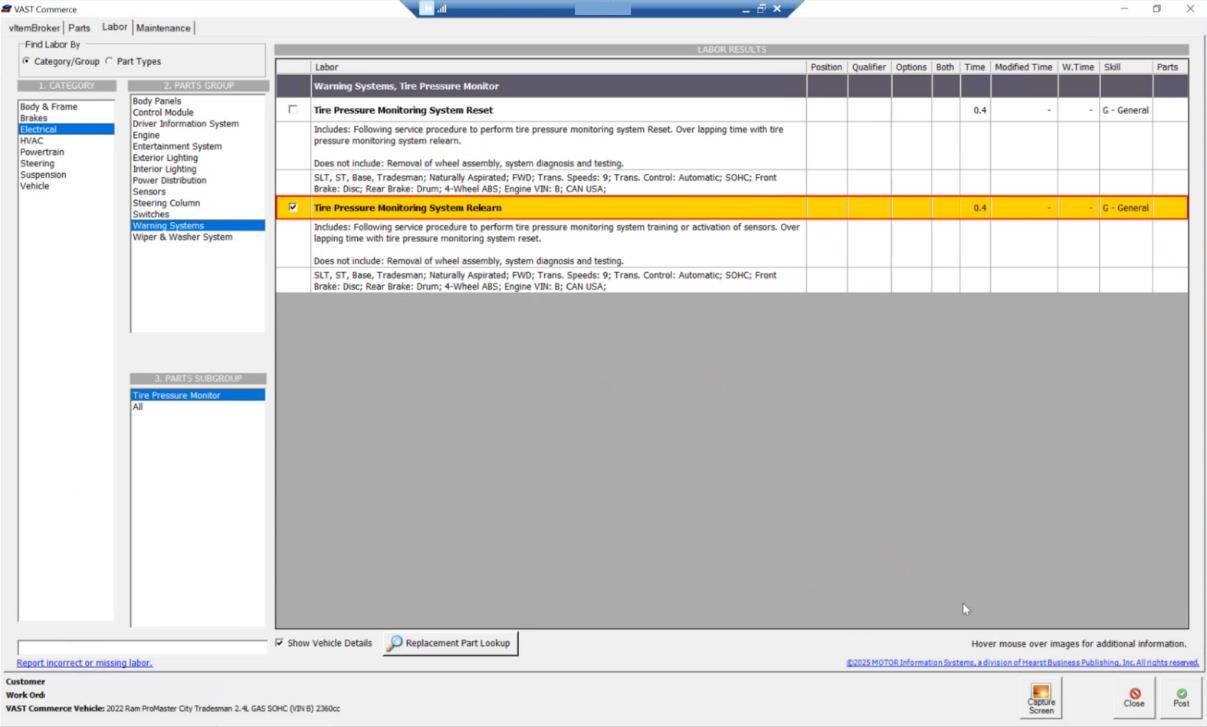 1
Tick the TPMS relearn line.
2
Post.
The relearn labor is on the work order.
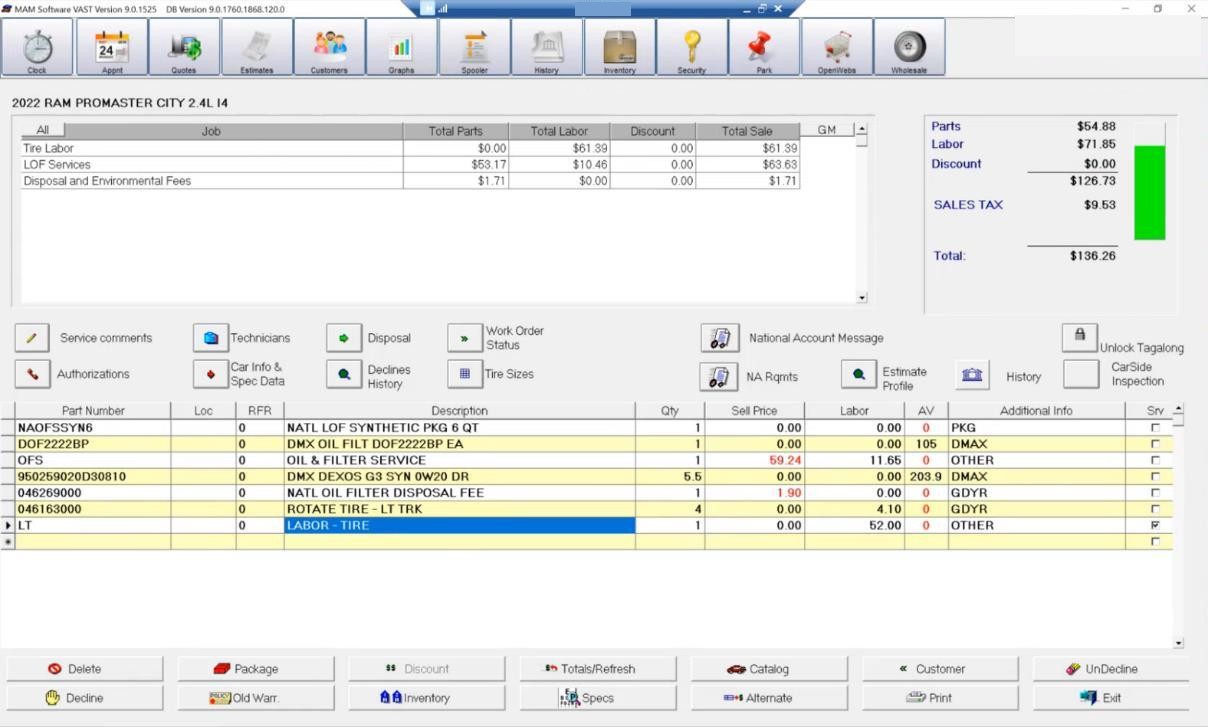 1
The relearn labor on the work order.
Take off the sales tax. Click Customer. Under Taxable, untick Sales Tax if it's ticked, then click Next. VAST won't let you change it when you first enter the customer, so do it now, after the parts and labor.
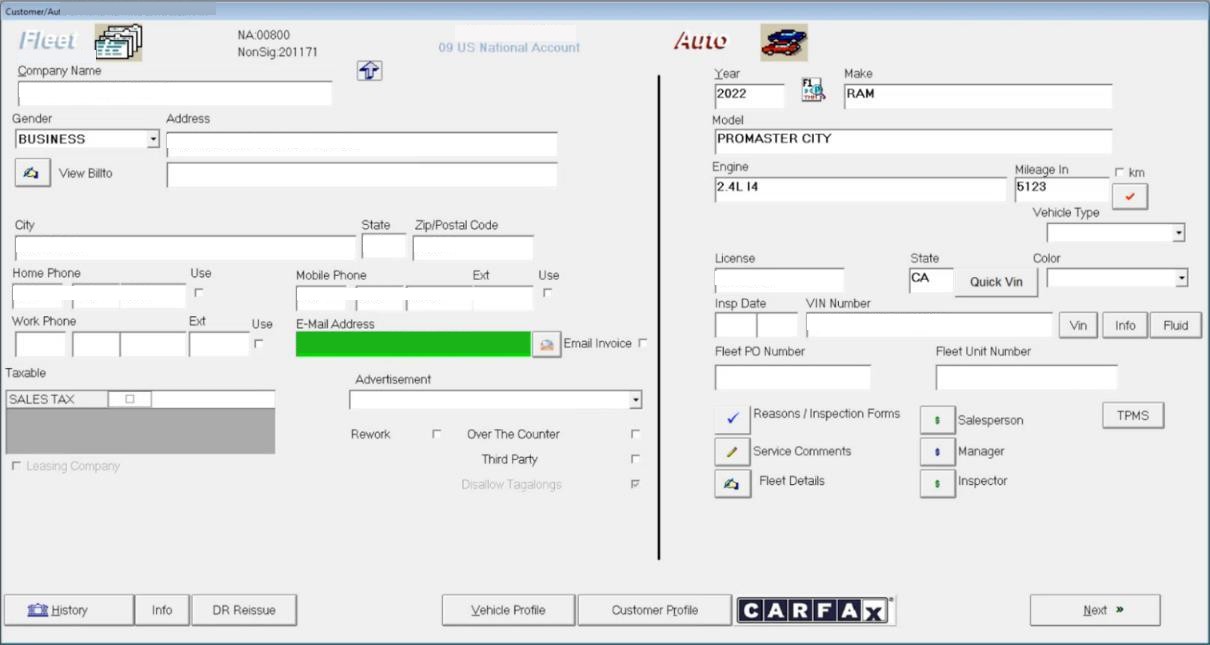 1
Sales Tax under Taxable: untick it.
Check the total. Right-click in Part Number and select Resequence, then click Subtotal Review.
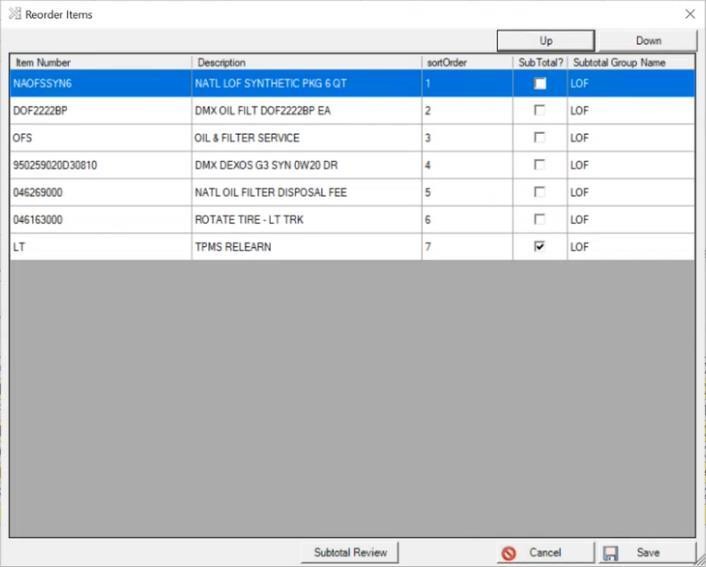 1
Subtotal Review.
Total Parts/Labor/Taxes/Discounts must match the Holman Pending Approval amount or the Auto Integrate Payable Amount exactly. Don't compare with the total at the top right of the Work Order screen. Totals don't match? Go line by line through VAST, the OverDrive RO and the approval. A mismatch can cause a chargeback or a short payment.
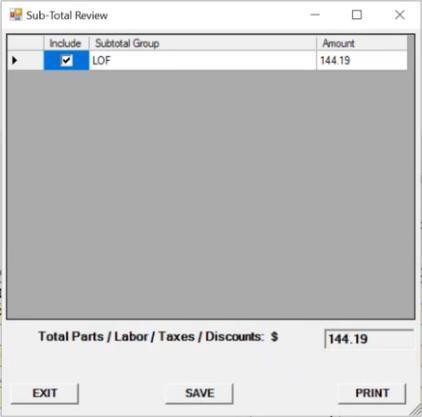 1
The total to match against Holman or Auto Integrate.
Show me how
Fill every field from Holman or Auto Integrate. The fields change with the FMC. Hover over a requirement to see the format (mask) it expects.
- No blanks. A field you have no information for, or that isn't needed (for example Credit Card Limit): type APC PROGRAM for Holman or AI APPROVED for Auto Integrate.
- The PO number (Holman) is the one Holman shows under Approved for Service on the Holman Home screen (see the statuses slide in Goodyear National Account Jobs (Store), step 5).
- Reserved for RO – FBI (Auto Integrate): fill it from the Auto Integrate repair order.
- Print Delivery Receipt is required on every job, even though the driver isn't there.
Click Exit on the Work Order screen, then Print Delivery Receipt.
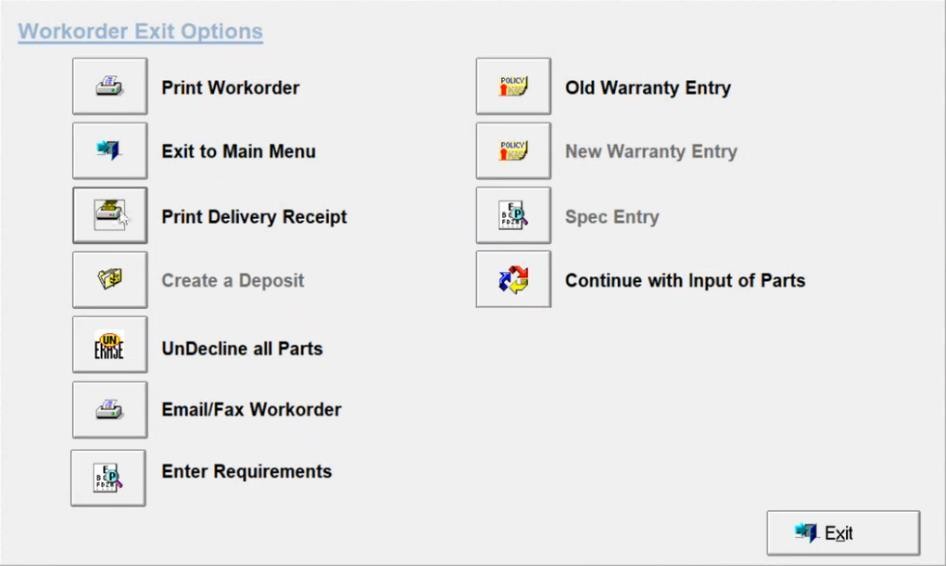 1
Print Delivery Receipt.
A warning says the NA Requirements must be completed. Anything else the work order needs is listed here too. Click Go next to each warning.
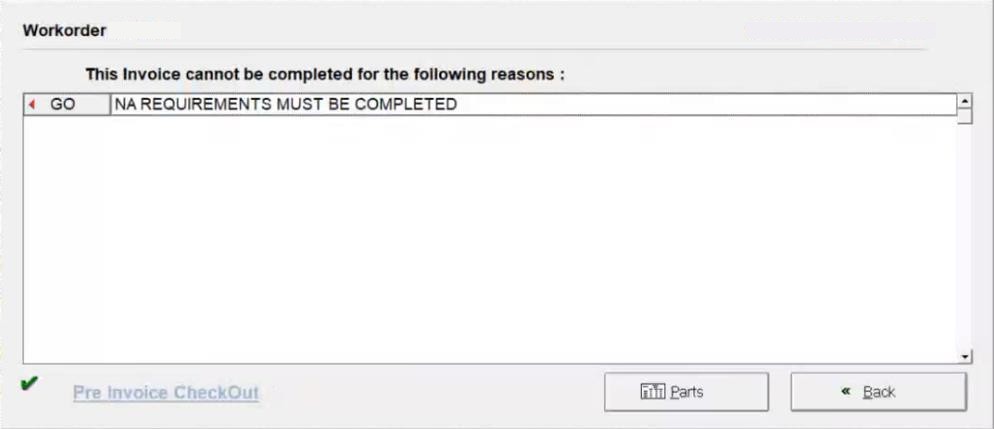 1
Go: open the NA Requirements.
Type a response next to every requirement, from Holman or Auto Integrate, following the rules above. No blanks, never "N/A". Click Save.
1
The Response column: one answer per requirement, from Holman or Auto Integrate.
2
Save.
Show me how
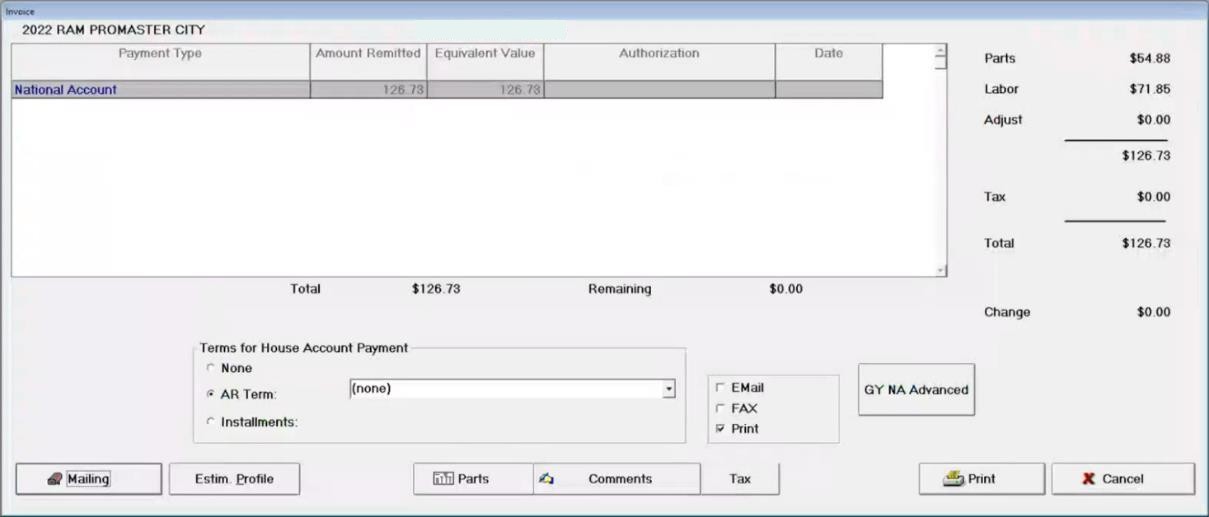
The Invoice screen opens after you save the NA Requirements. National Account is the payment type and can't be changed. Click Print. Completing the invoice with National Account and printing it is what closes it to the Goodyear integration.
 1
National Account: the payment type.
2
Print.
- Central AR runs the daily TireHQ upload that sends the VAST invoice to Goodyear. See National Accounts.
Good to know
- Close the RO in OverDrive with Payment Type Balance, the same as a House account. Closing is covered in Closing a Repair Order.
- Mark the job complete in the FMC's system and enter the VAST invoice number from step 6 where it's asked for:
- Holman: choose Mark Complete (or the similarly named option). Change Your reference # from the OverDrive RO number to the VAST invoice number.
- Auto Integrate: mark the repair order complete. Enter the VAST invoice number in the Invoice Number field the store left blank.
If it goes wrong
- The OverDrive RO and Holman or Auto Integrate don't match. Go line by line through both (step 1).
- The VAST total doesn't match Holman or Auto Integrate. Compare the Subtotal Review total, not the total at the top right of the Work Order screen, then go line by line (step 4).
- The company isn't listed in the VAST NA Name search. NA history isn't shared between stores. Add it with Add New (step 3).
- VAST says NA REQUIREMENTS MUST BE VIEWED or MUST BE COMPLETED. Click Go next to the warning (steps 3 and 5).
- The dummy stocked item for an outside purchase is missing. Load the dummy inventory in VAST, then re-key and alert Retail Systems as usual (step 4).
- The job is an engine replacement, engine teardown or transmission replacement. It isn't billed to Goodyear and isn't Type 9. Don't re-key it to the Goodyear National Account. Report it.
- The RO was already closed by the store. Don't reopen it and re-invoice it. Report it.
- A credit or re-bill looks necessary. Submit it to IT. See National Accounts.
- No Tire-HQ credentials for the Dealer Portal price book. Contact the Sun Auto Help Desk.
Related
- Goodyear National Account Jobs (Store) — what the store did the day before.
- Top Codes — the codes stores use most, with the VAST part number in the oil change picker.
- All Codes — every code in the price book.
- National Accounts — the full Type 9 process, including the accounting steps after the close-out.
- Goodyear National Accounts — everything for National Accounts.