Searching for Existing Customers
Always search before you create. Duplicate records split a vehicle's history and make returns, refunds, and loyalty a mess.
When to search
Every time. Walk-in, phone call, "I think I've been here before" — search first, create only if there's no match.
Two ways to search
OverDrive gives you two search tools. Use whichever is faster in the moment:
| Where | Search by | Best for | |
|---|---|---|---|
| Quick search | The bar at the top of every screen | Name or license plate | A fast lookup without leaving what you're doing |
| Customer List | Customers → Customer List | Name, phone, or e-mail | Scanning results, or searching by phone/e-mail |
Quick search — from any screen
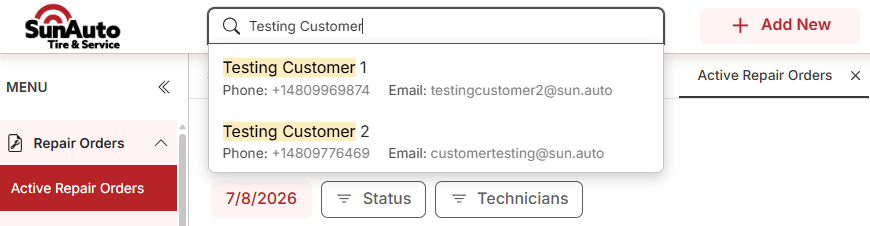
The search bar sits at the top of every screen, so you never have to navigate away to find someone.

Start typing a name or license plate and matches appear instantly below. Each result shows the customer's phone and e-mail, so you can tell two similar names apart at a glance. Click the right one to jump straight to their record.
Customer List — the full, filterable list
For a fuller view — or to search by phone or e-mail — go to Customers → Customer List.
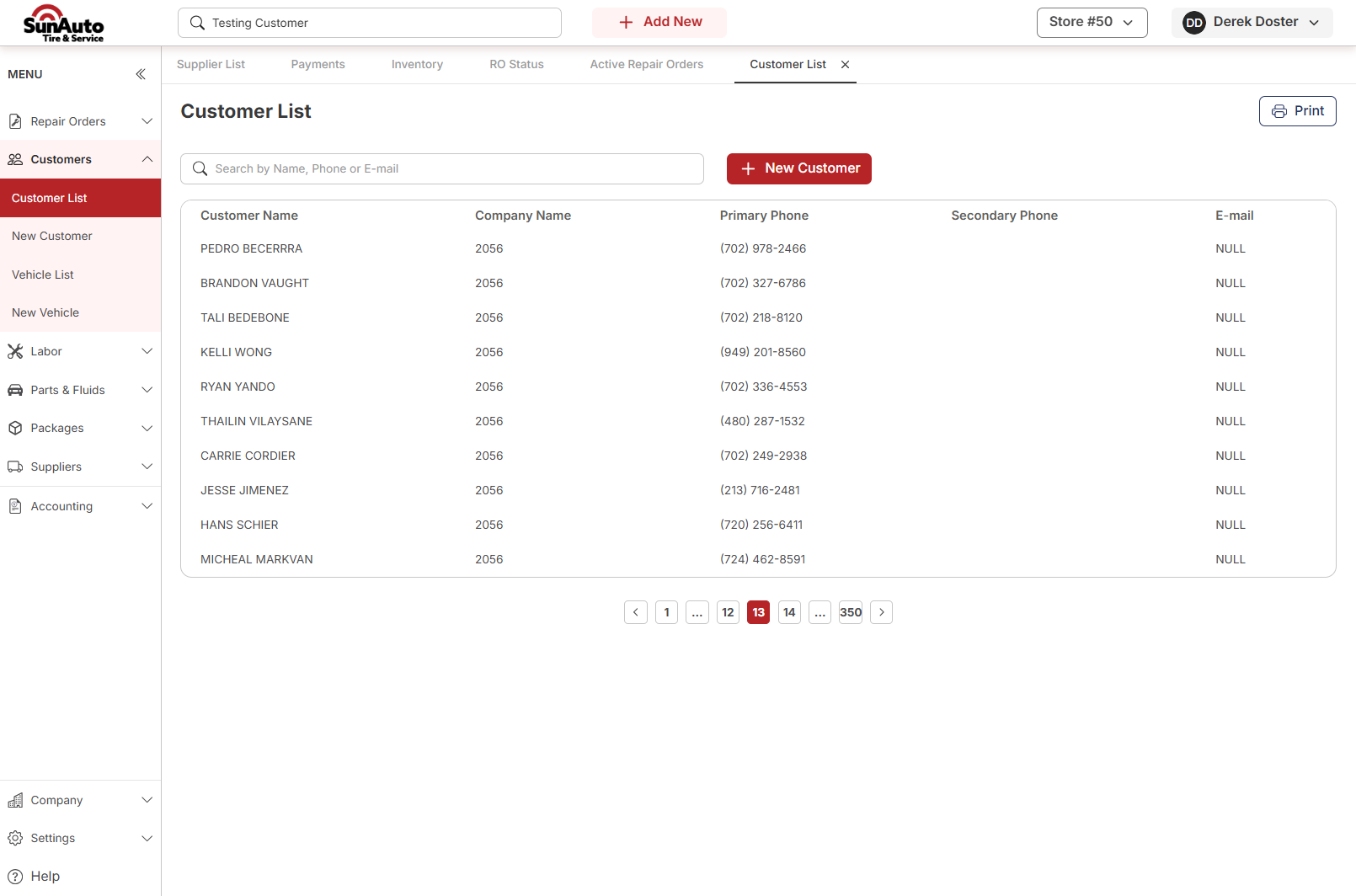
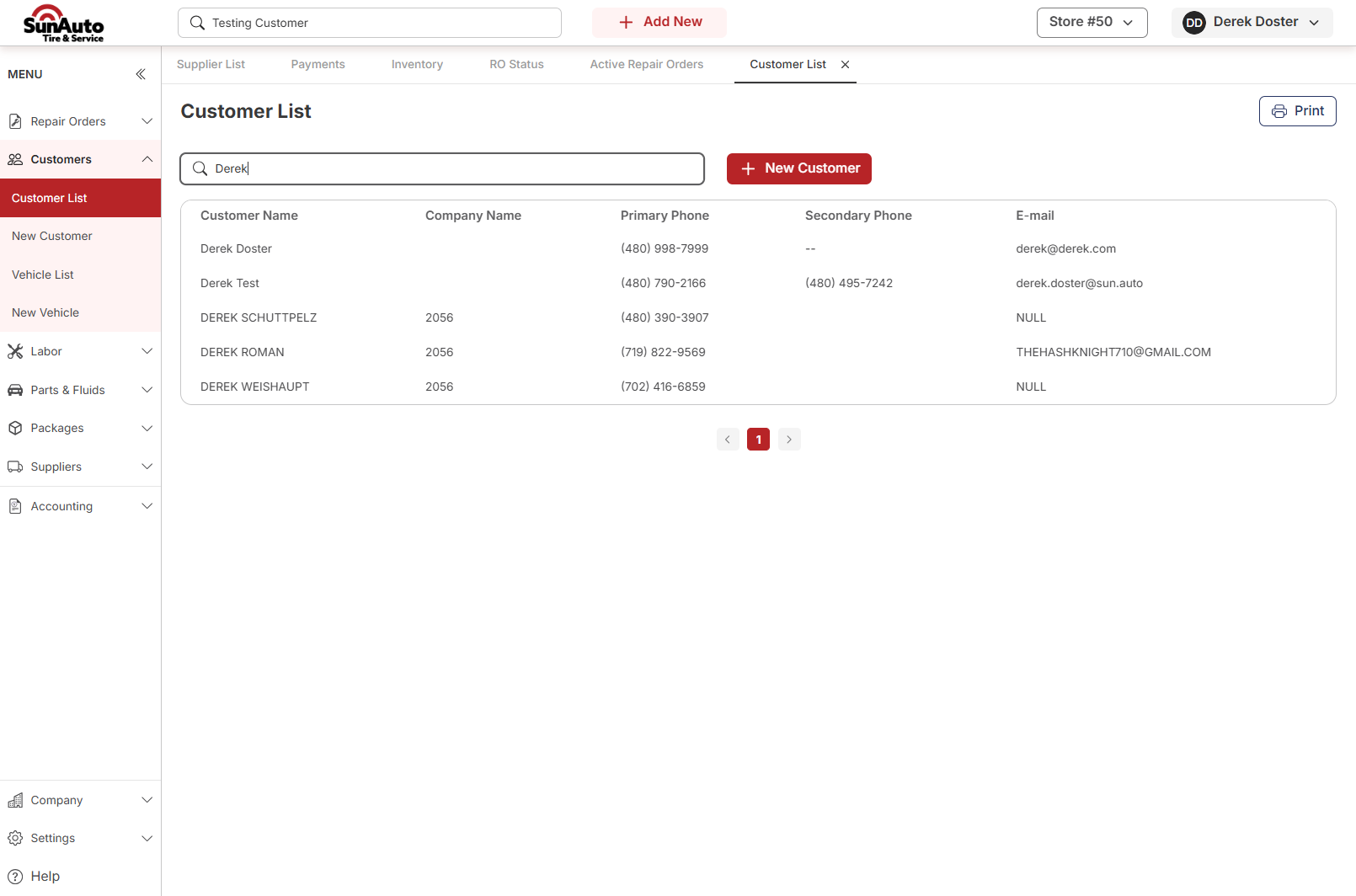
Type into Search by Name, Phone or E-mail and the list filters as you go. Here's a search for "Derek":
Reading the results
Each row gives you enough to confirm you've got the right person before you open their record:
- Customer Name and Company Name
- Primary and Secondary Phone
Match on more than the name — phone or e-mail confirms it's really them, not a namesake.
A few tips
- Phone is the cleanest match — it's usually unique to one person.
- Try variations — "Bob" vs. "Robert," with and without hyphens.
- Check the vehicle, not just the name — they may be on a spouse's record.
- If you spot a likely duplicate, don't create a new one — merge the two records so the history ends up in one place.
If there's no match
The customer really is new. Head to Creating a Retail Customer (or one of the other types if they qualify).
Watch the flow
Searching, start to finish: